
Getting started
Create your workspace, meet your assistant, and learn the five areas you will actually use. Five short steps, then your first meeting.
Create your account and sign in
- Open app.jarv-ish.com in Chrome or Edge — the built-in meeting room and background effects work best there.
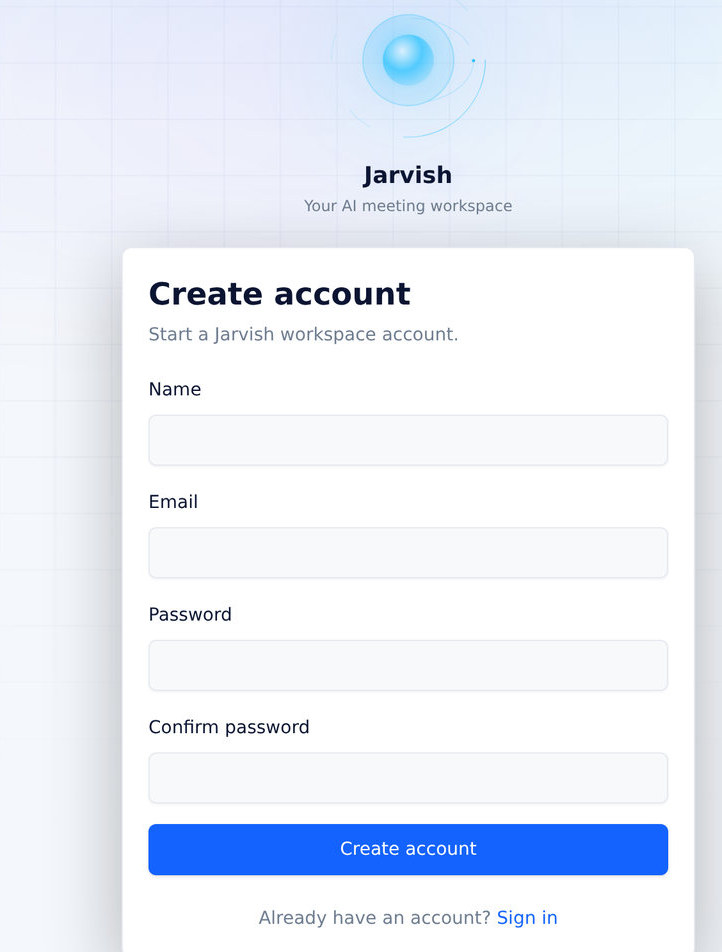
- Click Create account, enter your name, email and a password, and confirm it.
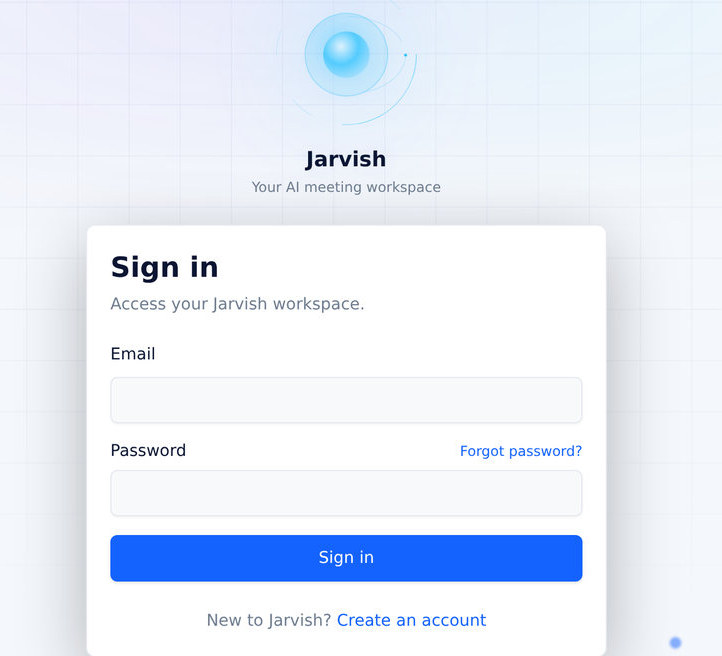
- Sign in with the same email and password. If your company bought a plan, the plan is matched to your email automatically — no code to enter.
The welcome flow (first sign-in only)
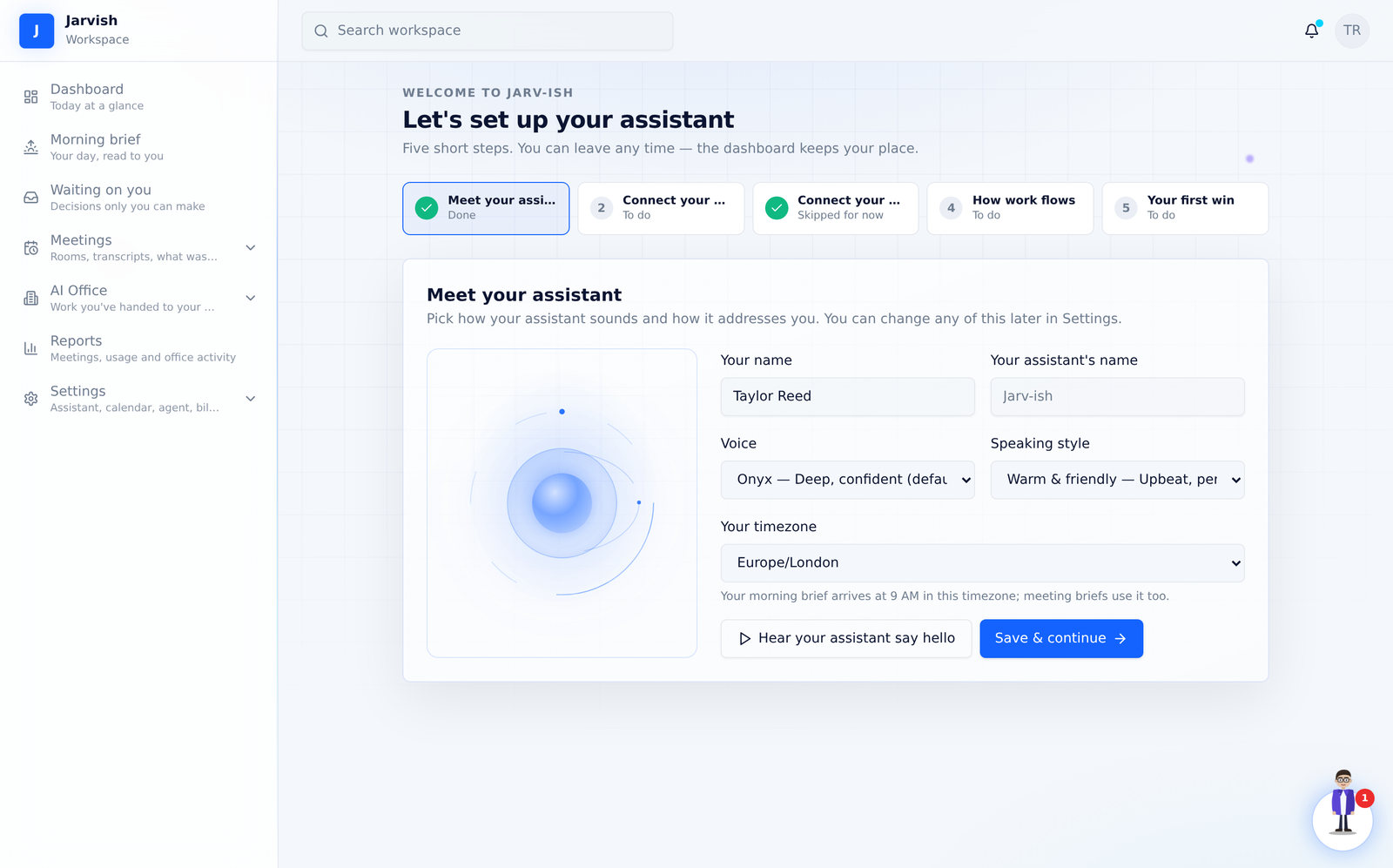
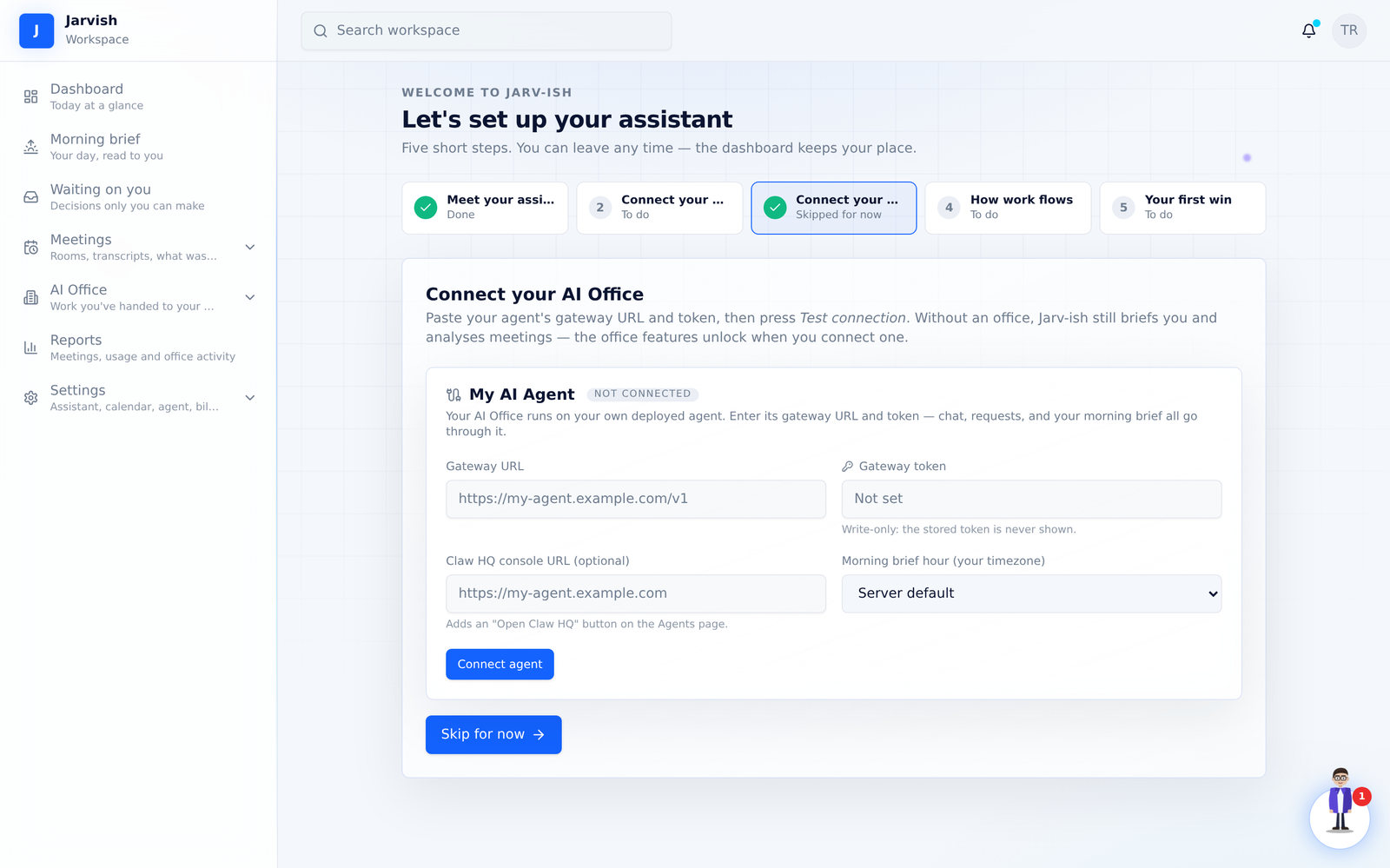
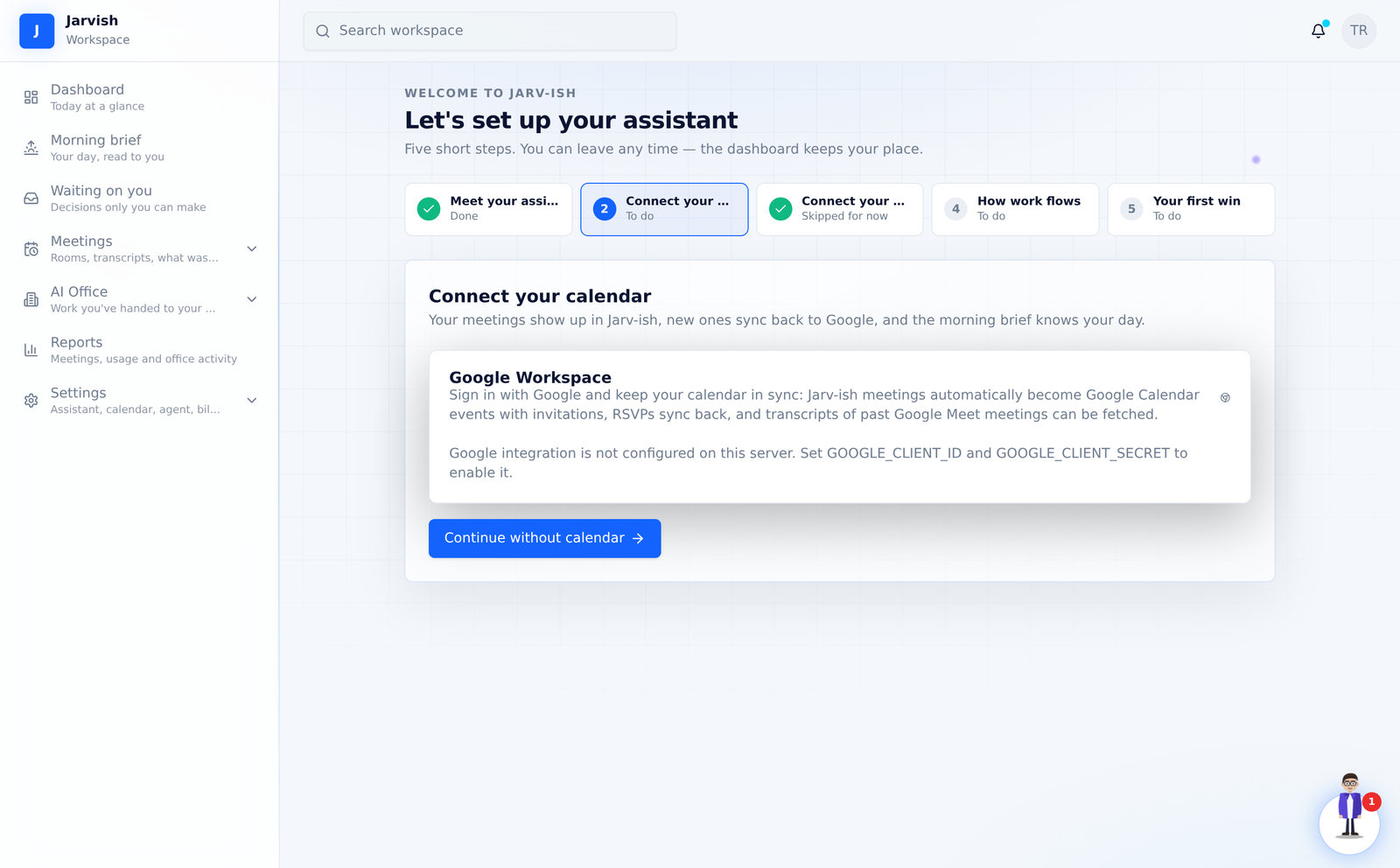
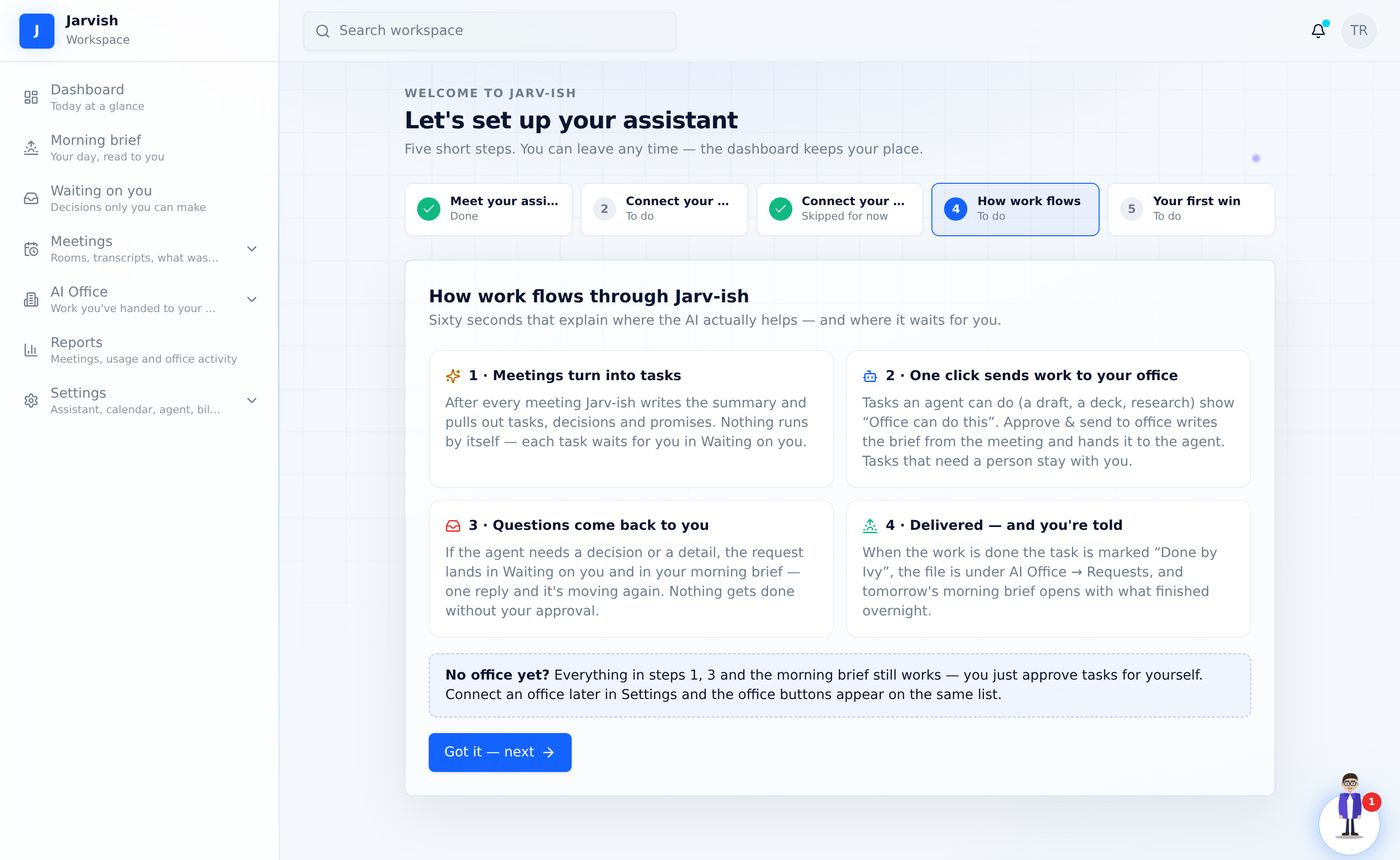
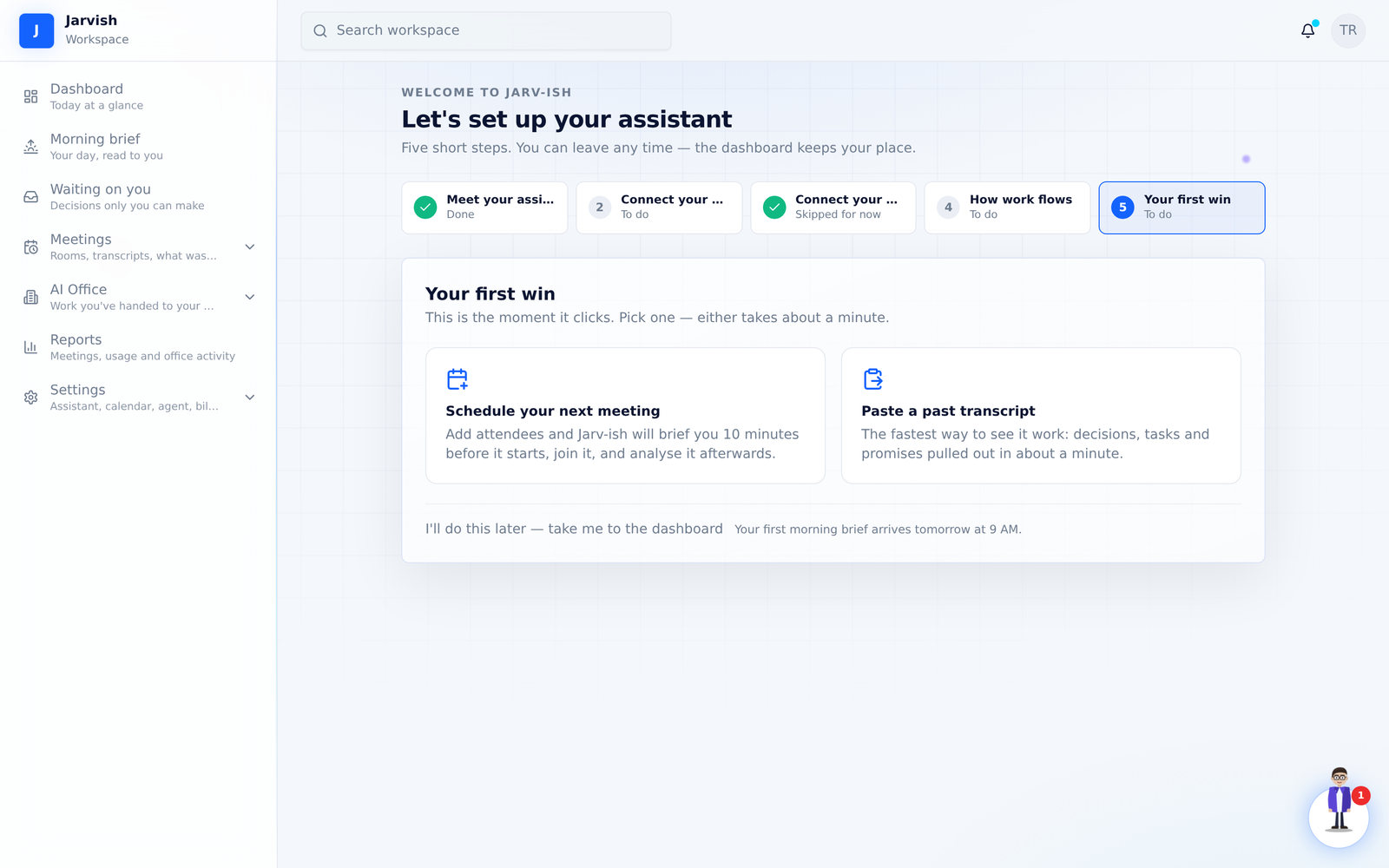
The first time you sign in, Jarv-ish walks you through five short steps. You can leave at any time — the dashboard keeps a Getting-started card until every step is done or dismissed.
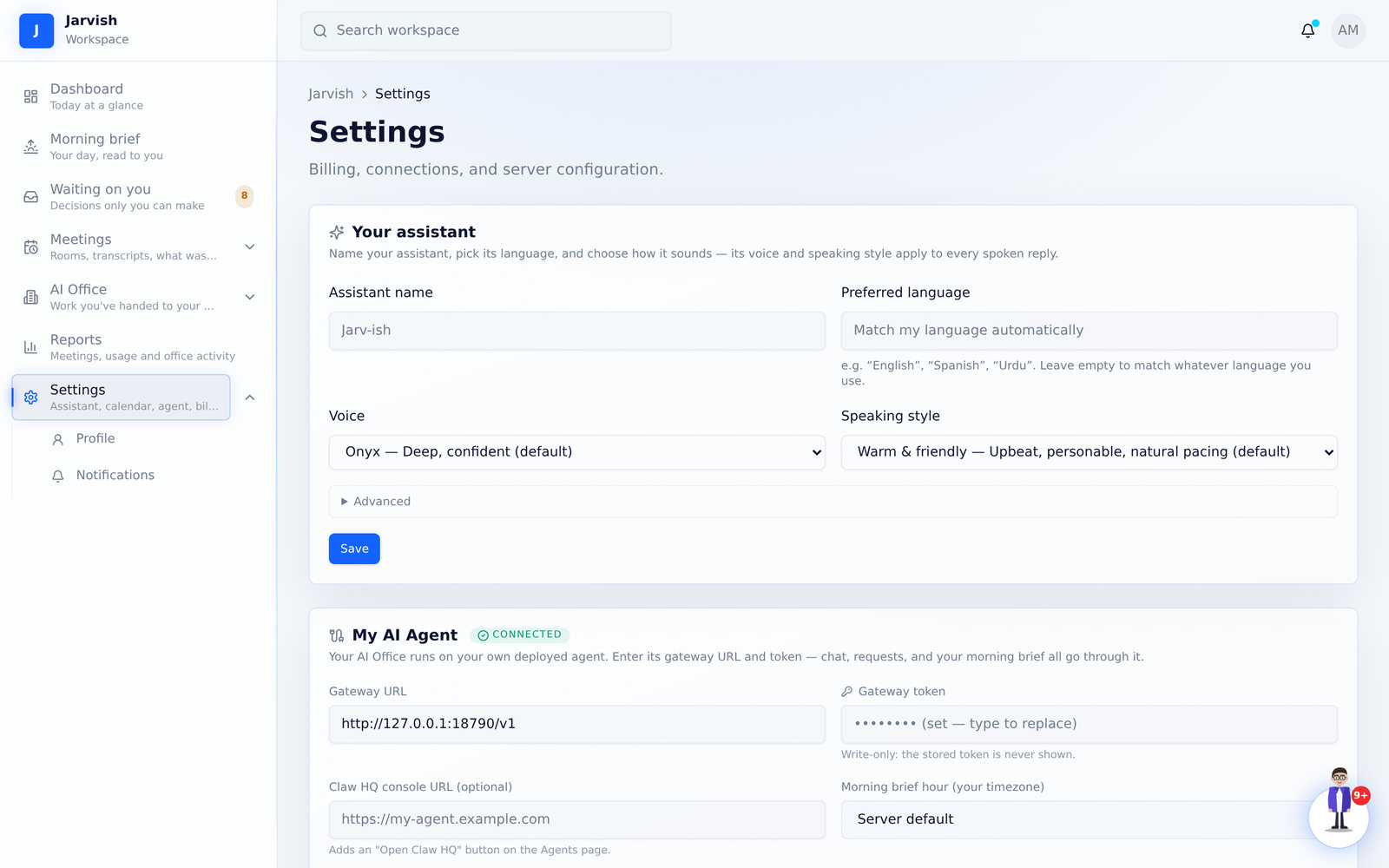
- Meet your assistant — give it a name, pick the language it speaks, its voice and its speaking style. Press “Hear your assistant say hello” to test it. This is the voice every brief is read in, and the name you say to it in a meeting.
- Connect your calendar — sign in with Google and your Jarv-ish meetings become Google Calendar events with invitations, RSVPs sync back, and the morning brief knows your day. You can skip this and connect later in Settings.
- Connect your AI Office — paste your agent’s gateway URL and token, then press Test connection. Without an office Jarv-ish still runs, briefs and analyses meetings; the office features unlock when you connect one.
- How work flows — a sixty-second tour of where the AI helps and where it waits for you: meetings turn into tasks, one click sends office-sized tasks to your office, questions come back to you in Waiting on you, delivered work is marked “Done by” the agent.
- Your first win — schedule your next meeting (Jarv-ish briefs you before it) or paste a past transcript (Jarv-ish analyses it in about a minute).
The dashboard
Your home page: a greeting with the day, four counters (total meetings, upcoming, pending tasks, completed), quick actions, the Instant Meeting button, the executive section (your day and what needs you), and lists of upcoming and recently processed meetings, recent tasks and any processing failures.
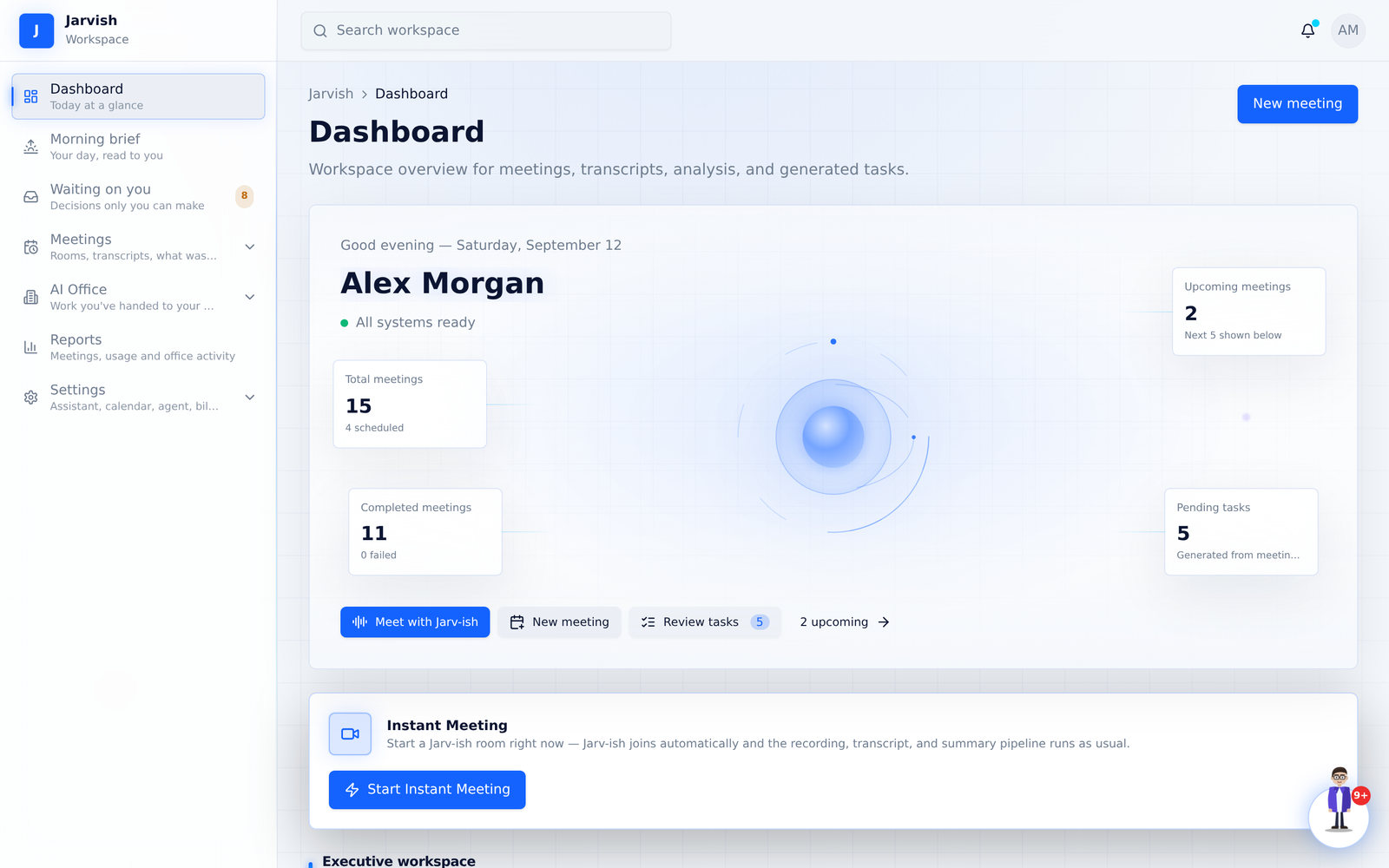
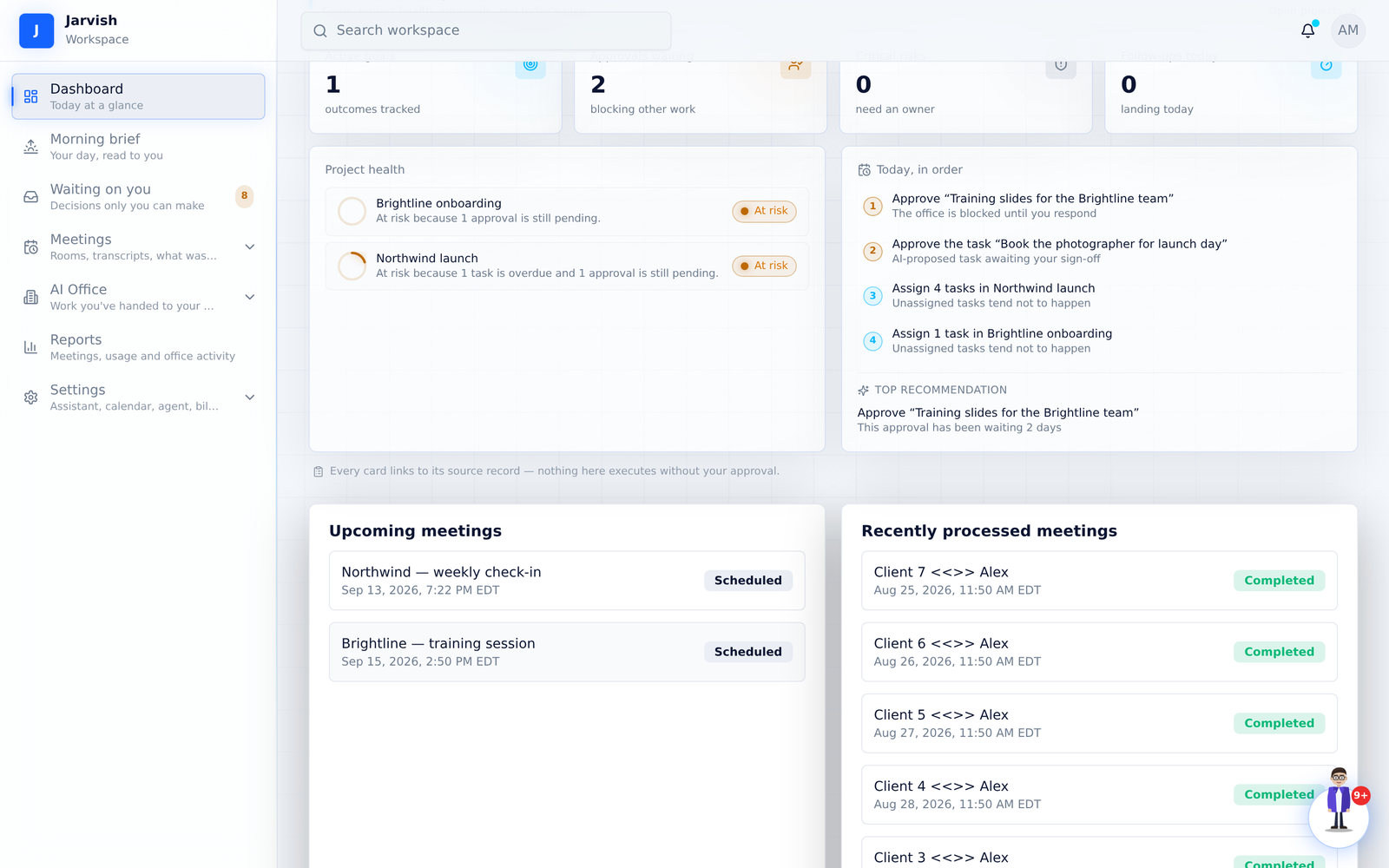
- Start Instant Meeting opens a Jarv-ish room right now — recording, transcript and summary run as usual.
- New meeting opens the scheduling form (chapter 2).
- Click any meeting to open its page; click a task to open it on the Tasks page.
Finding your way around
The sidebar lists every area with a one-line description. Hover an item for the same description as a tooltip.
| Dashboard | Today at a glance. |
|---|---|
| Morning brief | Your day, read to you — what’s waiting, what your office can take, your meetings, projects and goals. |
| Waiting on you | Decisions only you can make: task approvals, office questions, reschedule requests, plan sign-offs. The badge counts them. |
| Meetings → Promises | Rooms, transcripts and analysis. Promises: who owes what, per person, across every meeting. |
| AI Office → Talk to your office, Tasks, Projects, Goals, Agents | Work you’ve handed to your agents, and the conversation you have with them. |
| Reports | Meetings per week, status, AI usage and office token usage. |
| Settings → Profile, Notifications | Assistant, calendar, agent, appearance, billing; your profile and password; notification history. |
Meetings and the built-in room
Schedule a meeting, run it in Jarv-ish (or bring a Google Meet transcript), and get decisions, tasks, risks and promises out of it without taking a note.
Create a meeting
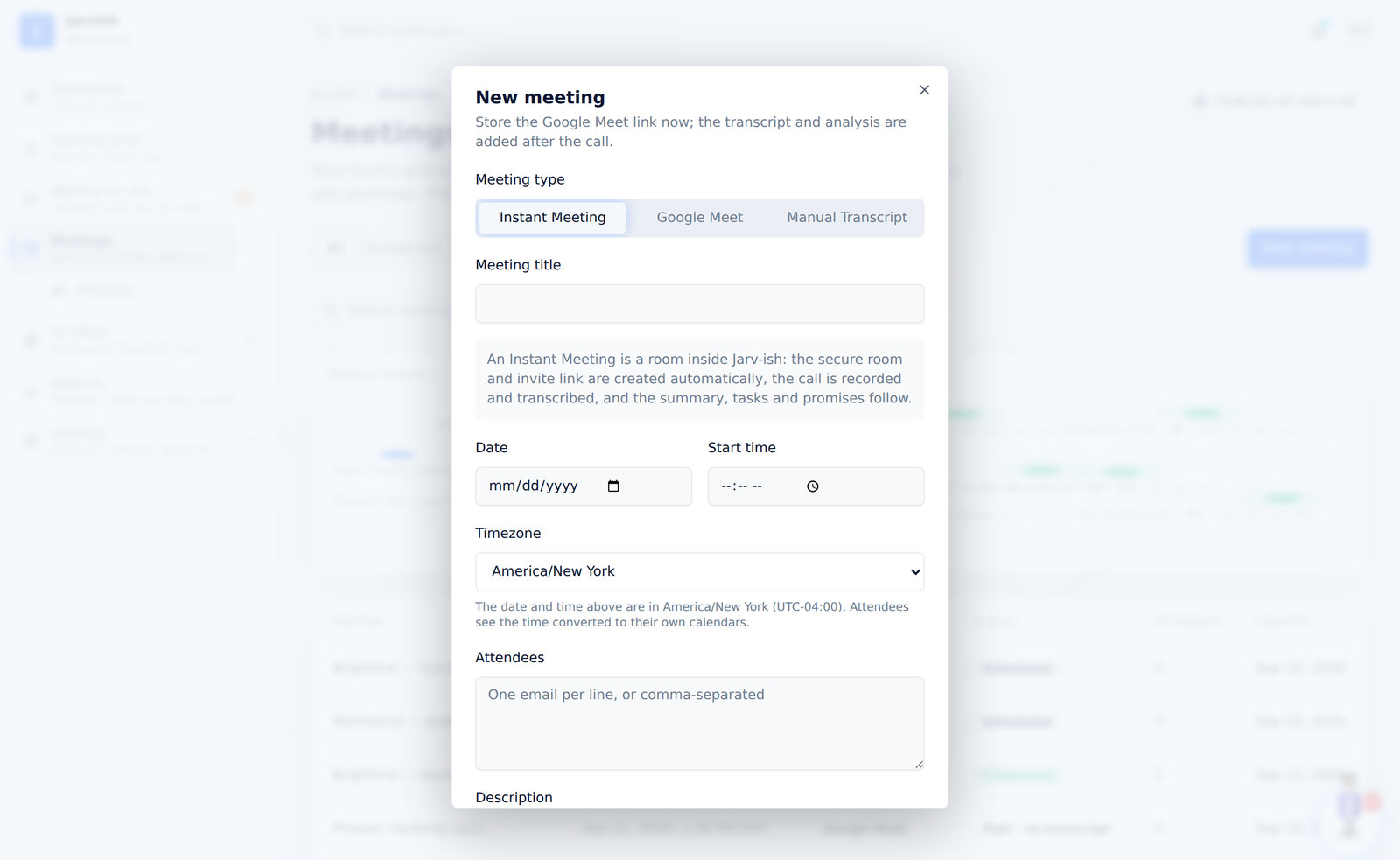
- Go to Meetings and click New meeting.
- Choose the type: Instant Meeting (a room inside Jarv-ish with recording and a join link — the same room the dashboard button starts right now), Google Meet (Jarv-ish fetches the transcript afterwards), or Manual Transcript (you paste the text later).
- Enter the title, date, start time and timezone. The timezone defaults to your profile; the time is stored in that zone and shown to every attendee in theirs.
- Add attendees — one email per line, or comma-separated. Each gets an invitation with the join link, a “Join by phone” line and a “Can’t make this time? Propose another” link.
- Optionally add a description and instructions for the analysis (for example “focus on pricing decisions”).
- Click Create. If Google Calendar is connected, the event is created there too and Google sends its own invitations.
The meetings list
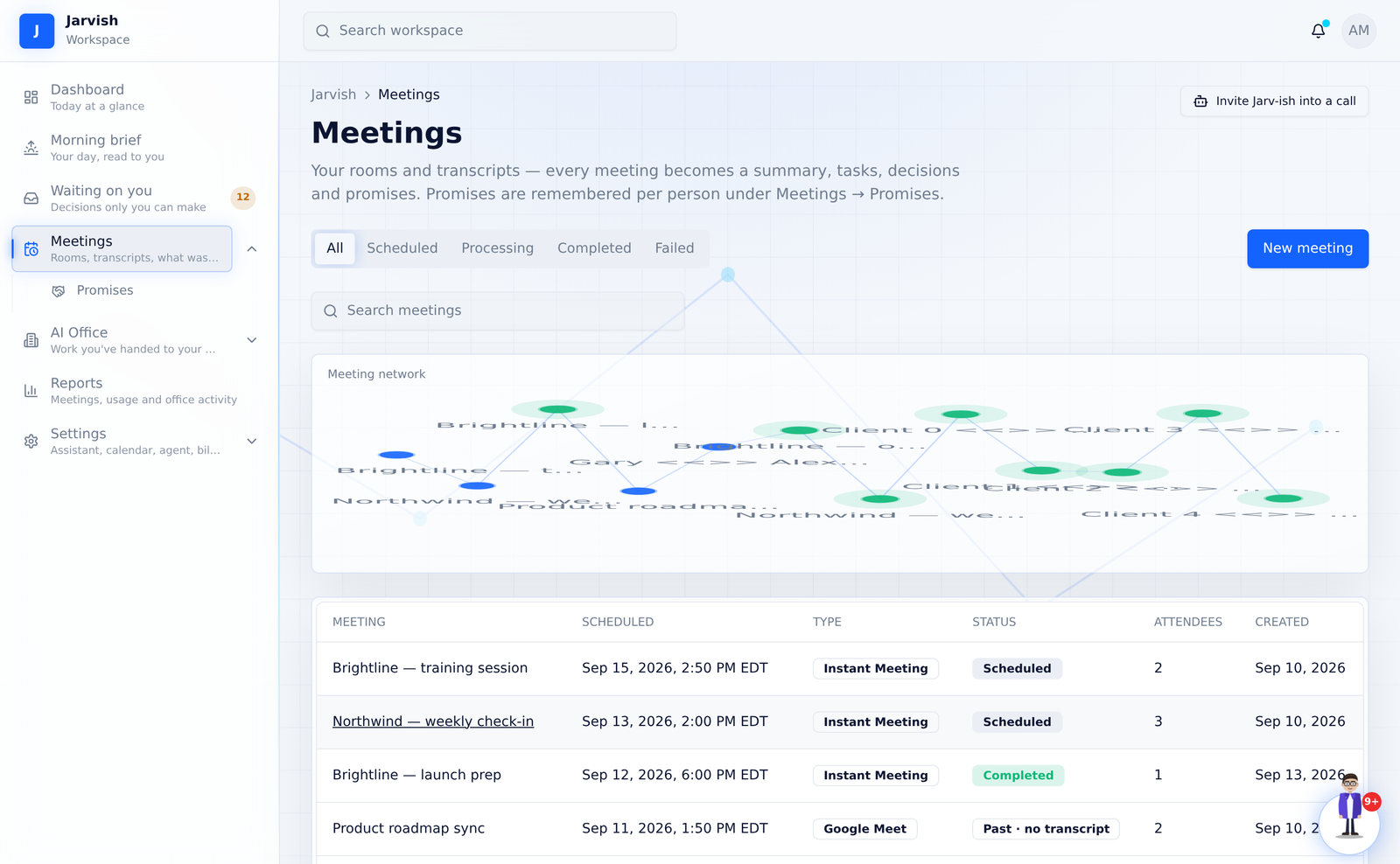
Every meeting with its scheduled time (in the meeting’s timezone, with the zone label), type, status, attendee count and creation date. Filter by All / Scheduled / Processing / Completed / Failed, or search. The meeting network above the table shows who you meet about what; past meetings that never happened show “Past · no transcript” instead of “Scheduled”.
The meeting page
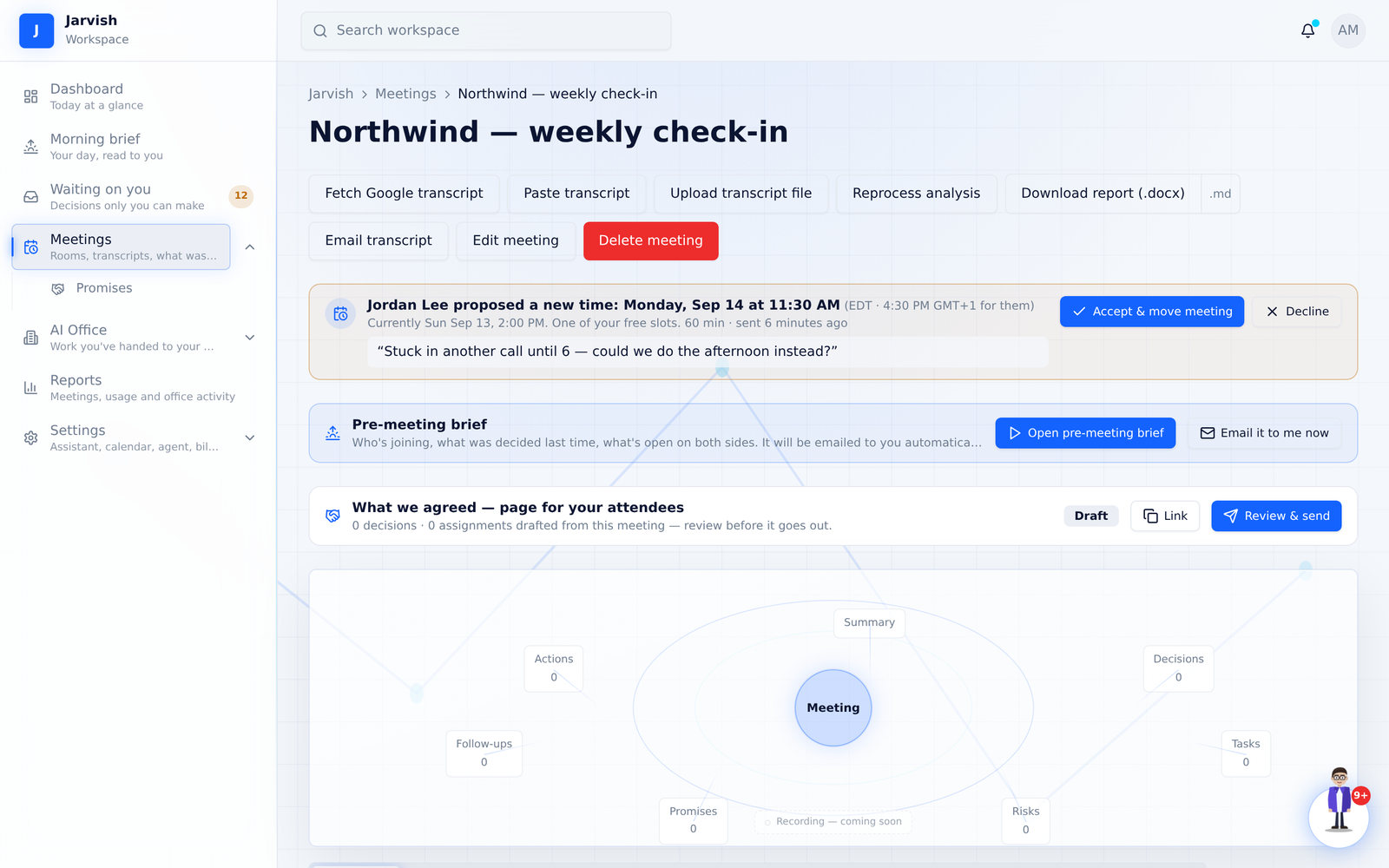
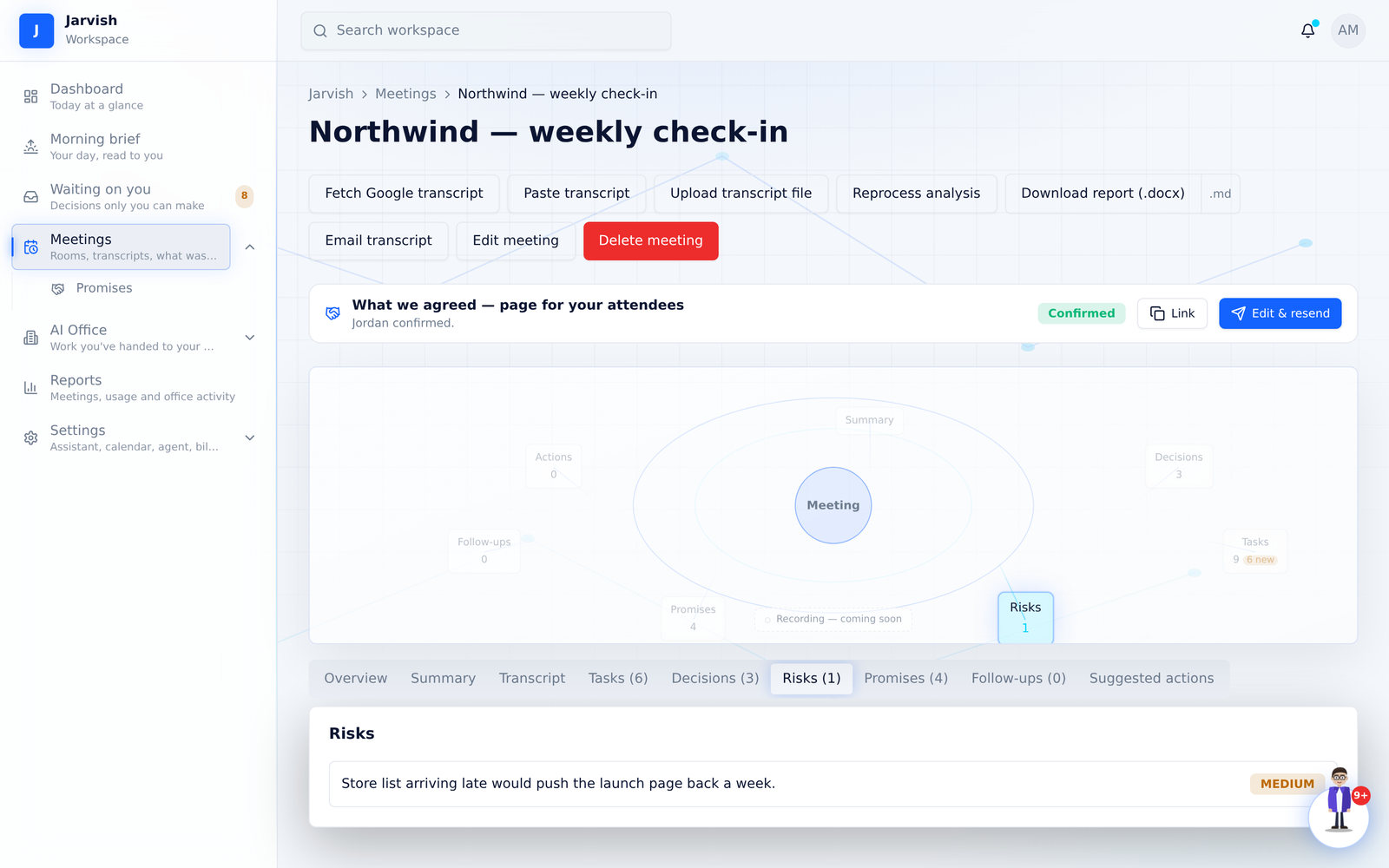
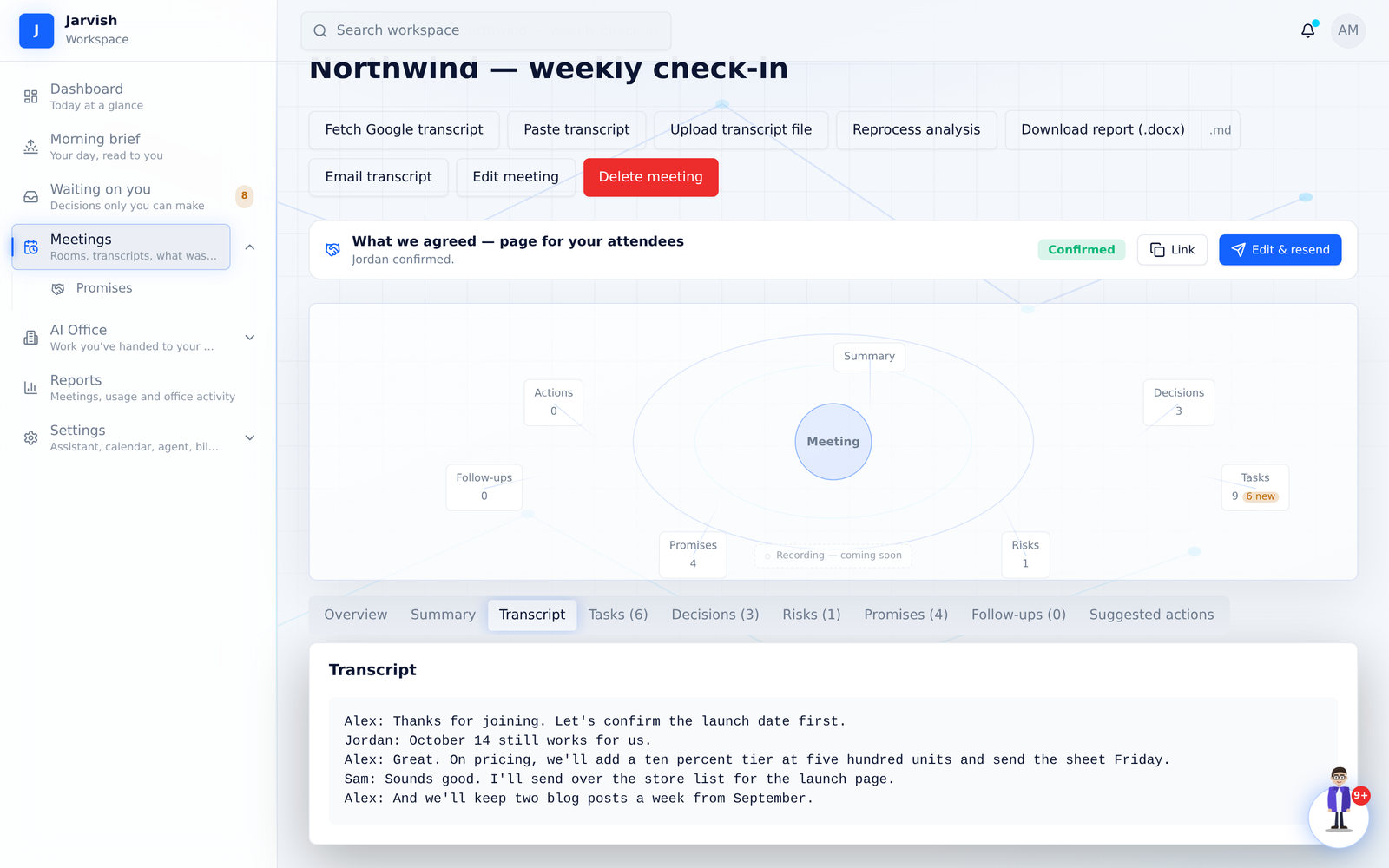
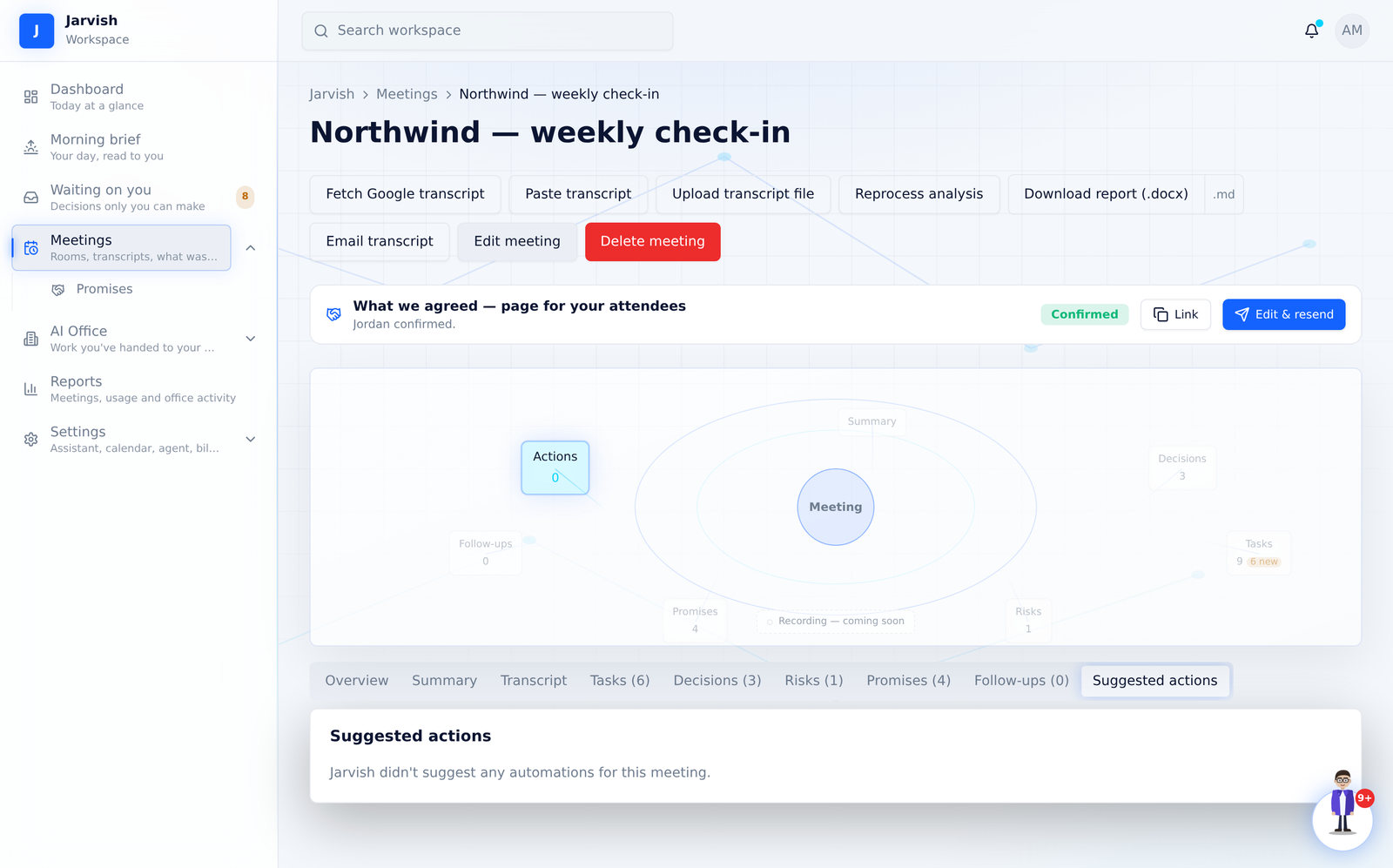
Open any meeting to see its page. The top has the action bar (Fetch Google transcript, Paste transcript, Upload transcript file, Reprocess analysis, Download report (.docx), Email transcript, Edit meeting, Delete meeting), then the cards that apply: the pre-meeting brief strip for upcoming meetings, the Instant Meeting card with Join and Copy meeting link, any proposals to reschedule, the “What we agreed” recap card, and the analysis tabs.
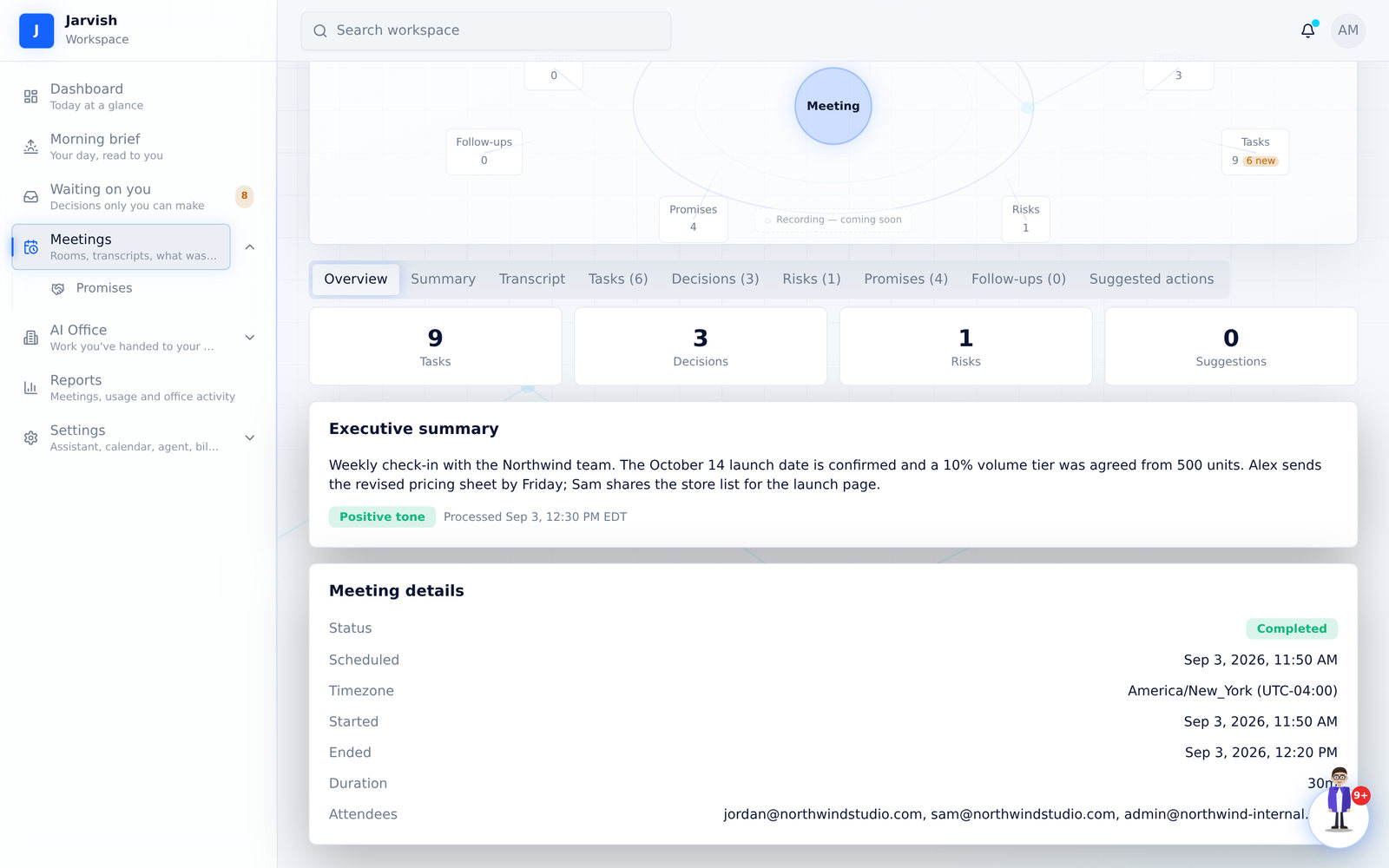
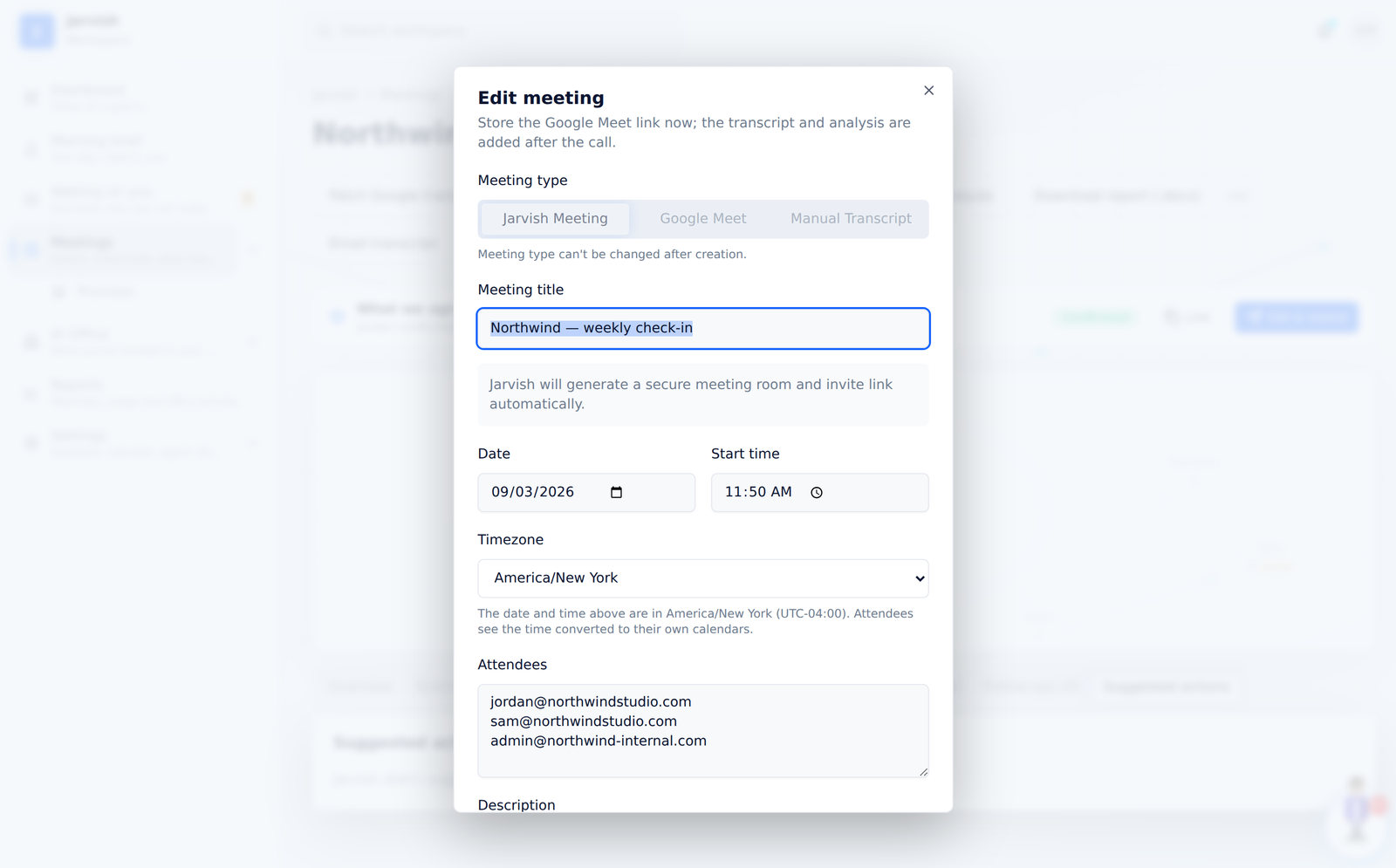
- Edit meeting changes title, date, time, timezone, attendees, description and instructions. Changing the time re-sends invitations with an updated calendar file and updates the Google Calendar event.
- Delete meeting removes it. Cancelling sends a cancellation to attendees and cancels the Google event.
Join an Instant Meeting
- Click Join Instant Meeting on the meeting page (or Start Instant Meeting on the dashboard to open a room right now).
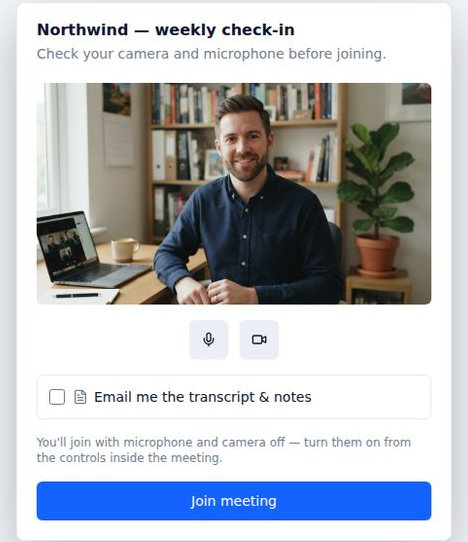
- On the pre-join screen check your camera preview, mute or unmute, and click Join meeting. You join with microphone and camera off and turn them on from the control bar.
- Guests open the same link, type their name, optionally tick “Email me the transcript & notes”, and join — no account. On a phone the same link opens in the browser.
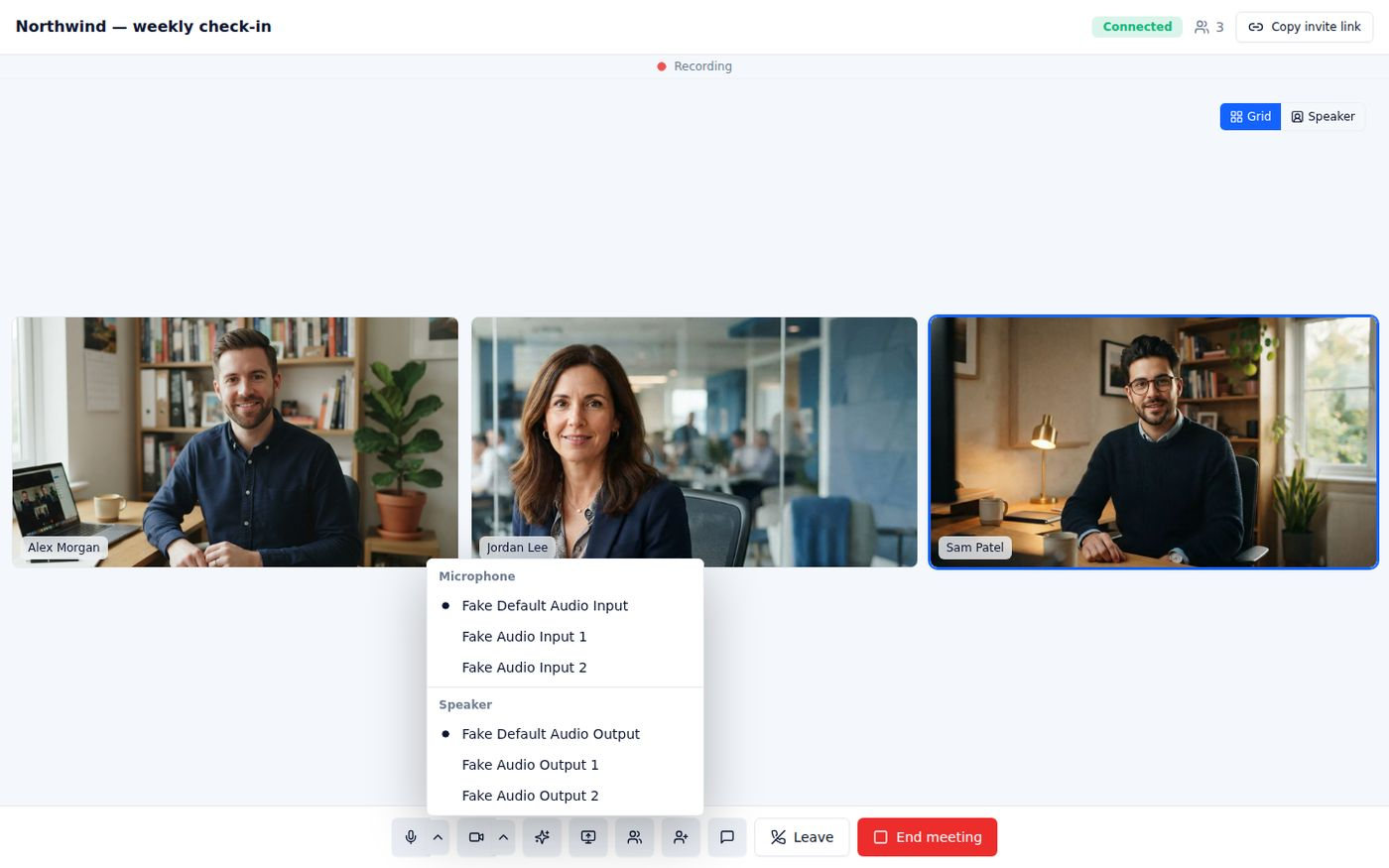
The control bar at the bottom has: microphone (with a chevron to switch microphone or speaker), camera (with a chevron to switch camera), Effects, Share screen, Participants, Invite, Chat, Leave, and — for the host — End meeting for everyone. Recording starts automatically and the “Recording” indicator at the top tells you its real state.
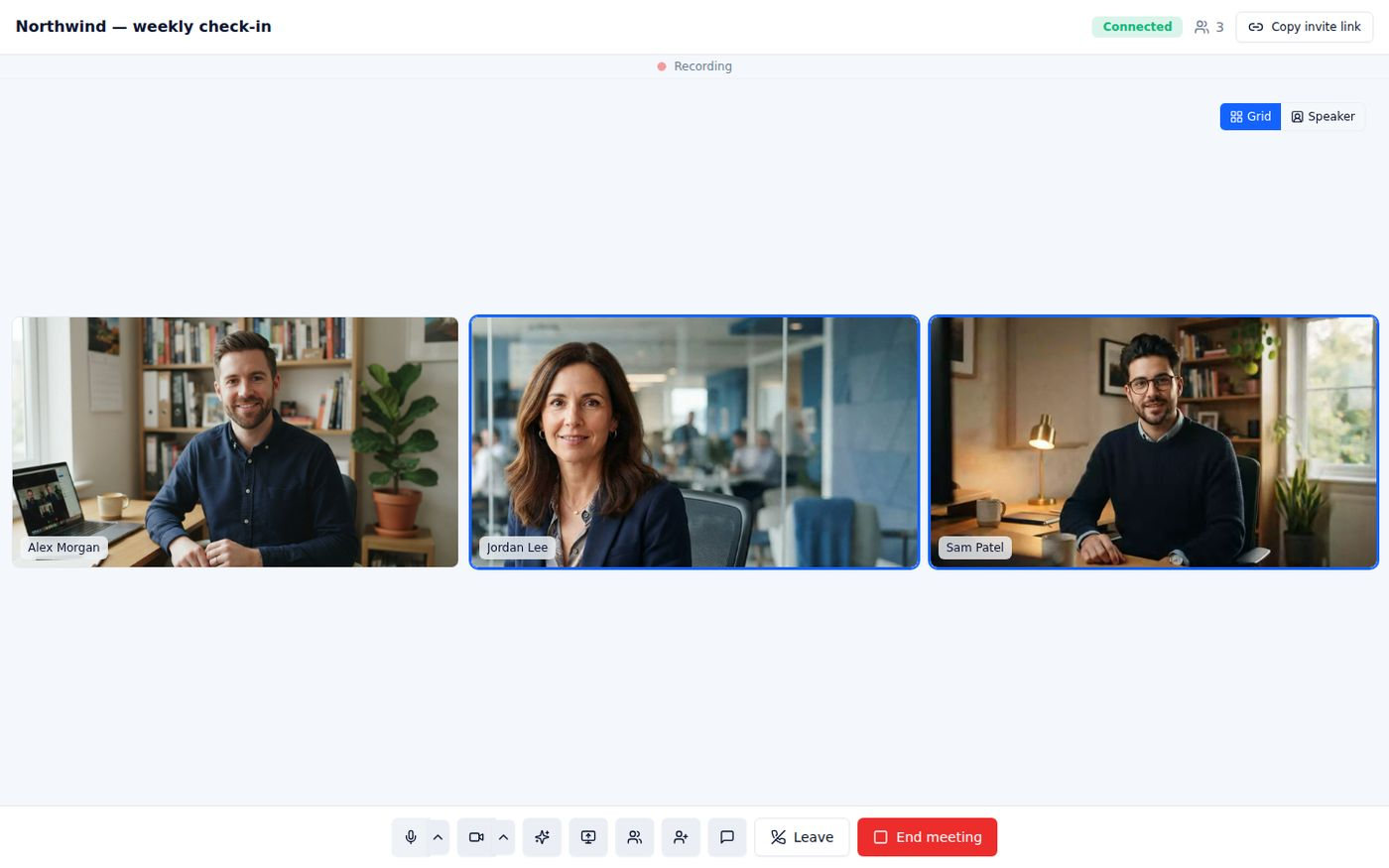
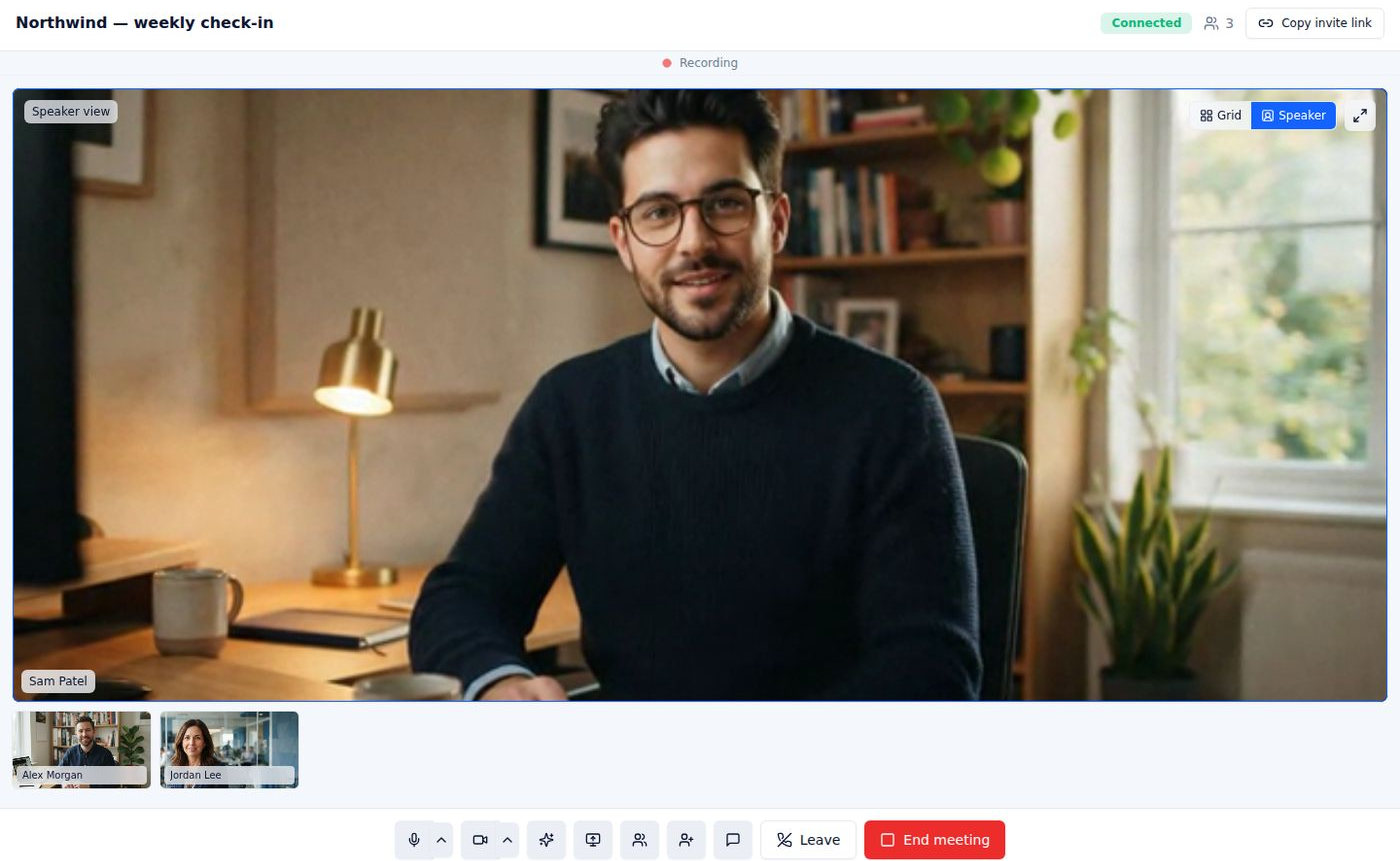
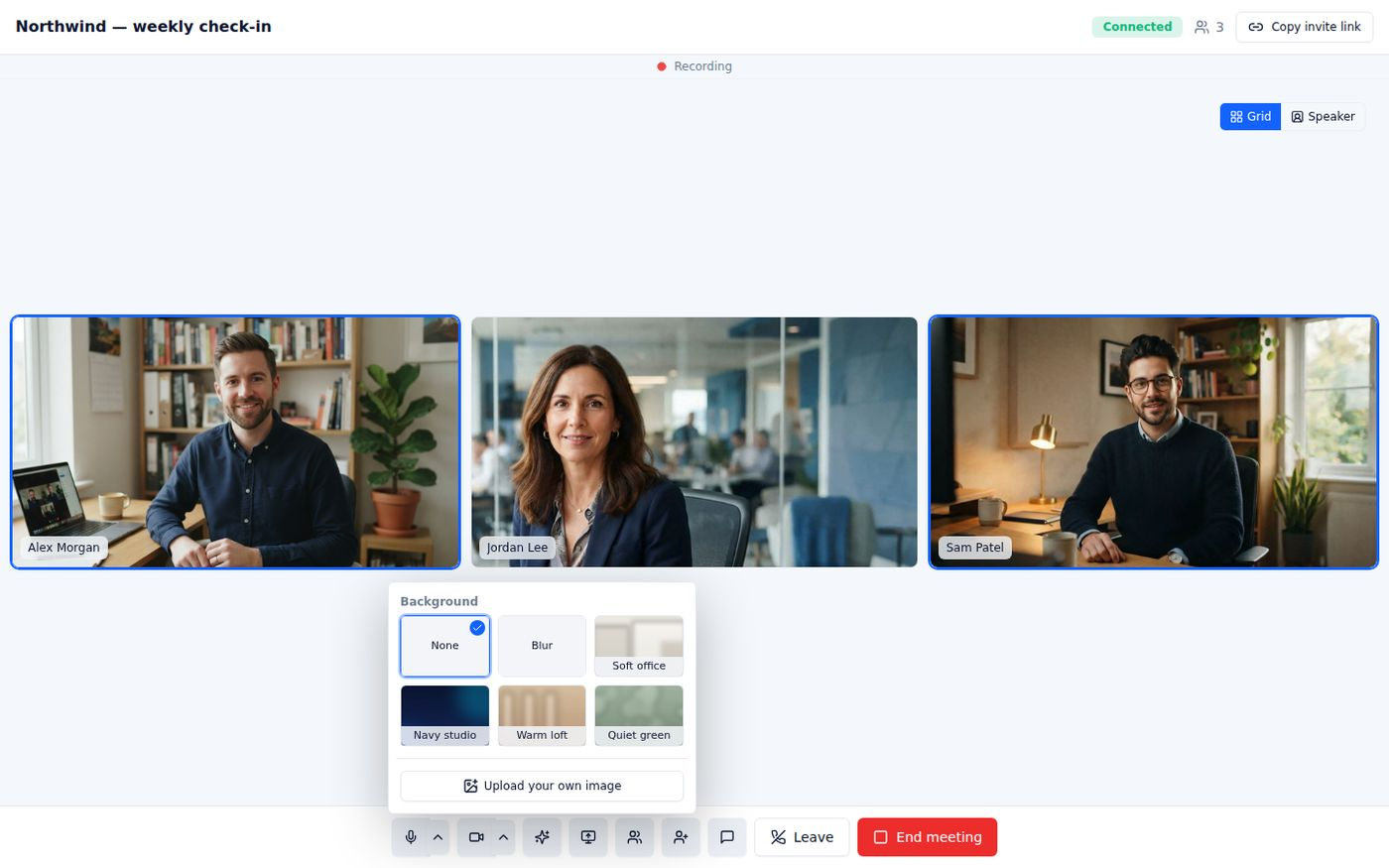
- Share screen — your presentation becomes the stage (never cropped) and cameras move into the filmstrip; click a participant to pin them, or the share tile to return to the presentation.
- Chat — in-meeting text chat. Participants — who is in the room. Invite — copies the join link.
- Leave keeps the meeting running for others. End meeting for everyone (host) ends it and starts processing.
- Reopen room — if the host left by mistake or ended too soon, the host can reopen the room for 60 minutes from the ended-meeting page. The same link works again for everyone; the first part is analysed on its own and the continuation gets its own analysis.
Invite Jarv-ish into a call
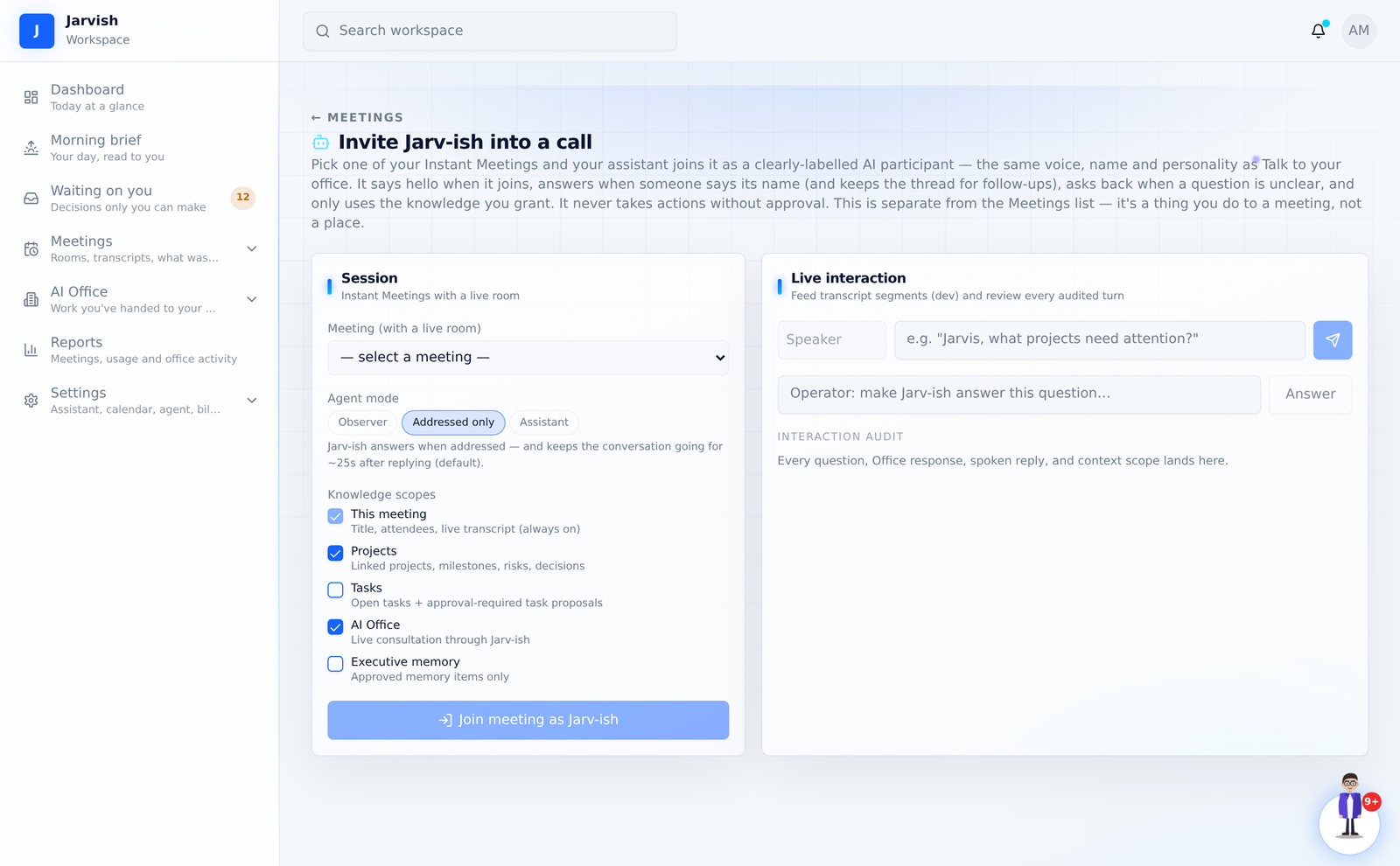
From the Meetings page, click Invite Jarv-ish into a call. Pick one of your Instant Meetings with a live session and your assistant joins as a clearly labelled AI participant — the same name, voice and personality you set in Settings. Choose the mode (Observer, Addressed only, Assistant), tick the knowledge scopes it may use (this meeting, projects, tasks, AI Office, executive memory) and click Join meeting.
- It says hello when it joins: “Hi Jordan and Sam — Ivy here. I’ll listen along and keep the notes…”
- It answers when someone says its name — the name you gave it, or “Jarvis” / “Jarv-ish” / “Harold”. For the next 25 seconds you can keep talking to it without repeating the name.
- It remembers the last few exchanges, so “and the second one?” works. It uses first names when natural and asks one short question back when yours is unclear.
- It never takes actions without your approval, and every question and answer is audited on the right of the panel.
Transcripts
A Jarv-ish room records and transcribes automatically when the meeting ends. For every other meeting:
- Fetch Google transcript — for a Google Meet meeting, once Google has produced the transcript.
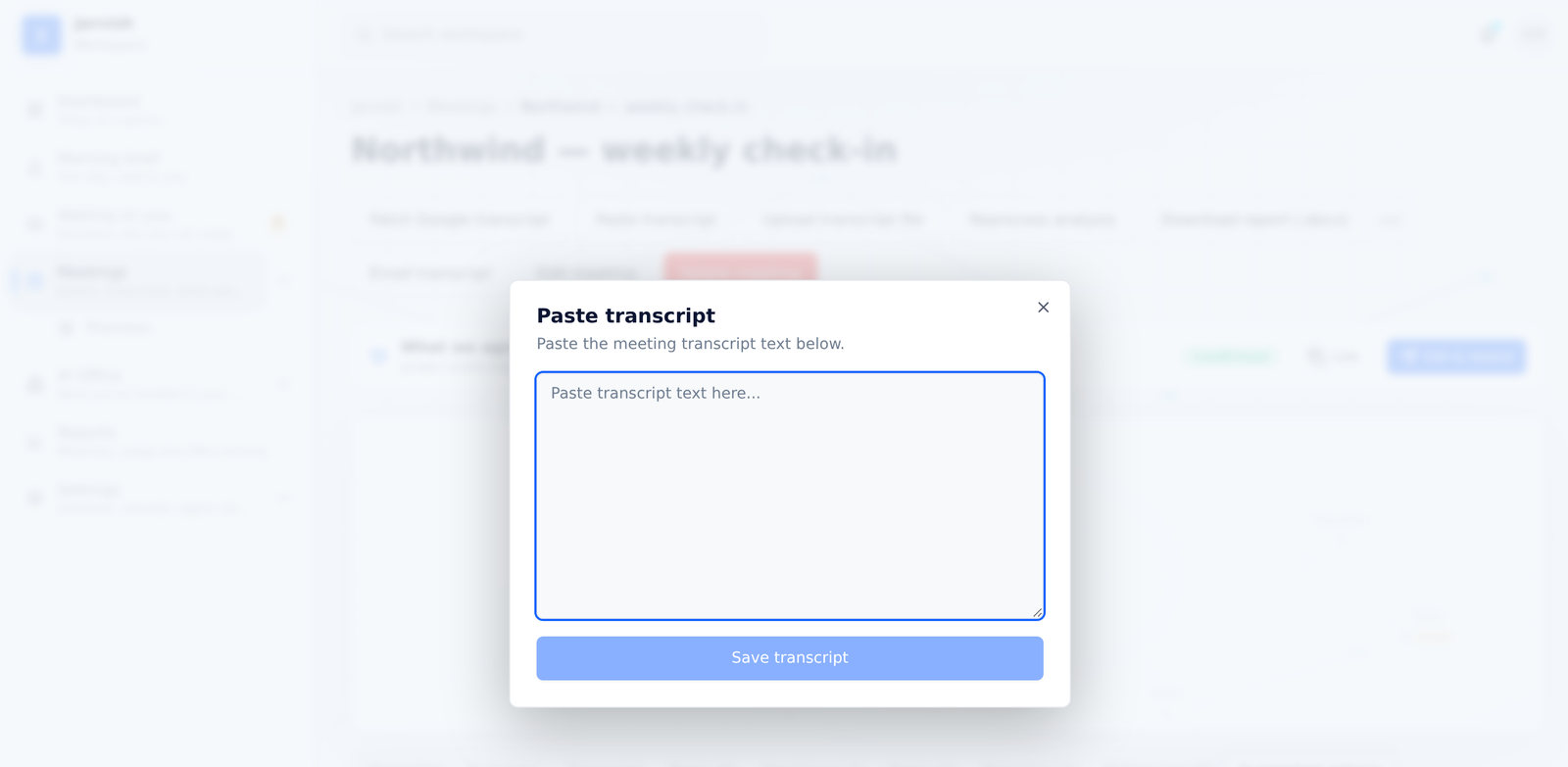
- Paste transcript — paste the text and click Save transcript.
- Upload transcript file — upload a text or document file.
- Reprocess analysis — run the analysis again after changing the transcript or the instructions.
- Email transcript — sends the transcript and report to the attendees you choose.
What the analysis gives you
Once a transcript exists, the analysis is ready in about a minute. The tabs on the meeting page:
| Overview | Counts, room status, meeting details and the executive summary. |
|---|---|
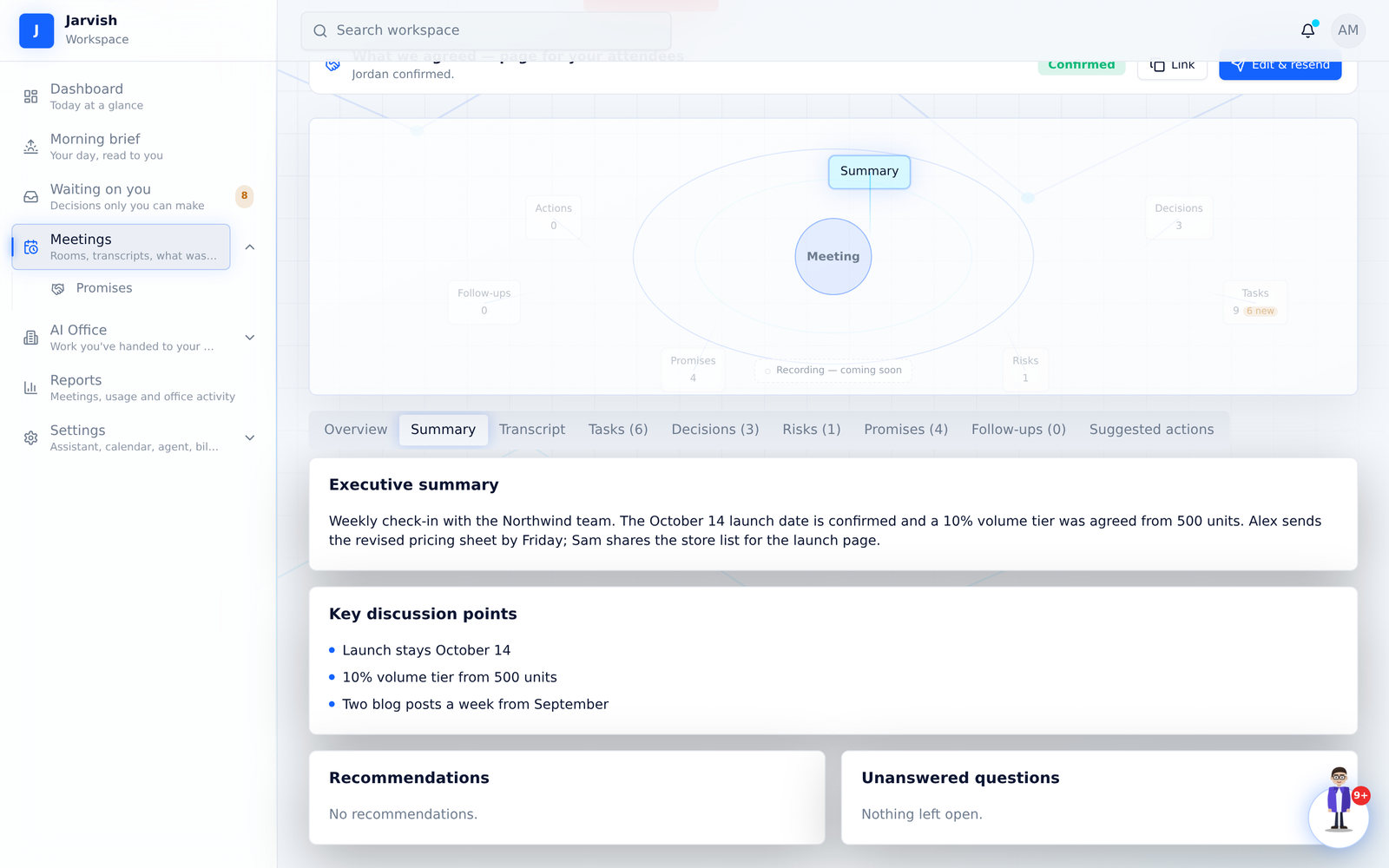
| Summary | The executive summary, key discussion points, recommendations, sentiment and any unanswered questions. |
| Transcript | The full text. |
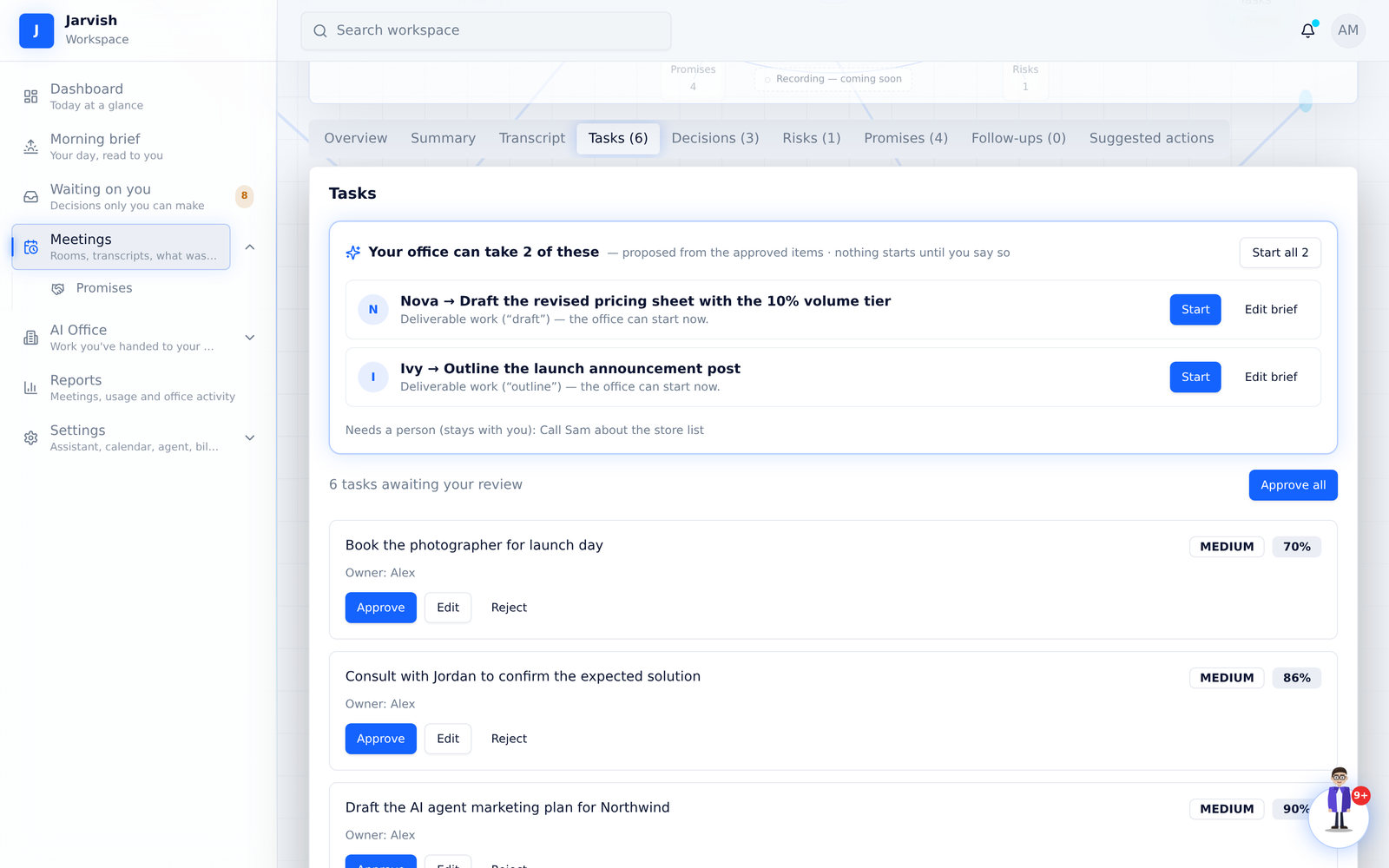
| Tasks | Action items with owner, due date, confidence and the sentence they came from. Approve, Edit & approve, or Dismiss. Approved tasks show “Your office can take N of these” with Start buttons (chapter 6). |
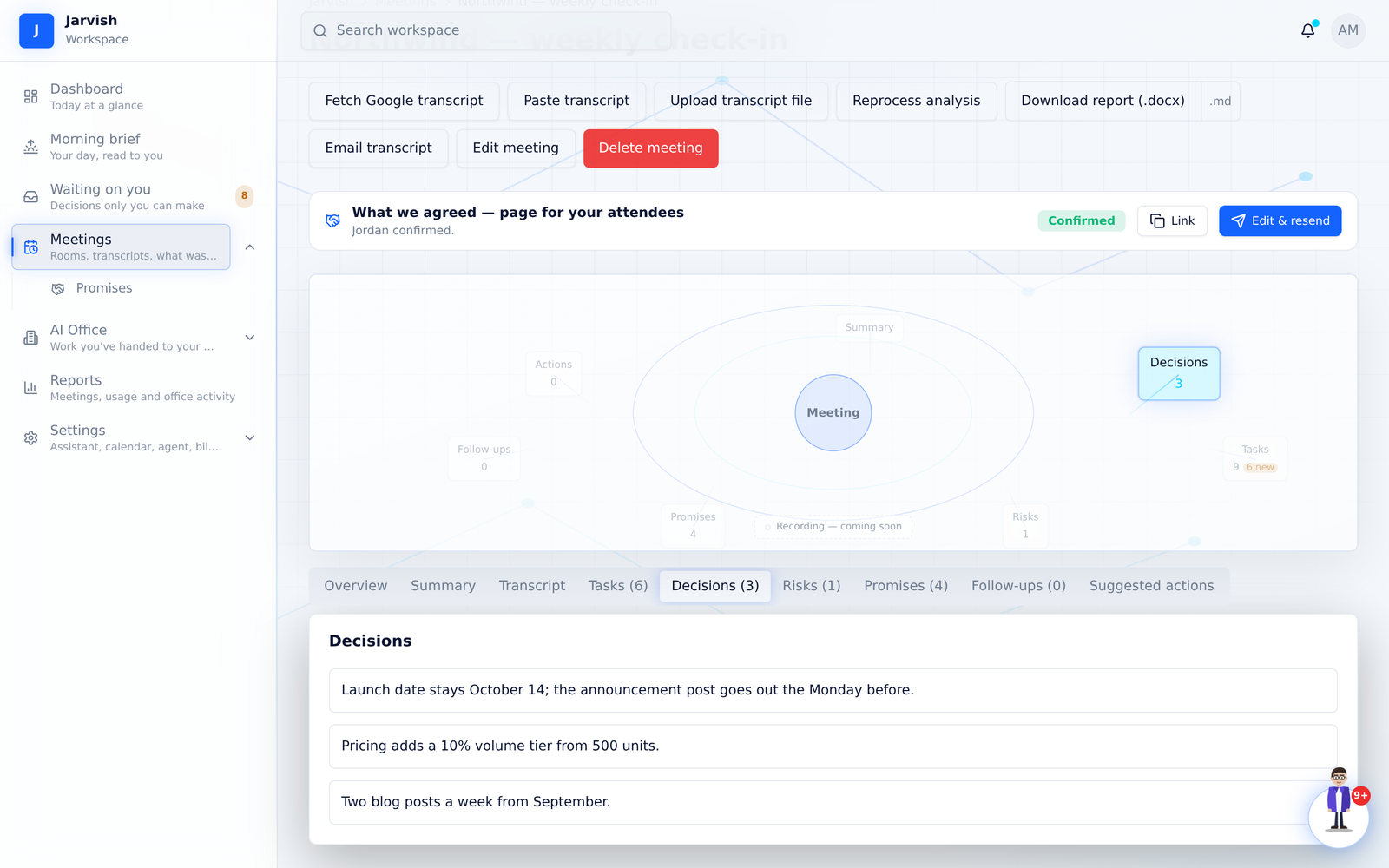
| Decisions | What was decided. |
| Risks | Risks mentioned, with severity. |
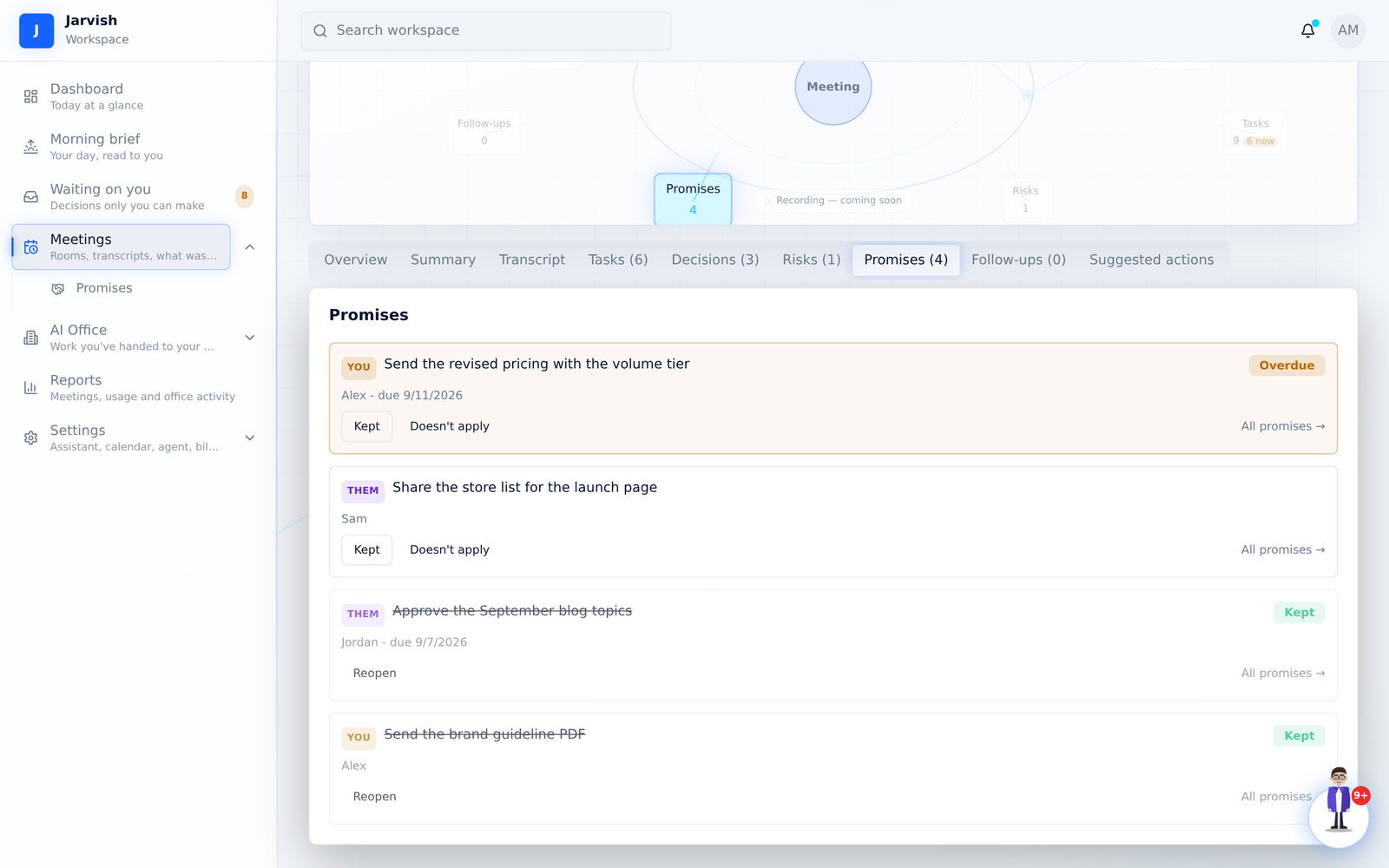
| Promises | Every “I’ll send that by Friday” — who owes what (You / Them), with Kept and Doesn’t-apply buttons. |
| Follow-ups | Things to come back to. |
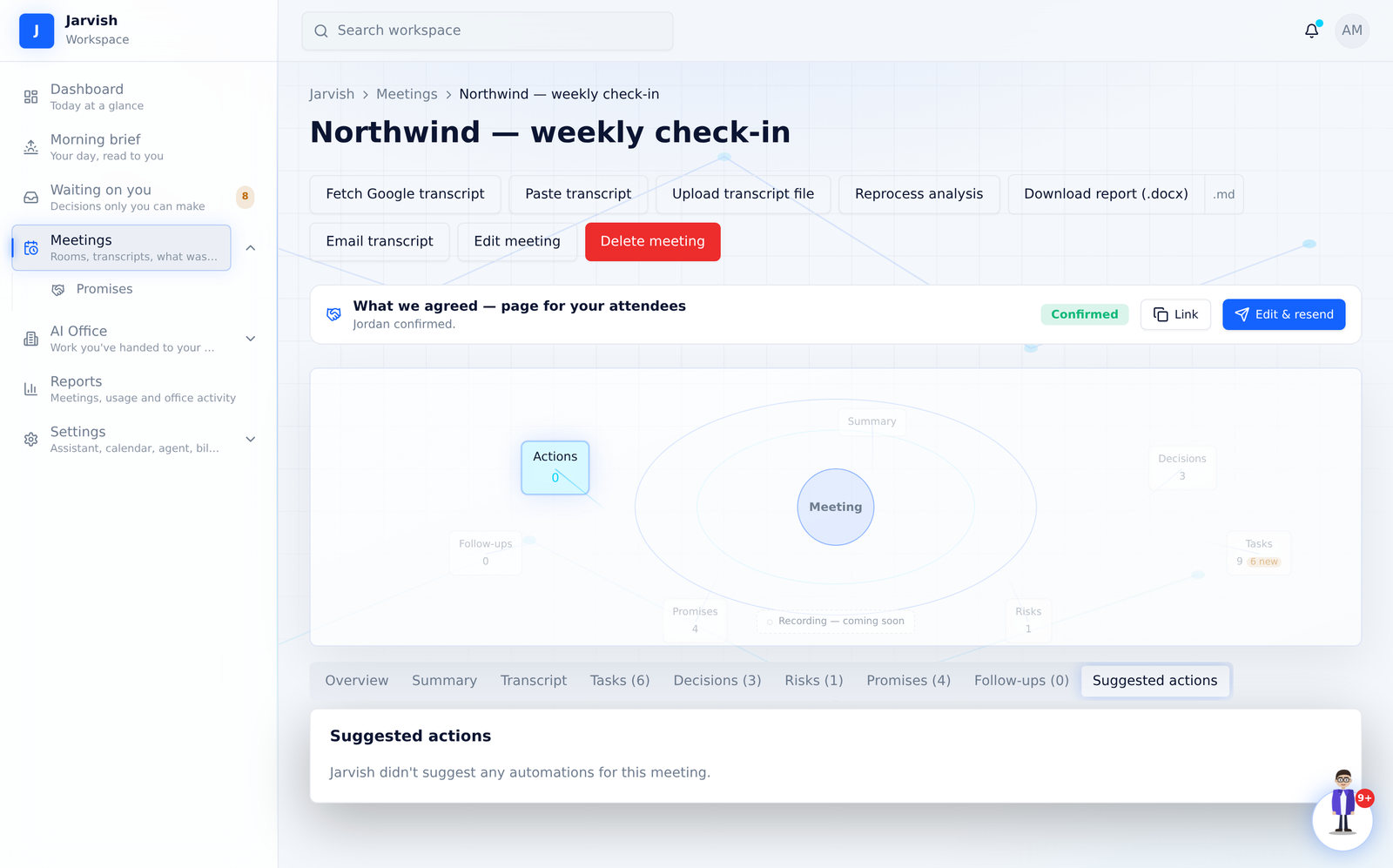
| Suggested actions | Automations Jarv-ish proposes (for example scheduling the follow-up) — each needs your approval. |
Before the meeting: the pre-meeting brief
One hour before every meeting, Jarv-ish emails you a brief — and can read it to you. It is your reminder and your preparation in one email.
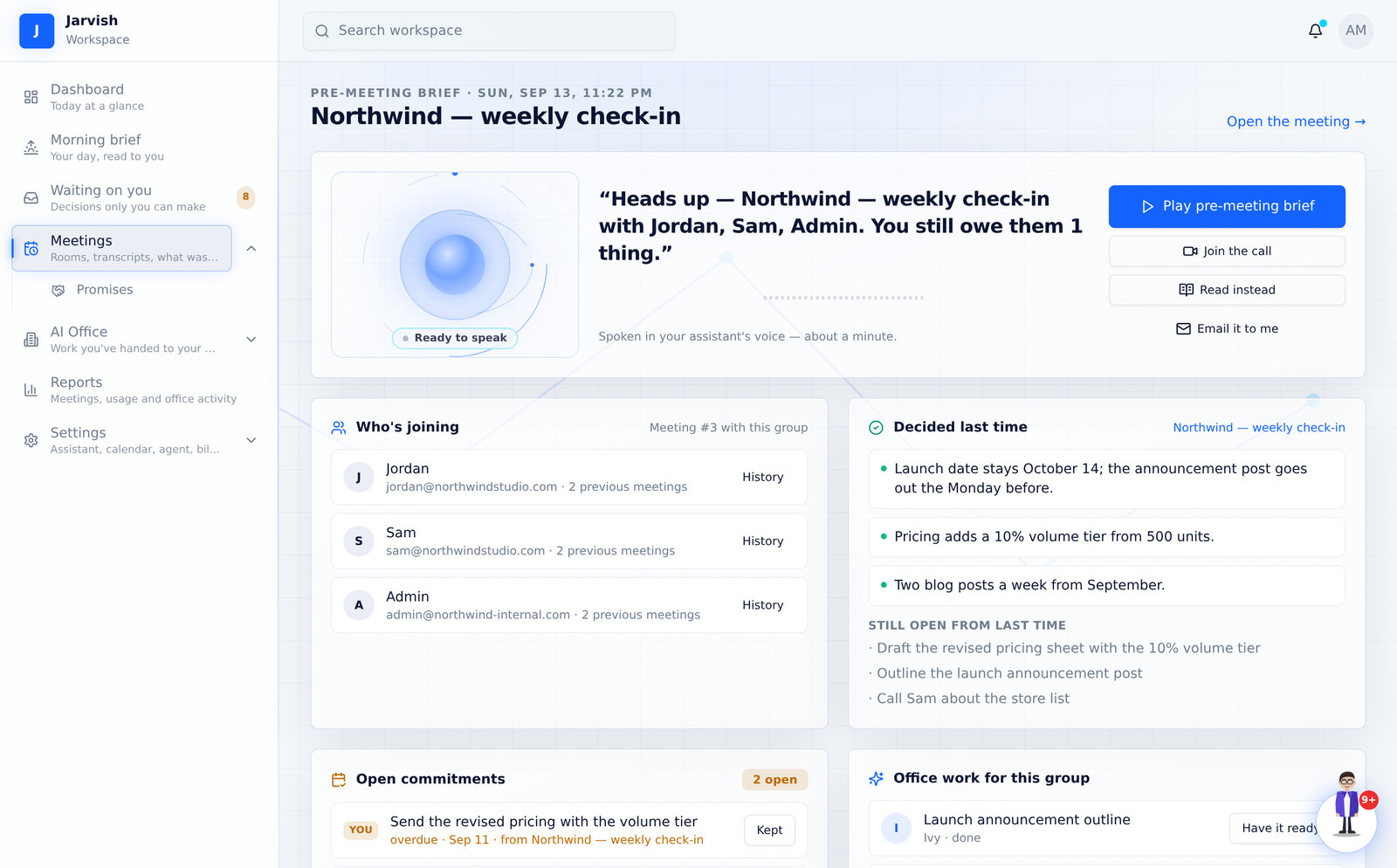
The brief covers who is joining and how often you’ve met them, what was decided last time with this group, what you still owe them and what they owe you, and any office work already prepared for this meeting.
- Open the meeting page of an upcoming meeting — the Pre-meeting brief strip is at the top.
- Click Open pre-meeting brief to read it, or press Play to hear it in your assistant’s voice (about a minute).
- Click Email it to me now to get it immediately instead of waiting for the automatic one-hour email.
- From the brief page, Join the call opens the room; Read instead shows the text.
The day-before agenda offer (recurring meetings)
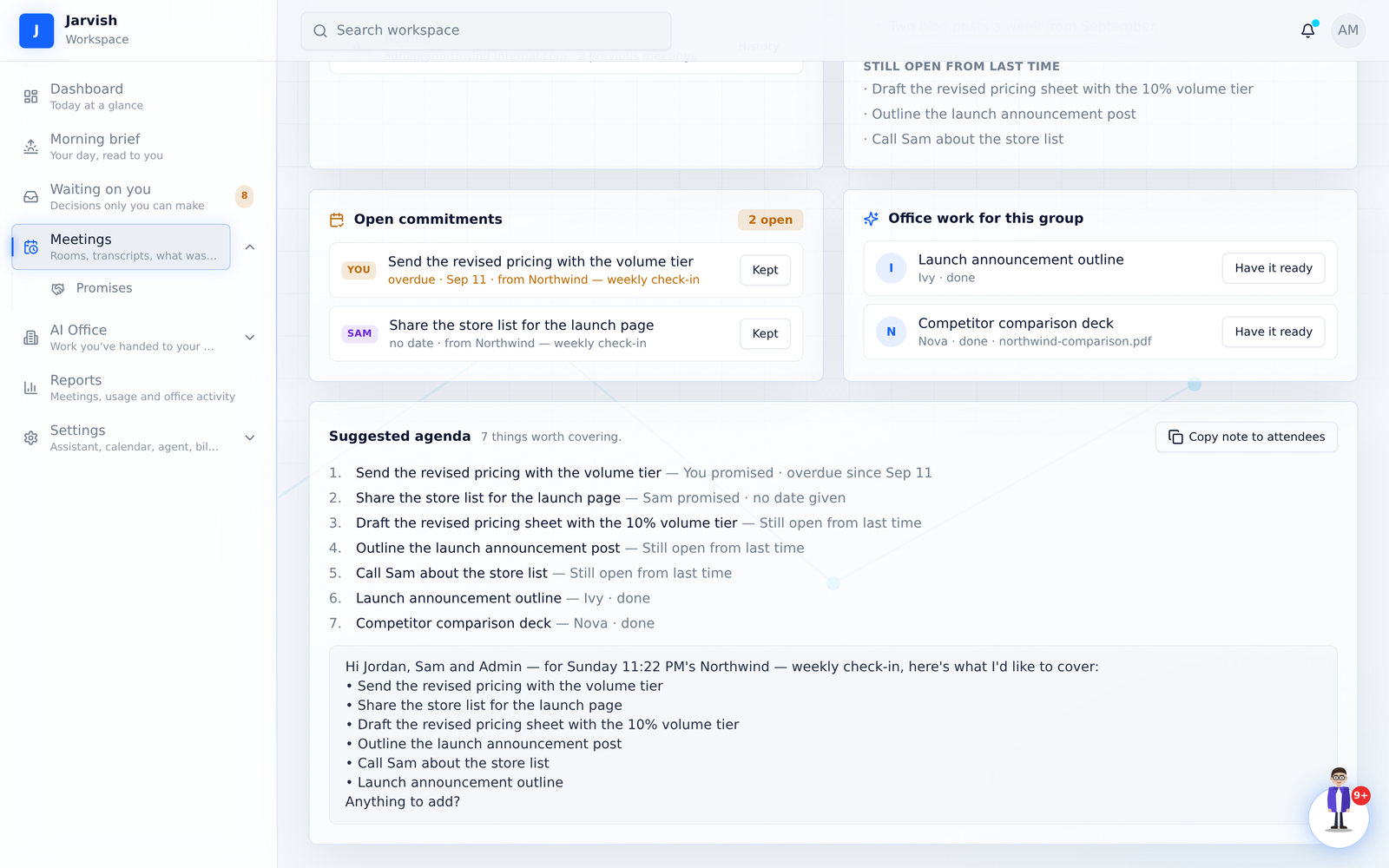
For meetings you have held before with the same people or title, Jarv-ish checks the day before whether anything is actually open — promises, tasks or office work. If something is, you get a one-line email: “There’s a suggested agenda for tomorrow’s meeting — want to see it?” with a Show me the agenda button. The agenda, and a note you can send with it, live on the brief page with a Copy-note-to-attendees button.
After the meeting: agreement, promises, approvals
Turn the call into something the other side can confirm, a memory of who owes what, and a short queue of decisions only you can make.
“What we agreed” — a page for your attendees
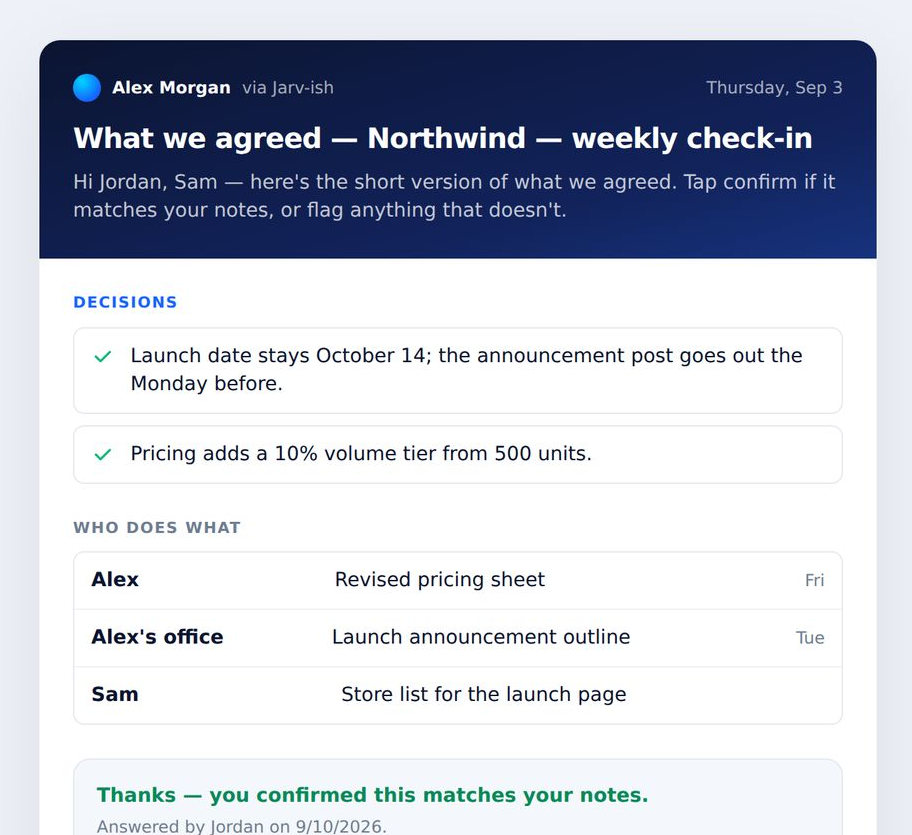
Instead of a summary email nobody answers, Jarv-ish drafts a short, confirmable agreement from the decisions, approved tasks and promises.
- On an analysed meeting, find the “What we agreed” — a page for your attendees card and click Review & send.
- Check the intro, the decisions, the who-does-what (with dates) and the recipients. Edit anything.
- Click Send. Attendees get an email with a private link — no account needed.
- The page shows only what you approved (never the transcript or the recording) and asks one question: does this match what you heard? They Confirm or Flag something.
- Their answer comes back as a notification and on the card (Sent · Confirmed · Flagged). Edit and resend at any time.
Promises — memory per person
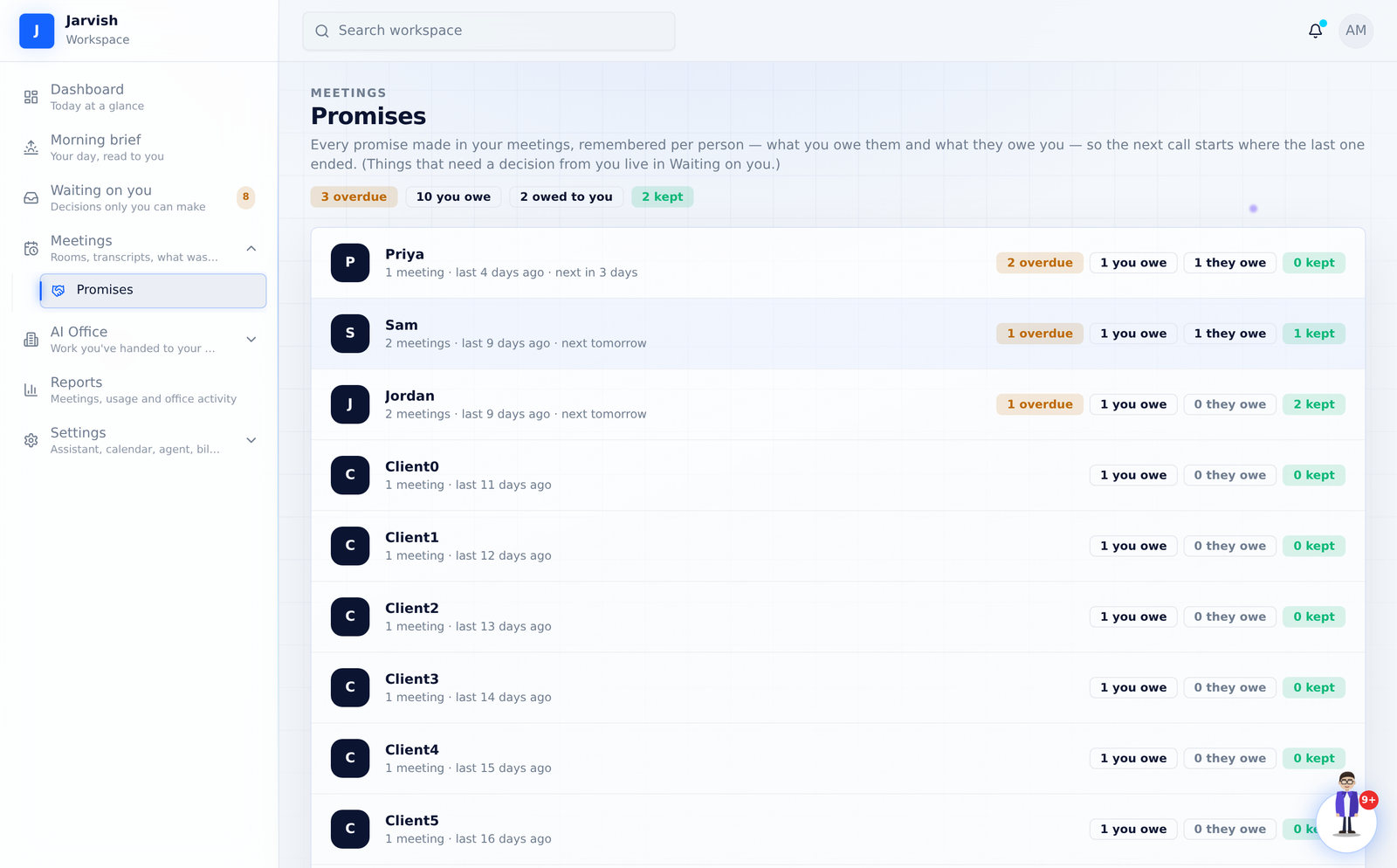
Promises keeps every promise from every meeting, per person: what you owe them, what they owe you, what is overdue and what has been kept.
- Open Meetings → Promises. One row per person with the meetings count, last met, next meeting and the counts.
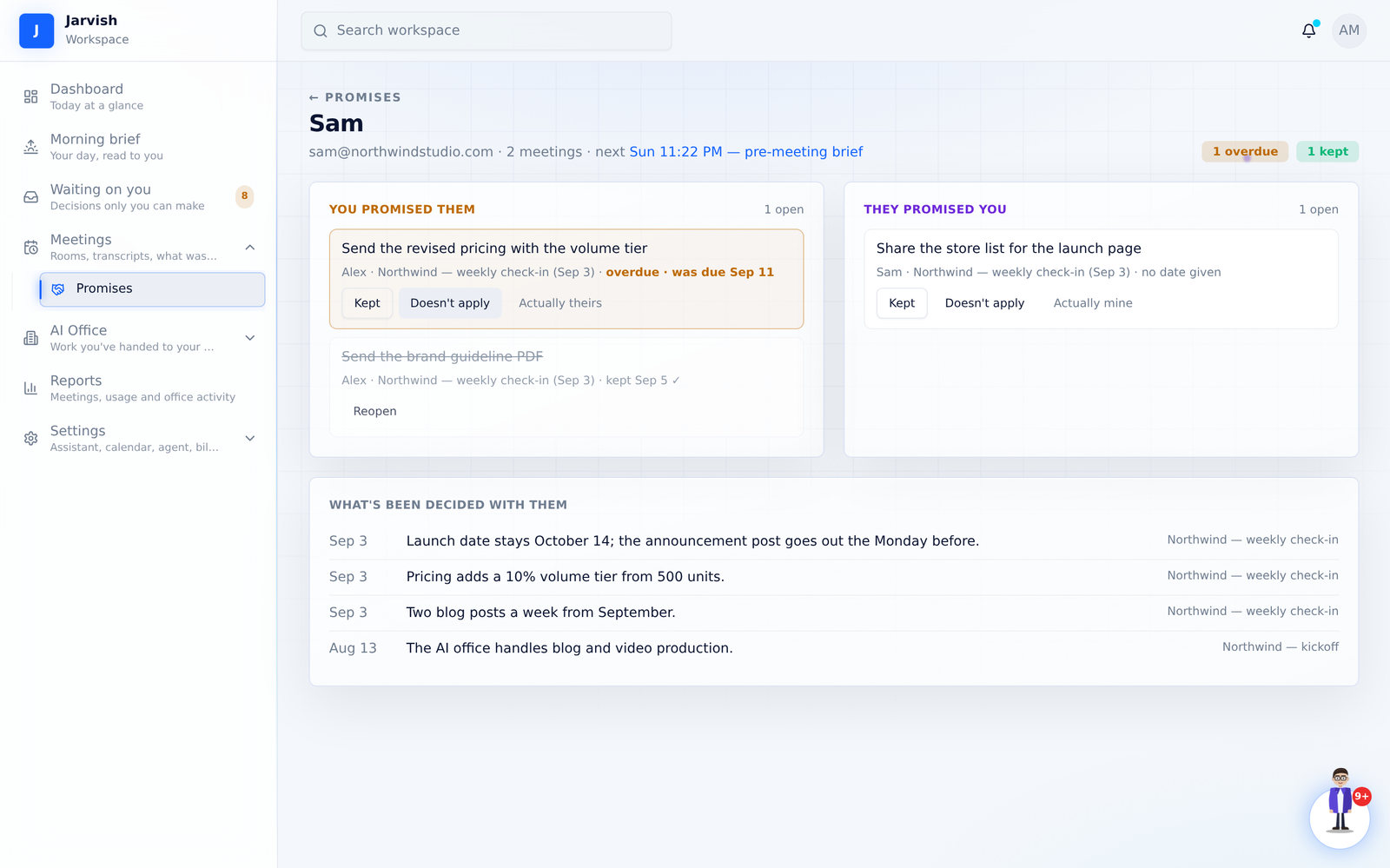
- Click a person to see both sides’ promises with their source meeting, the next meeting’s brief, and every decision made with them.
- Mark a promise Kept or Doesn’t apply from any promise list. Kept promises are struck through; your own promises due today appear in the morning brief.
Waiting on you — decisions only
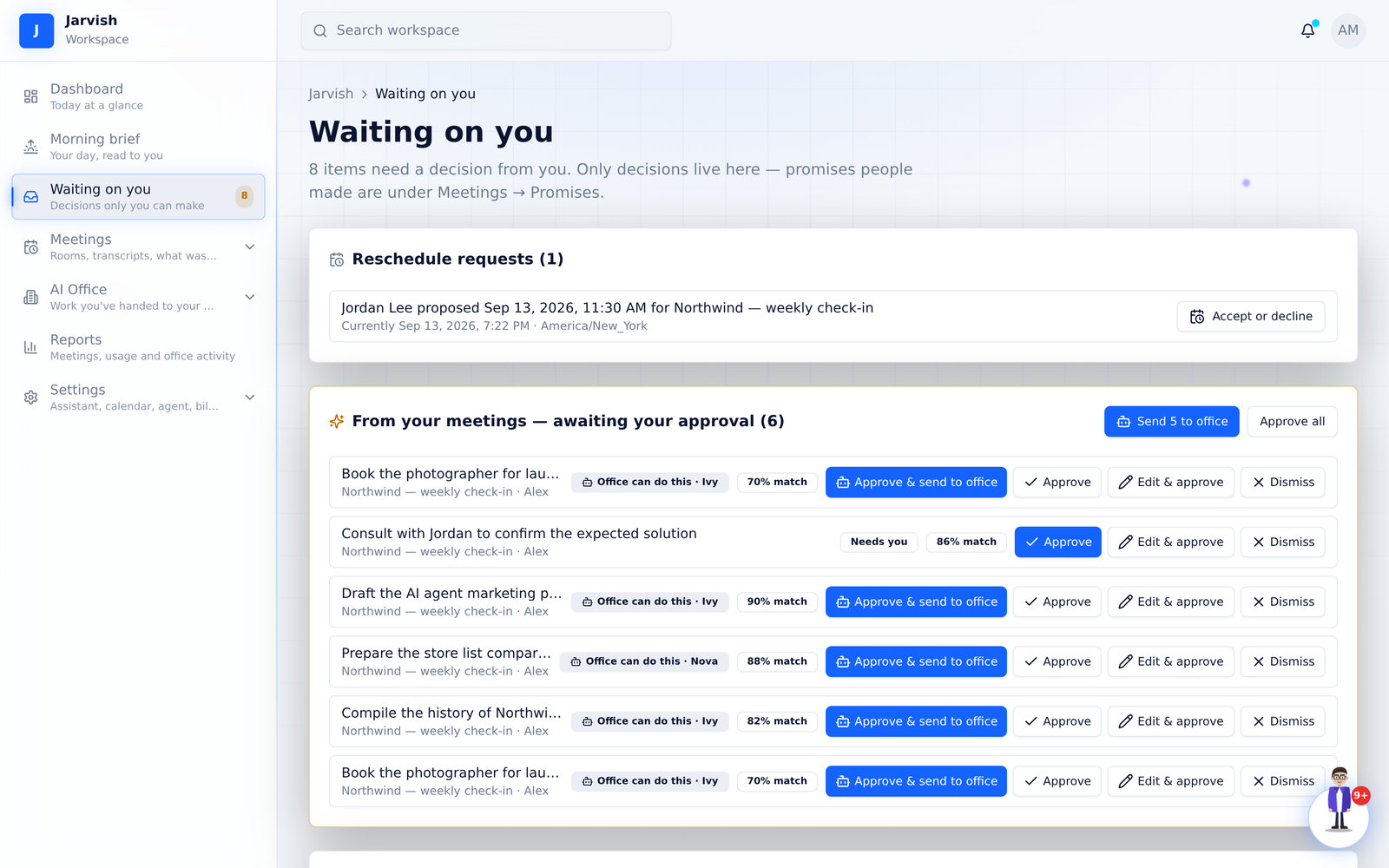
Everything that needs a decision from you, in one place: tasks awaiting approval, reschedule requests, office questions and approvals, suggested automations, and project plans awaiting review. The sidebar badge counts them.
Approving a task
- Approve — the task goes onto your task list for you to do.
- Edit & approve — change the wording, description or priority first, then approve.
- Dismiss — it won’t be suggested again.
- Approve & send to office (office-sized tasks, office connected) — approves, writes the brief from the meeting, and hands it to the agent in one click. Send N to office does every office-sized task at once.
- Rows disappear immediately and a message confirms what happened. If the server refuses, the row comes back with the reason.
Rescheduling: “propose a new time”
Every invitation, reminder and join page carries a personal “Can’t make this time? Propose another” link — so a guest’s new time reaches you instead of disappearing inside Google Calendar.
What your guest does
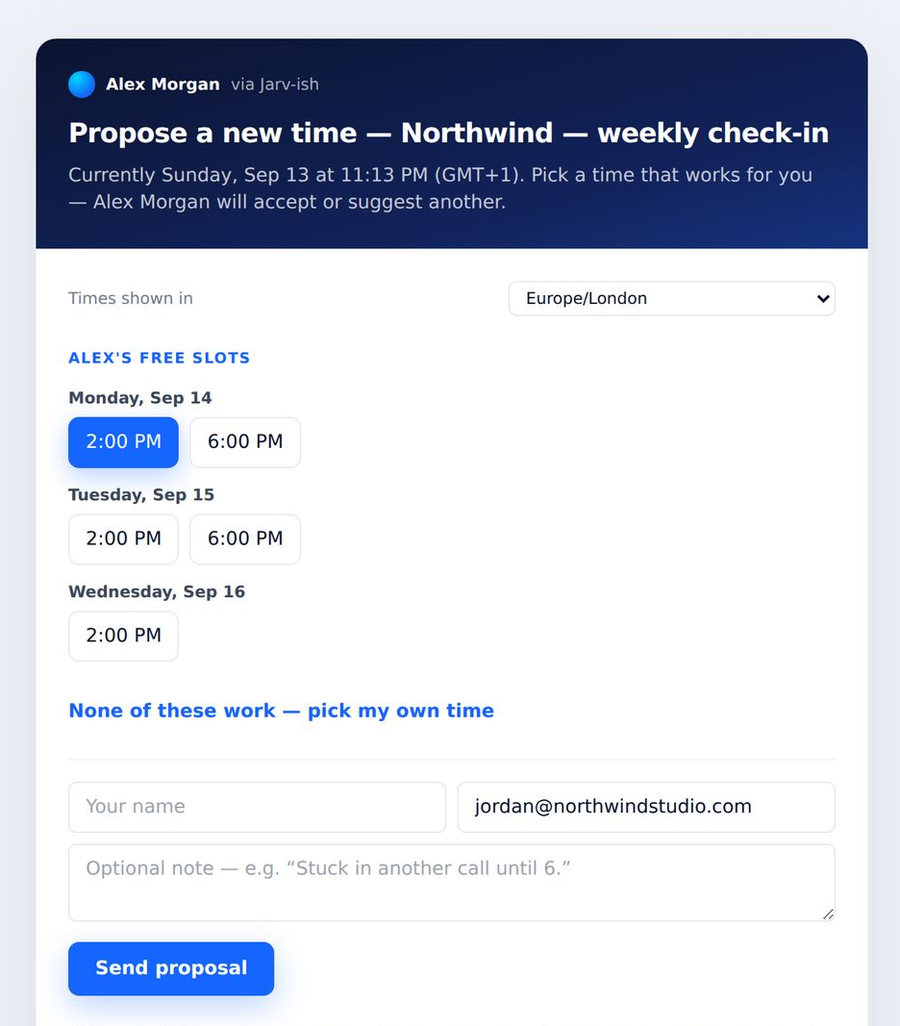
- They open the link. The page shows your free slots for the next working days — Google Calendar free/busy plus your Jarv-ish meetings, inside your working hours — displayed in their own timezone.
- They tap a slot, or choose “None of these work — pick my own time” and set a date, time and timezone.
- They add their name, email (pre-filled from the invitation) and an optional note, then press Send proposal.
- They see “Sent to …” and get an email when you answer.
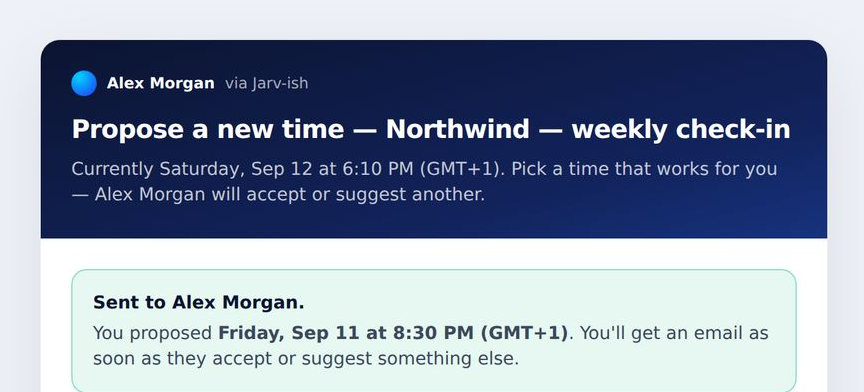
What you do
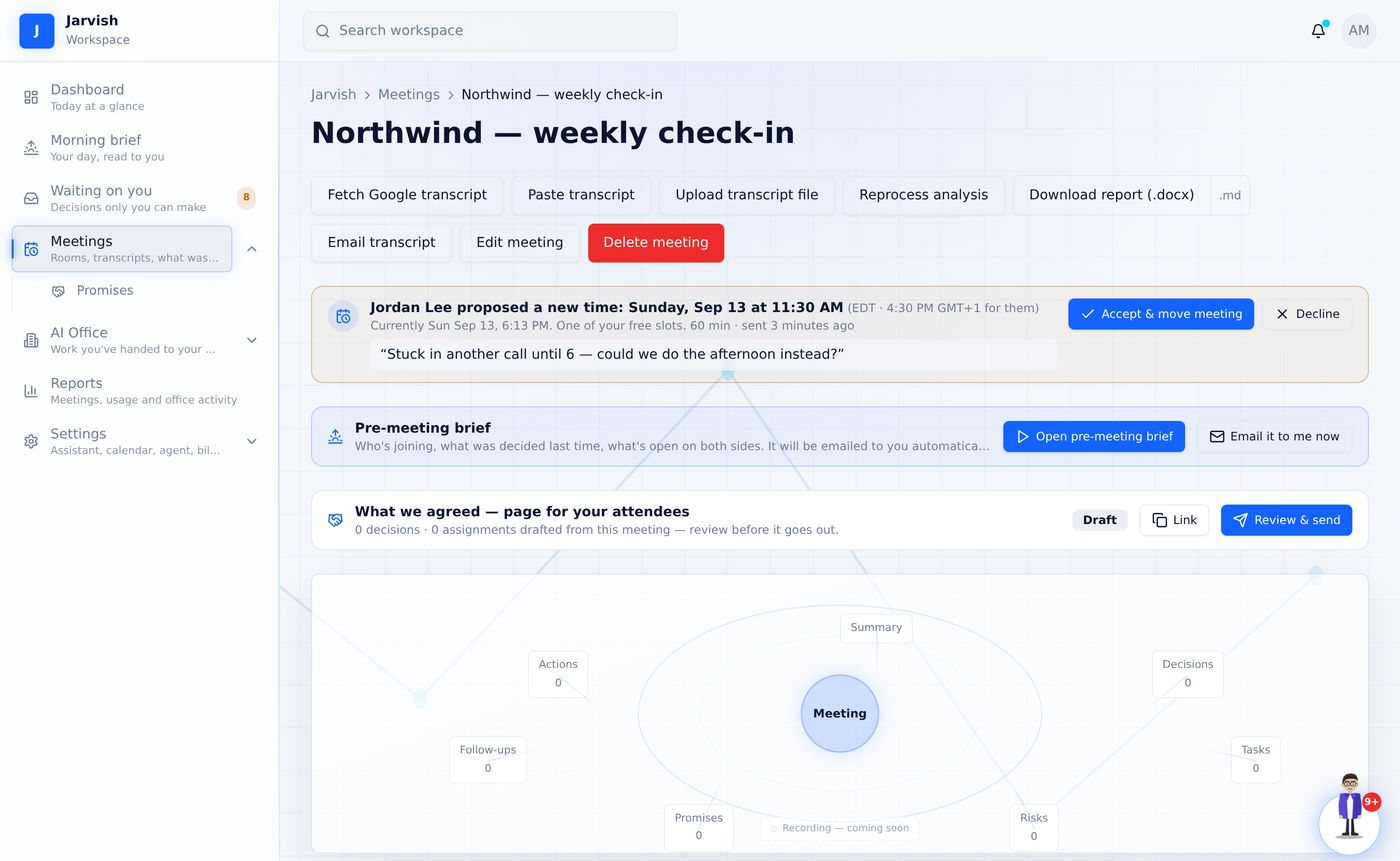
- You get an email (“Jordan Lee proposed a new time…”) with Accept / Decline buttons, an item in Waiting on you, a notification, and a card at the top of the meeting page.
- Accept & move meeting — the meeting moves to the proposed time, the Google Calendar event is patched, invitations are re-sent to everyone, and the guest gets a confirmation. Other pending proposals for that meeting are retired.
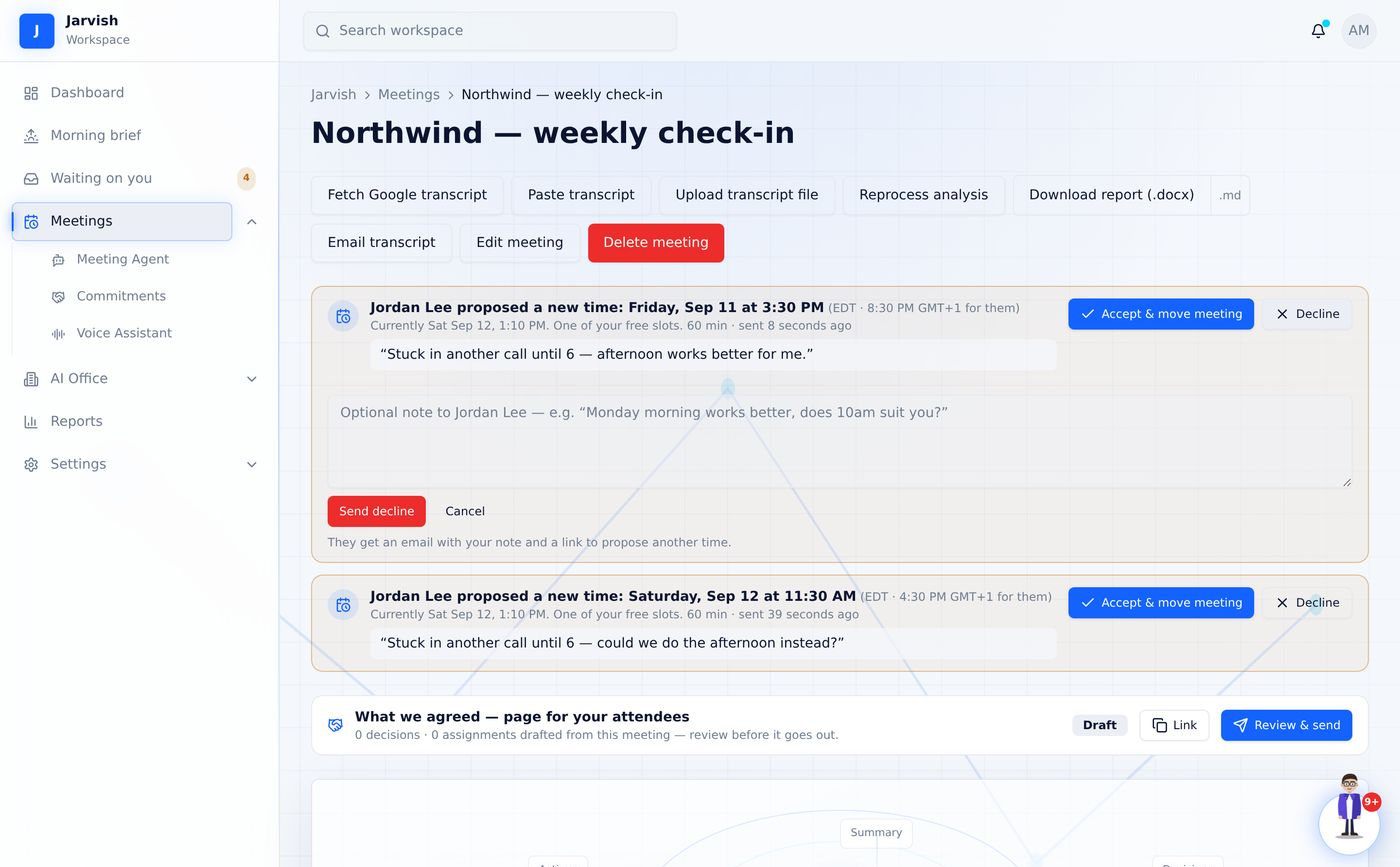
- Decline — add an optional note (“Monday morning works better?”) and send. The guest gets your note and a link to propose again.
The AI Office
Your AI Office is a private workforce of agents behind your own gateway. Jarv-ish routes deliverable work there, tracks every request, and brings questions and results back to you.
Connect your office
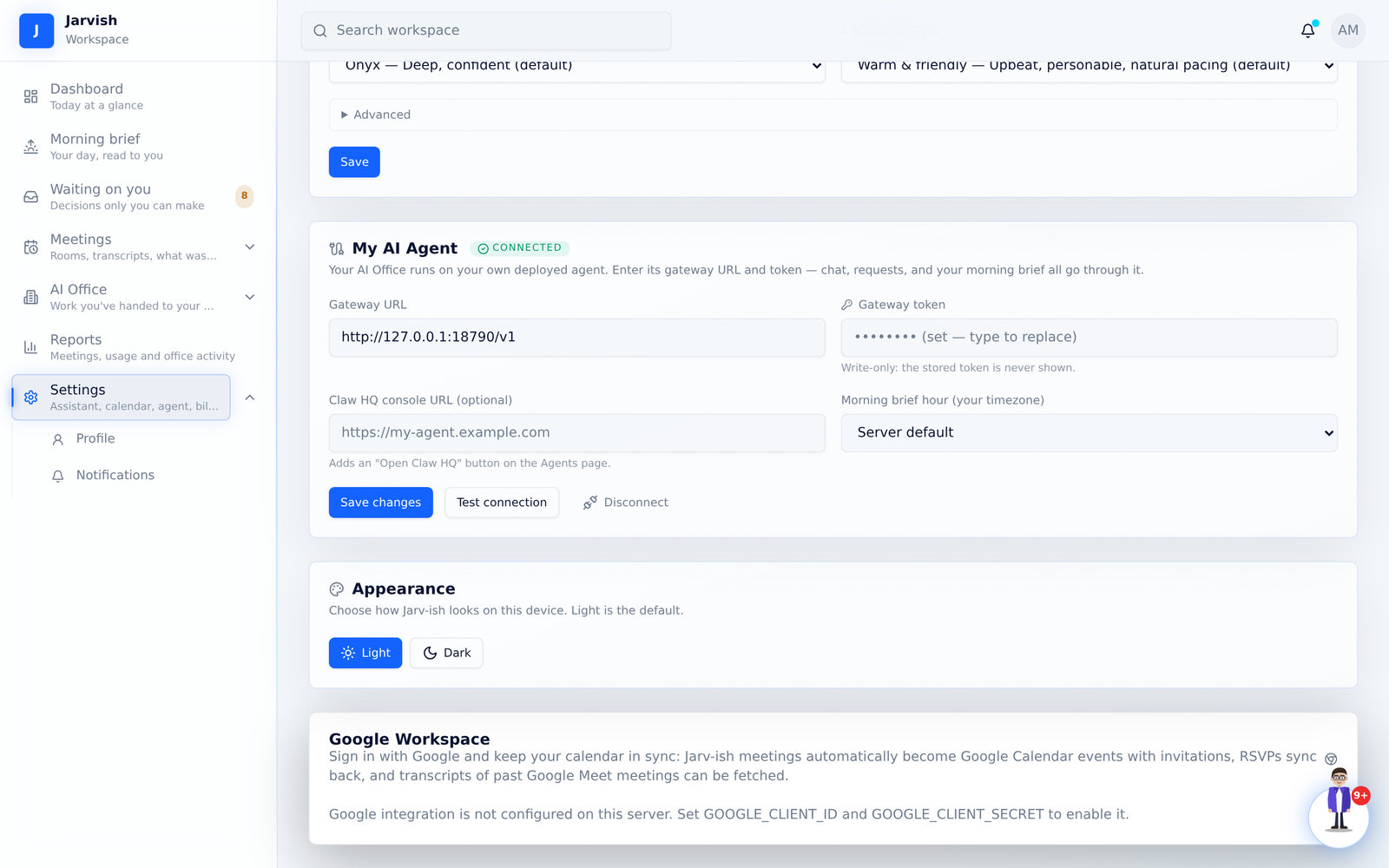
- Open Settings → My AI Agent (or welcome step 3).
- Enter the gateway URL (for example
https://my-agent.example.com/v1) and the gateway token. The token is stored encrypted and never shown again. - Optionally add your Claw HQ console link — an “Open Claw HQ” button then appears on the Agents page — and choose the hour your morning brief is prepared.
- Click Test connection, then Save changes. The office link status on the Office page turns to “connected”.
The Office page
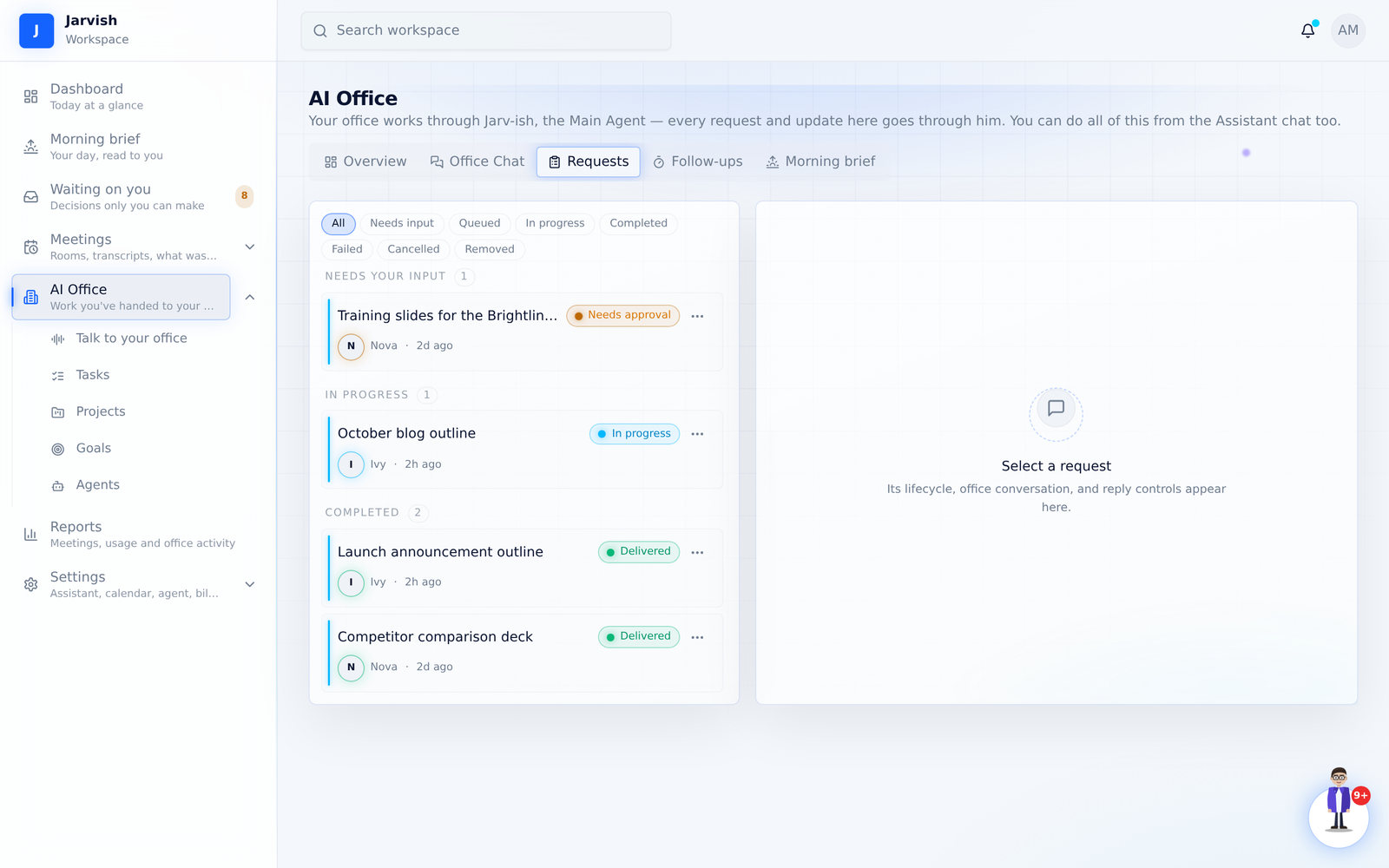
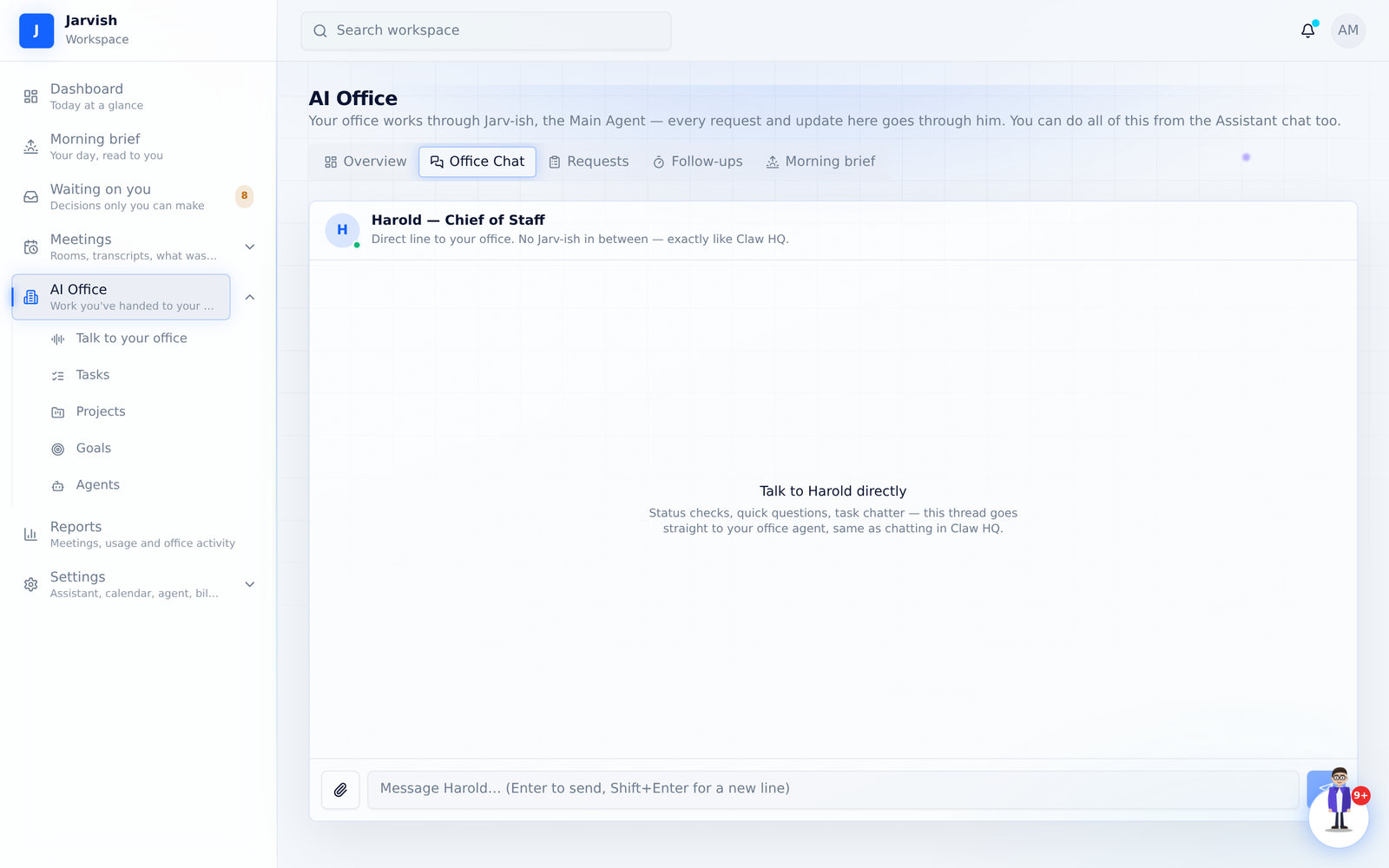
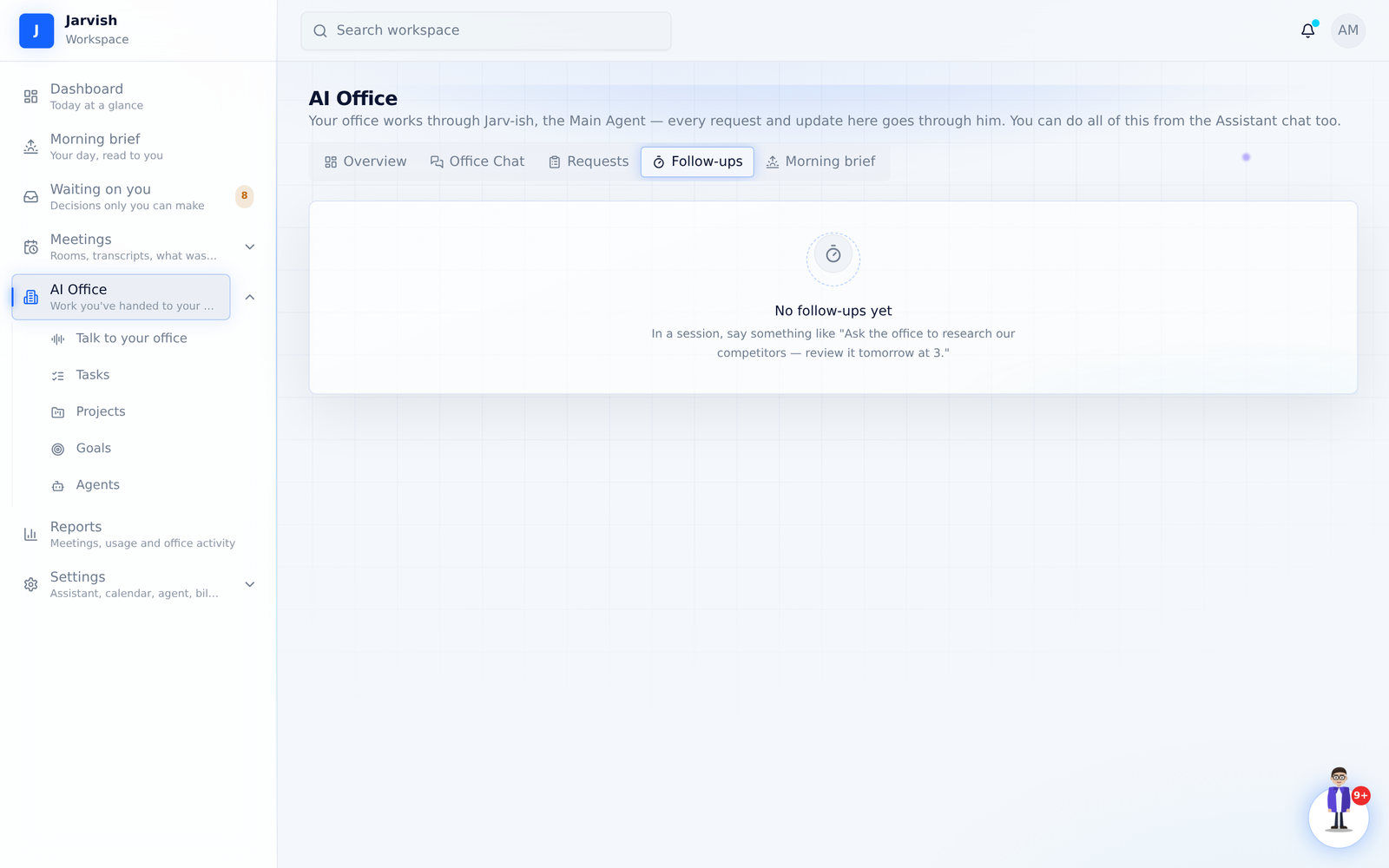
AI Office in the sidebar opens the record of everything you have delegated, with five tabs.
| Overview | A live report from your main agent, counters (active requests, follow-ups, needs you, active agents, delivered, today’s activity), the office timeline and the activity feed. |
|---|---|
| Office Chat | A direct chat with your main agent — what you type goes straight to the office, its reply lands here. |
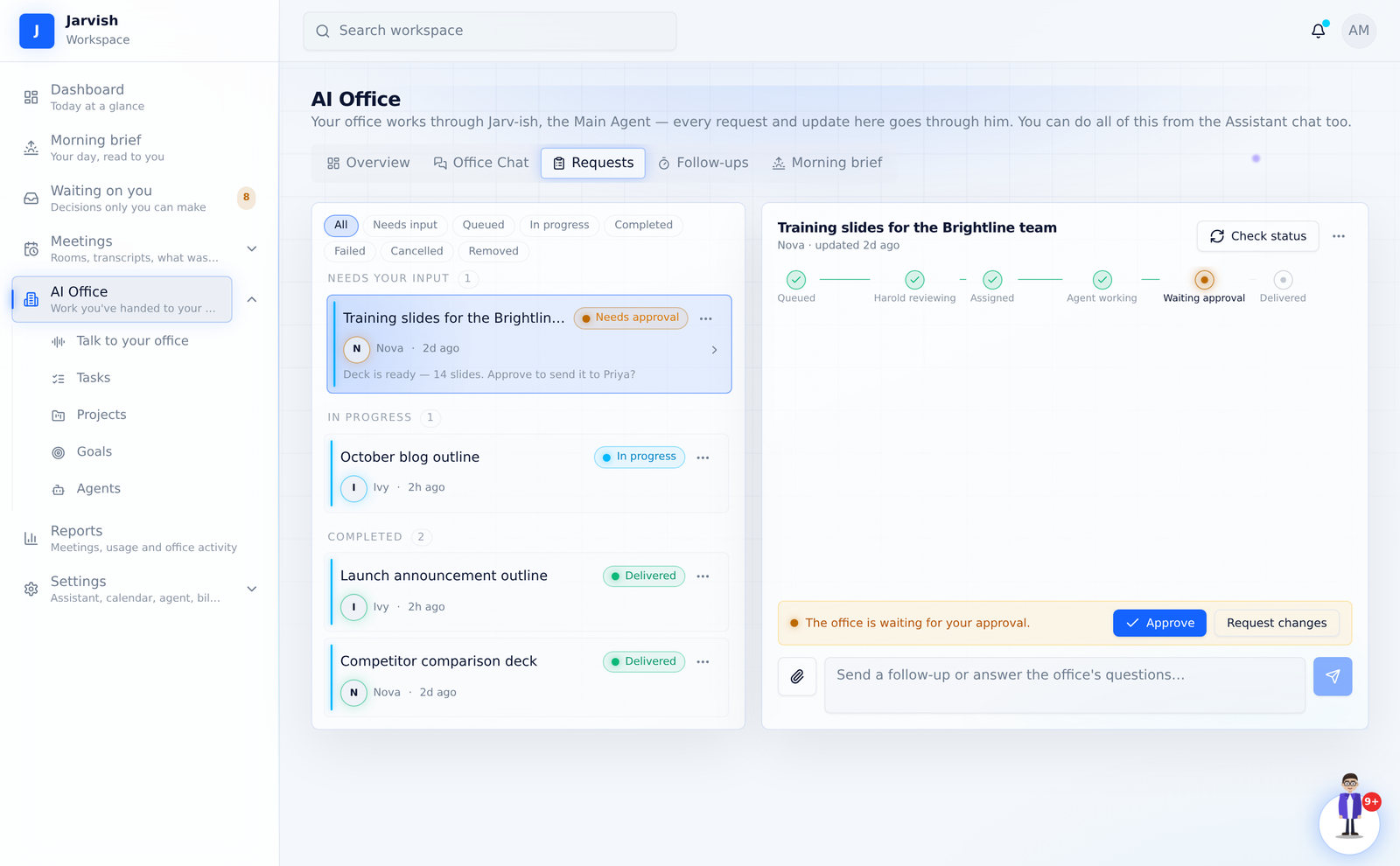
| Requests | Every request with its status (Needs input · Queued · In progress · Completed · Failed · Cancelled), the agent, the conversation, files and the reply box. |
| Follow-ups | Things you asked the office to come back on, with their timing. |
| Morning brief | The office’s own brief — what it did and what it needs. |
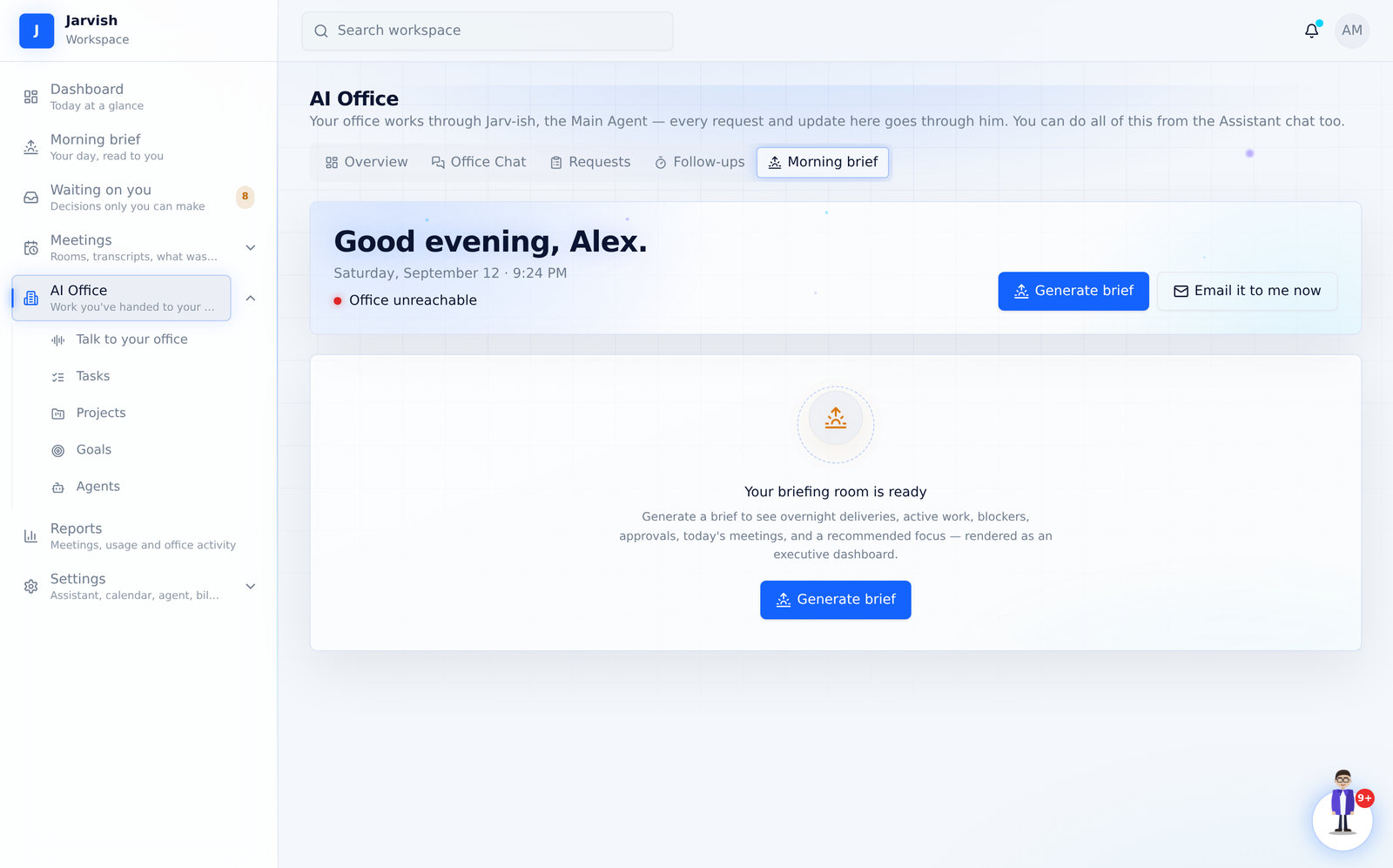
Hand a meeting task to the office
Three places, same result:
- Waiting on you / Tasks: Approve & send to office on a tagged task, or Send N to office for the whole batch.
- A meeting’s Tasks tab: the strip “Your office can take N of these” lists the approved tasks with the suggested agent; Edit brief shows exactly what the agent receives; Start, or Start all, sends them.
- Talk to your office or Office Chat: just ask (“research the three vendors and compare pricing”).
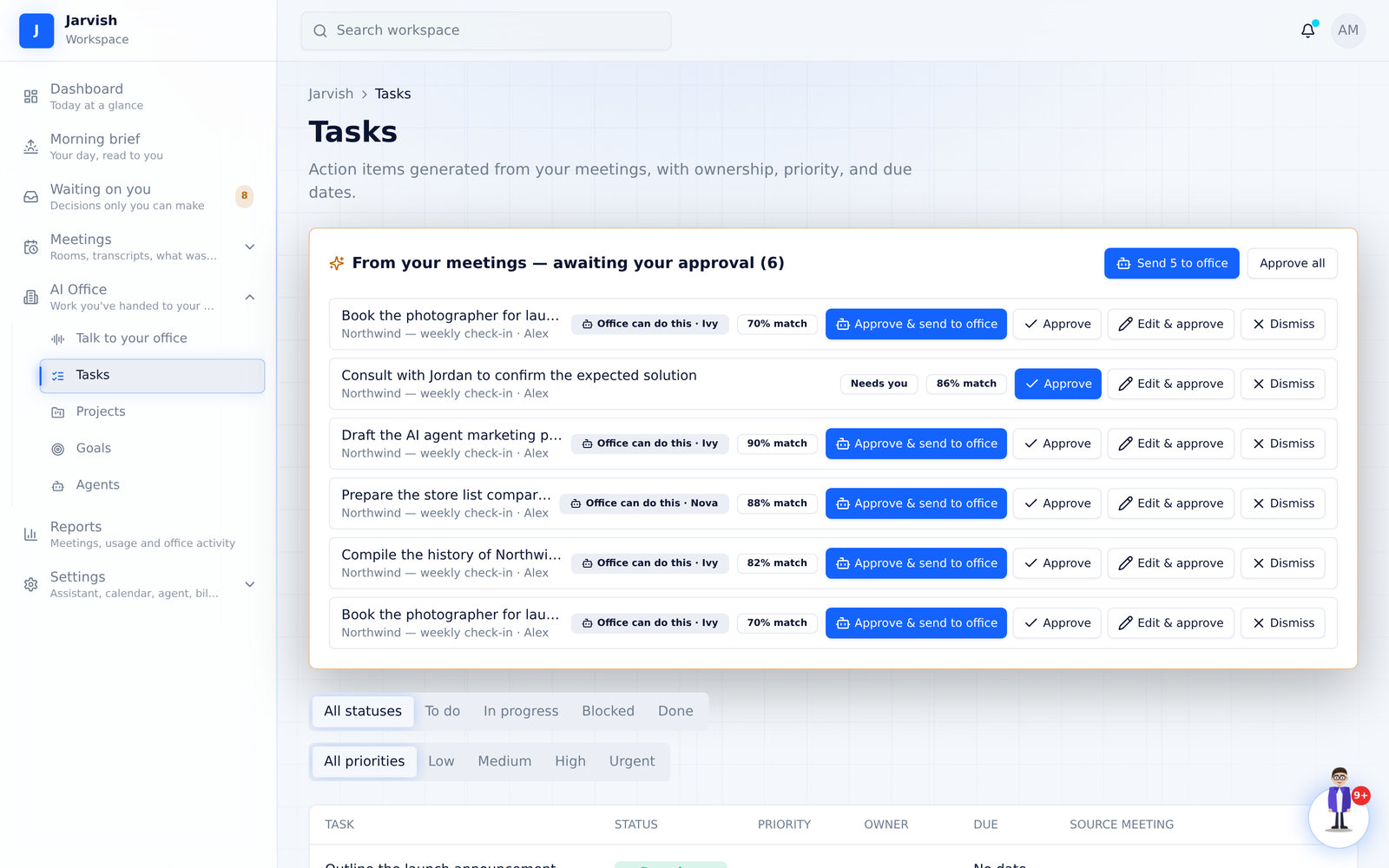
When the agent has a question
- The request flips to Needs your input (or Needs approval when it asks permission). It appears in Waiting on you under “The office is waiting on you”, as a notification, and at the top of your next morning brief.
- Click it → Office → Requests opens on that request. Read the agent’s message, type your answer in the reply box and send. You can also answer by voice from Talk to your office.
- The status returns to In progress. Other requests keep running meanwhile.
When the work is delivered
The request becomes Delivered with the result summary and any files. The linked task is marked Done by the agent automatically on Tasks and the dashboard; a notification and the morning brief announce it. A failed request marks the task Blocked so you see it; a cancelled one hands the task back to you.
Agents
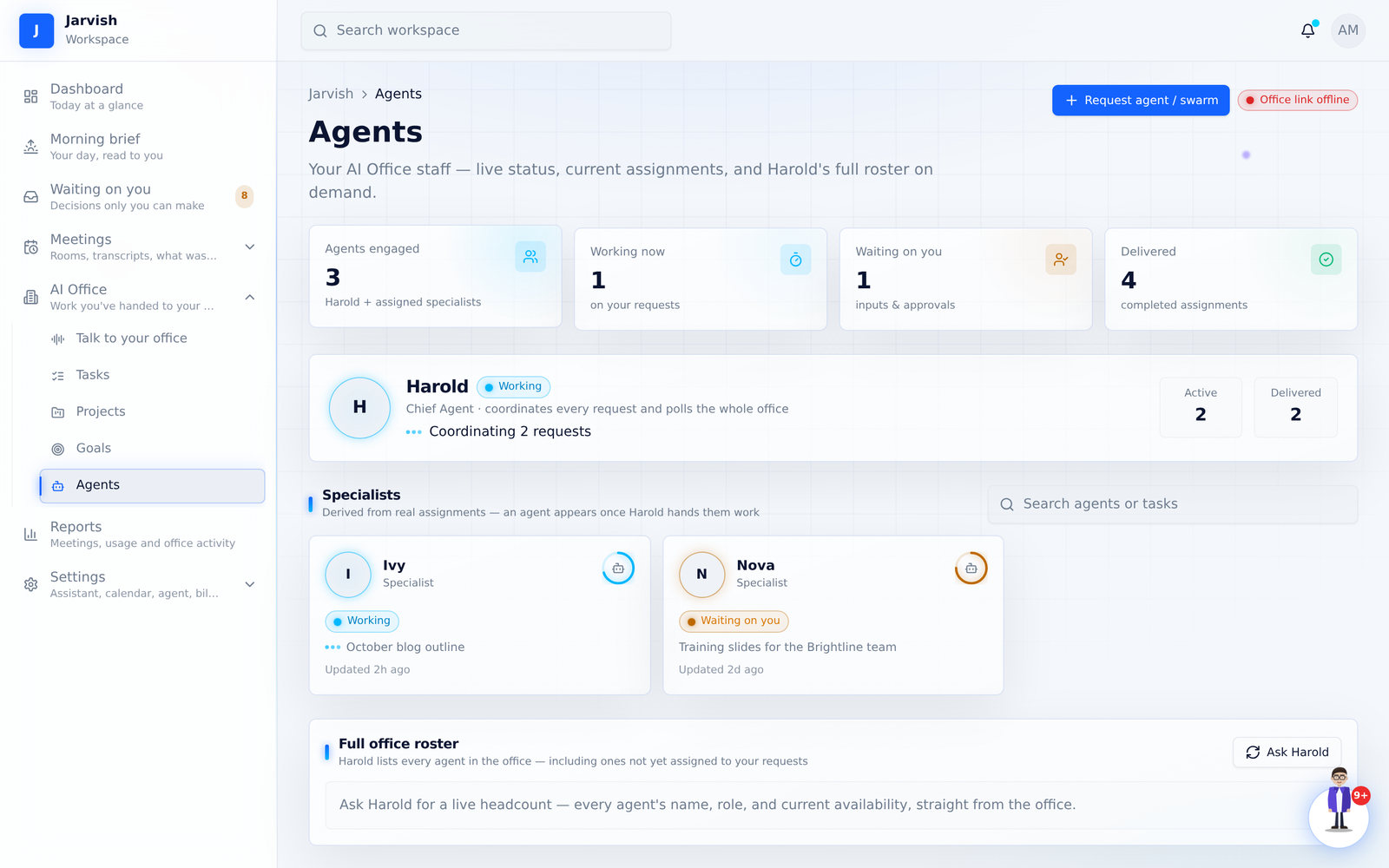
On the Jarvish + Office plan the Agents page shows your main agent, each specialist with live status and current assignment, and the full roster on demand. Request agent / swarm asks the office to add capacity. On other plans the item stays visible but greyed, with a link to the plan that unlocks it.
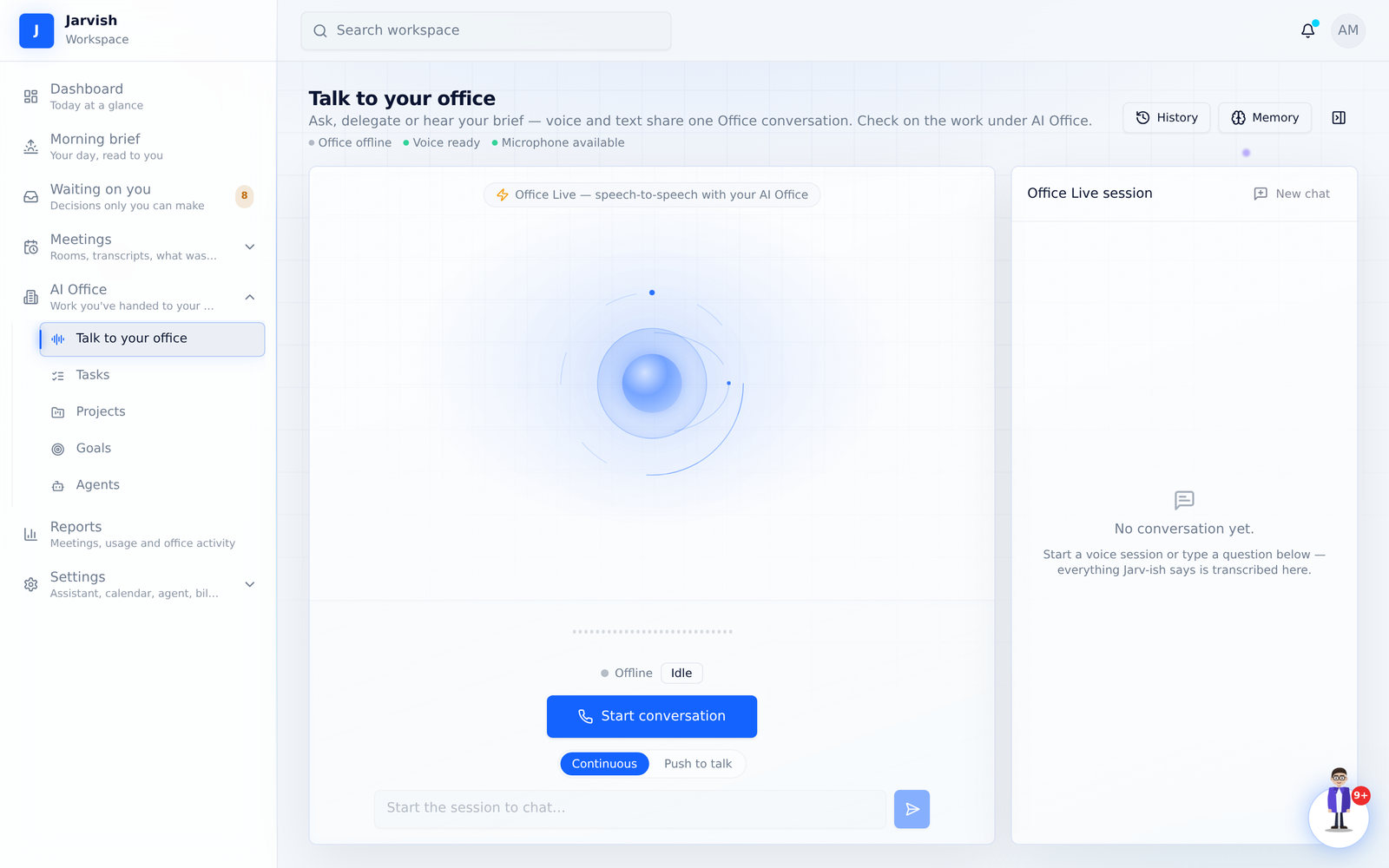
Talk to your office
One speech-to-speech conversation with your assistant: ask about your day, delegate a request, hear your brief, or answer an agent’s question.
- Open AI Office → Talk to your office and click Start conversation. Allow the microphone when the browser asks.
- Choose Continuous (it listens and replies, and you can interrupt any time) or Push to talk.
- Or type in the box at the bottom — voice and text share the same session, and the transcript appears on the right.
- History shows past sessions. Memory shows what your assistant has been told to remember (approved items only).
- If the office is offline, the assistant still answers from what Jarv-ish knows; office requests are queued until it’s back.
The morning brief
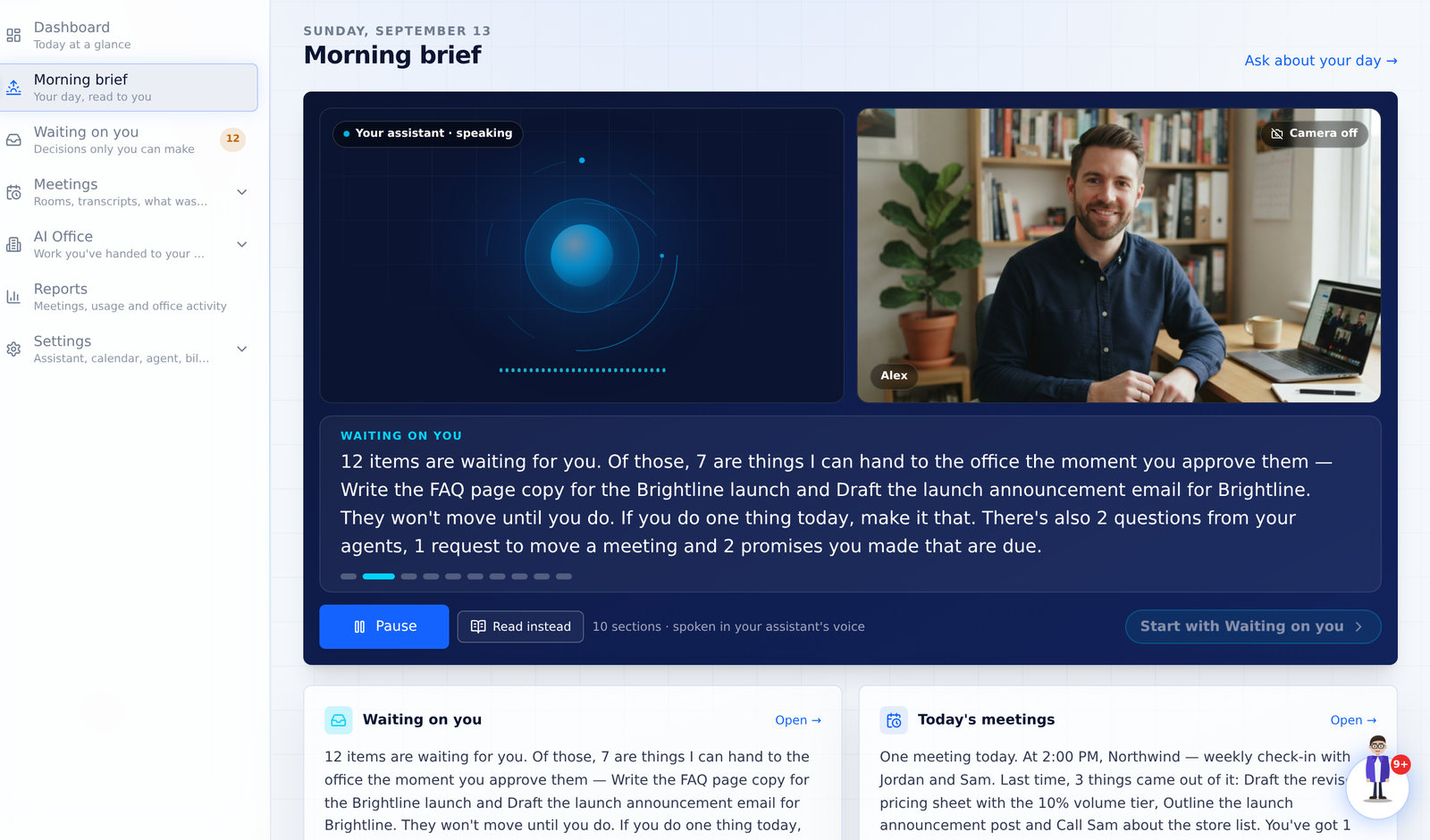
Every morning your assistant walks you through the day out loud — two to four minutes, like the first call of the day. Your assistant on one side, you on the other, and what’s being said as a live caption between you.
- Open Morning brief in the sidebar, or the email’s ▶ Play your brief button (it starts speaking on arrival).
- Press Play brief. The caption follows each section as it is spoken; the small bar under it shows where you are — click a segment to jump.
- Turn on camera if you want to see yourself in the call — handy when you record your screen. Your choice is remembered on this browser, and the camera only ever starts from your tap.
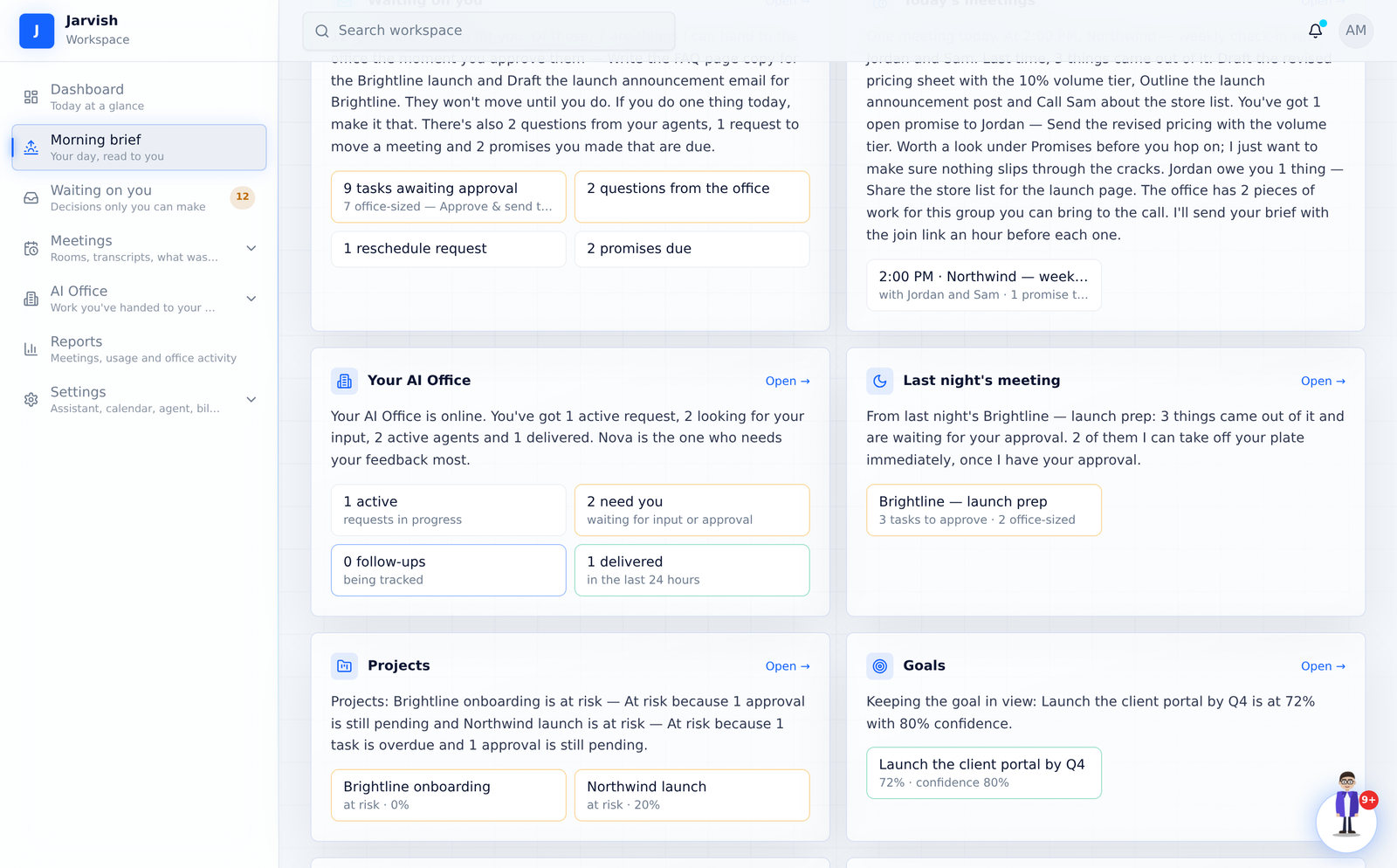
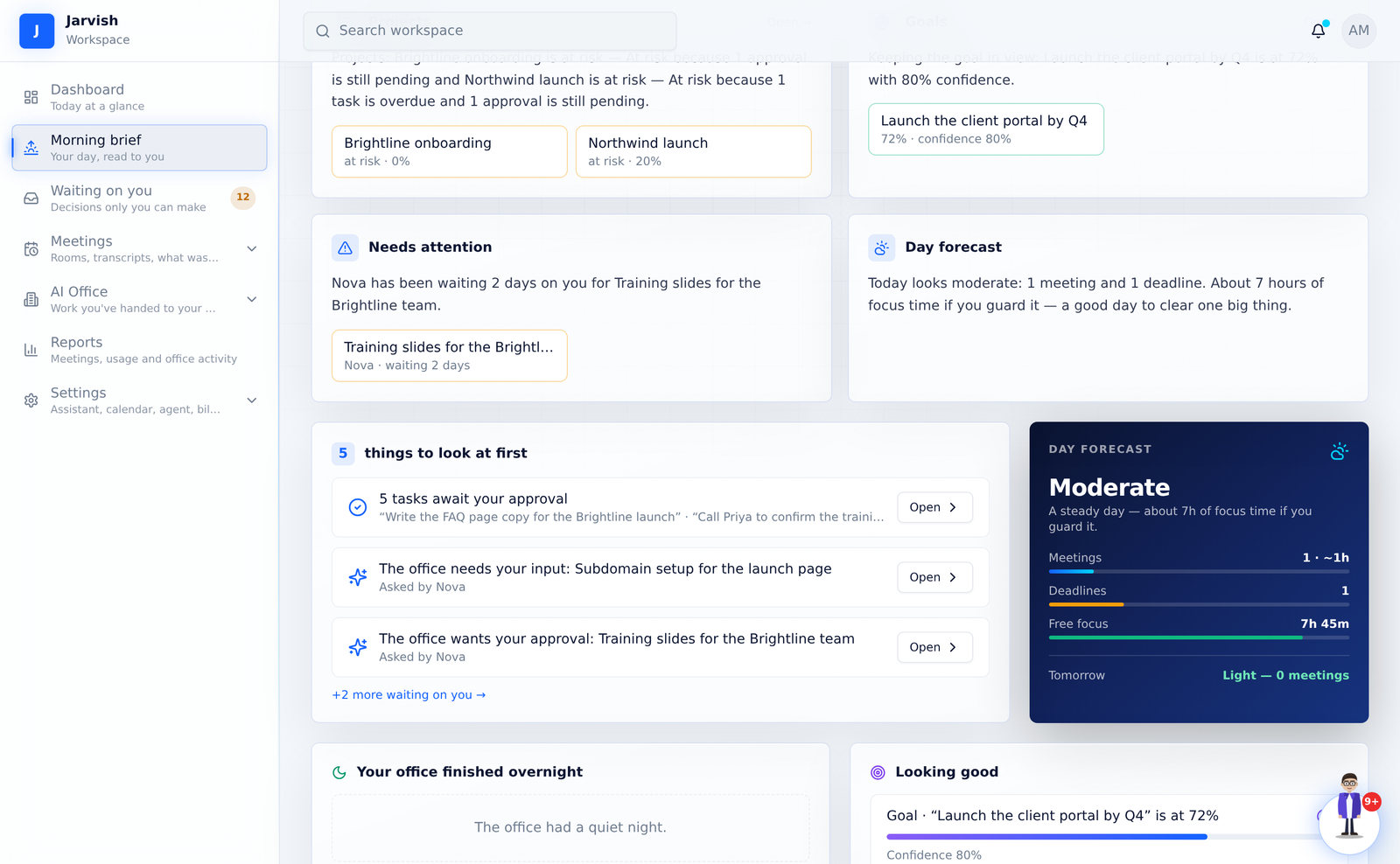
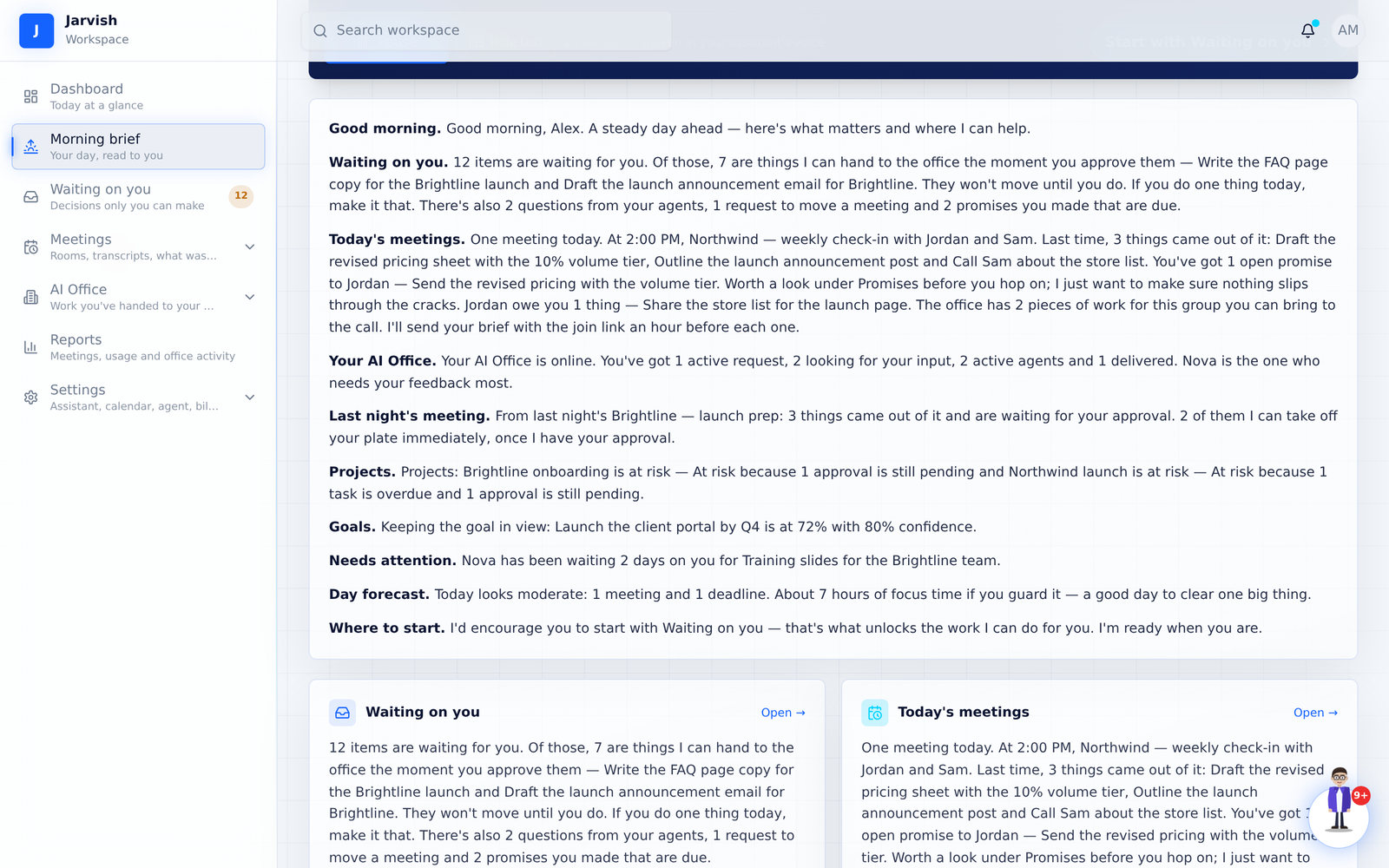
- Read instead shows the whole brief as text. Every section is also a card below, with links straight into the app.
- When it ends: Start with Waiting on you — the button pulses when something is actually waiting.
What it covers
In this order — and a section with nothing to say is left out entirely, so it never reads you a list of zeros:
| Good morning | Sets the tone from the real load: “I hope you have your coffee for this one…” on a heavy day, “here’s the short version” on a light one. |
|---|---|
| Waiting on you | The true total from your queue, and inside it how many are office-sized: “Of those, 7 are things I can hand to the office the moment you approve them — they won’t move until you do. If you do one thing today, make it that.” Then agent questions, reschedule requests, promises due, suggested automations and plans to review. |
| Today’s meetings | Each meeting with its time and who it is with, what came out of the last one with that group, your open promises to them, what they owe you, office work you can bring — and a reminder that the brief with the join link lands an hour before. |
| Your AI Office | Online or offline, active requests, follow-ups tracked, items needing your input, active agents, delivered, updates today — and which agents need your feedback most. |
| Last night’s meeting | “From last night’s launch prep: 3 things came out of it… 2 of them I can take off your plate immediately, once I have your approval.” |
| Projects · Goals | Only when you have them: each active project’s health and why; your goals with progress and confidence, so they stay front of mind. |
| Needs attention | Only when true: the office gateway unreachable, the agent’s AI provider out of credit, failed requests, an agent that has been waiting days on you. |
| Day forecast · Where to start | Light / moderate / heavy with real advice (deep work, protect the gaps, take the afternoon off), then one concrete first step. |
Tasks, projects, goals and reports
Where the work that came out of your meetings lives once it has been approved — and how you see whether it is moving.
Tasks
All action items from your meetings (and any you create), with status, priority, owner, due date and the source meeting. The approval card sits at the top; filter by status (To do, In progress, Blocked, Done) and priority. Ask AI on a row opens the assistant with that task as context. Tasks handed to the office show With the office, then Done by the agent.
Projects
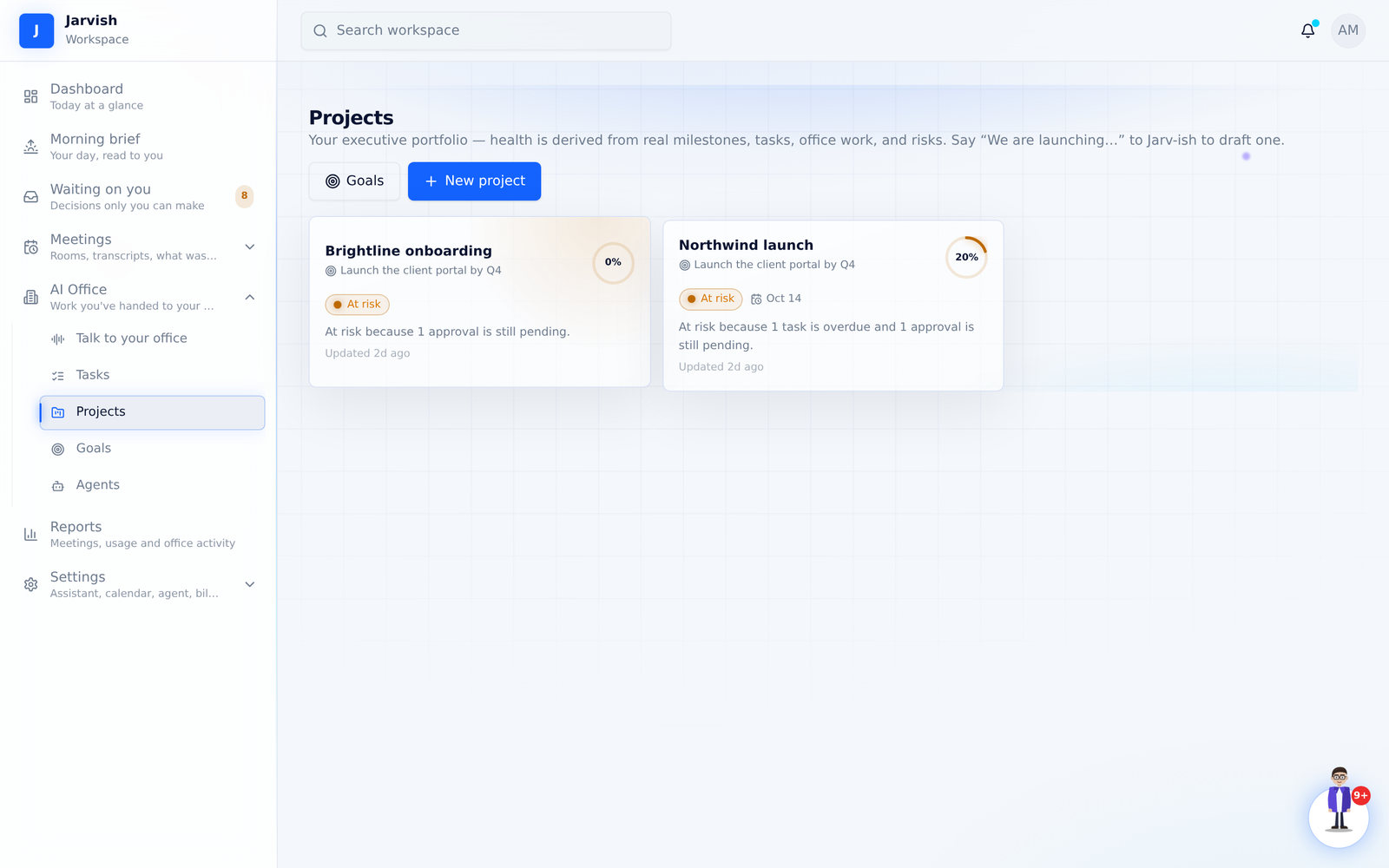
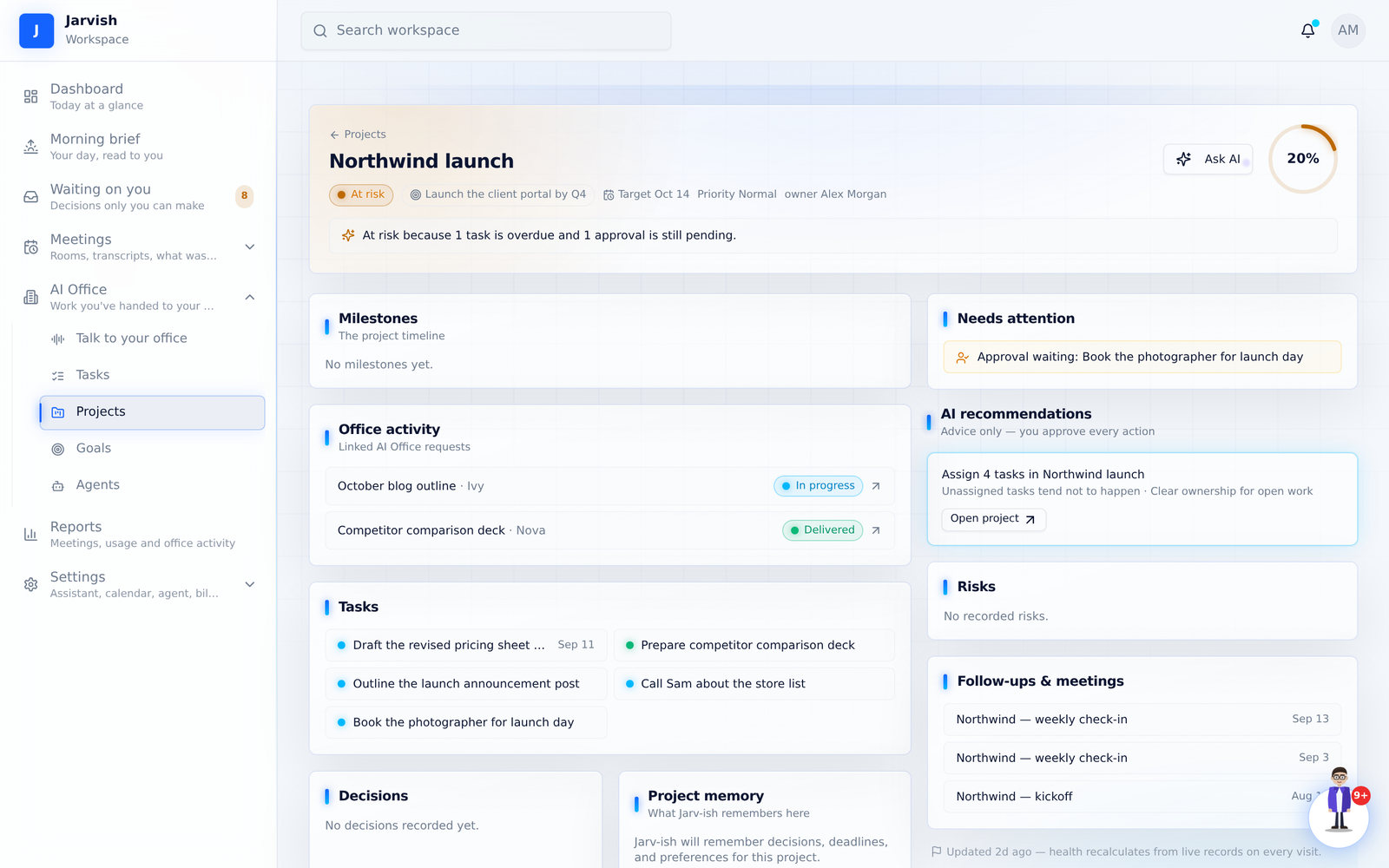
Projects group meetings, tasks, office work, milestones, risks and decisions. Health is derived from those — never typed in. Create one with New project, or say “we’re launching …” to Jarv-ish and approve its plan. Open a project for its workspace: objective, milestones, tasks, office requests, risks and plan proposals.
Goals
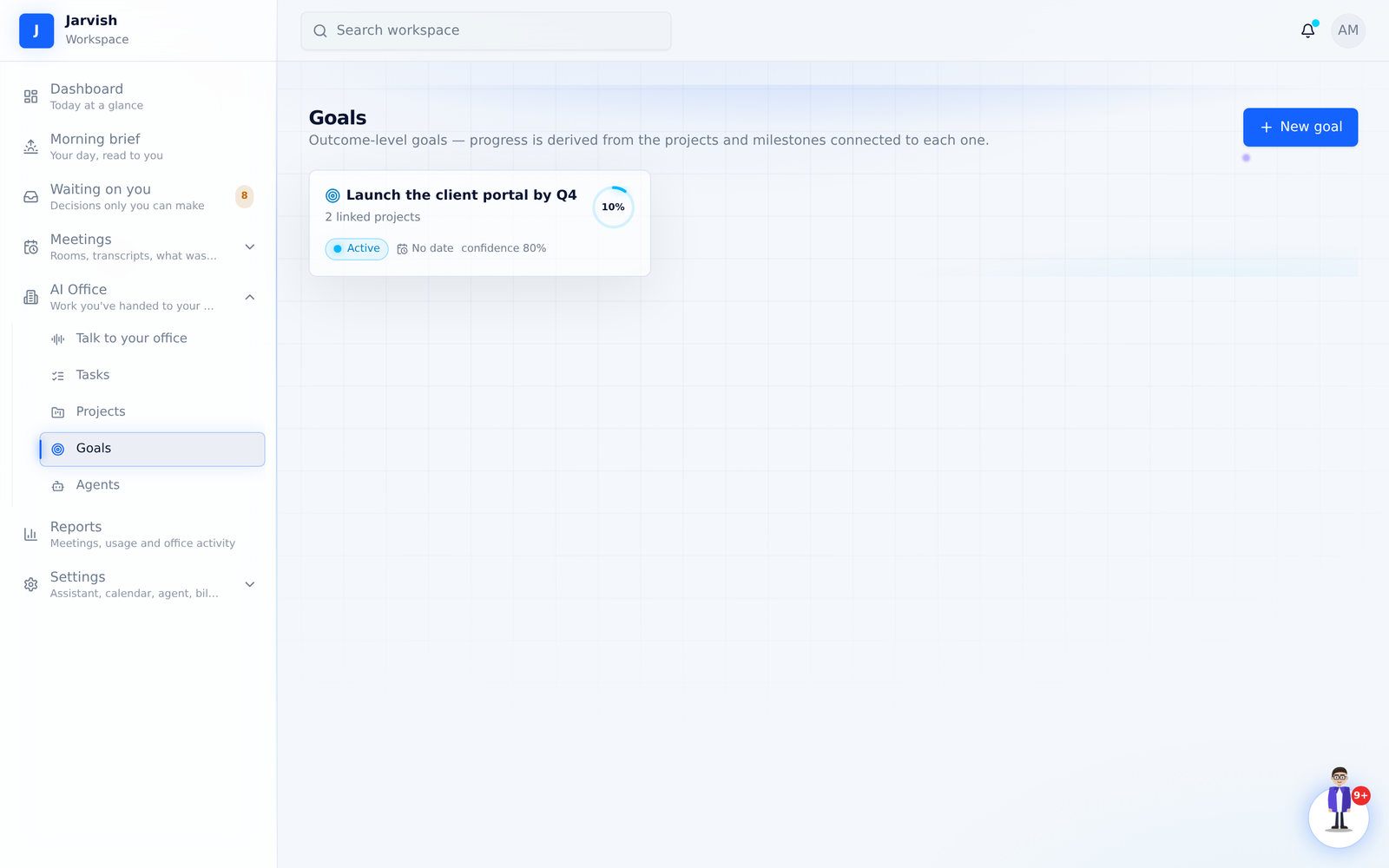
Outcome-level goals with progress and confidence rolled up from the projects linked to them. New goal creates one; link projects from the project page.
Reports
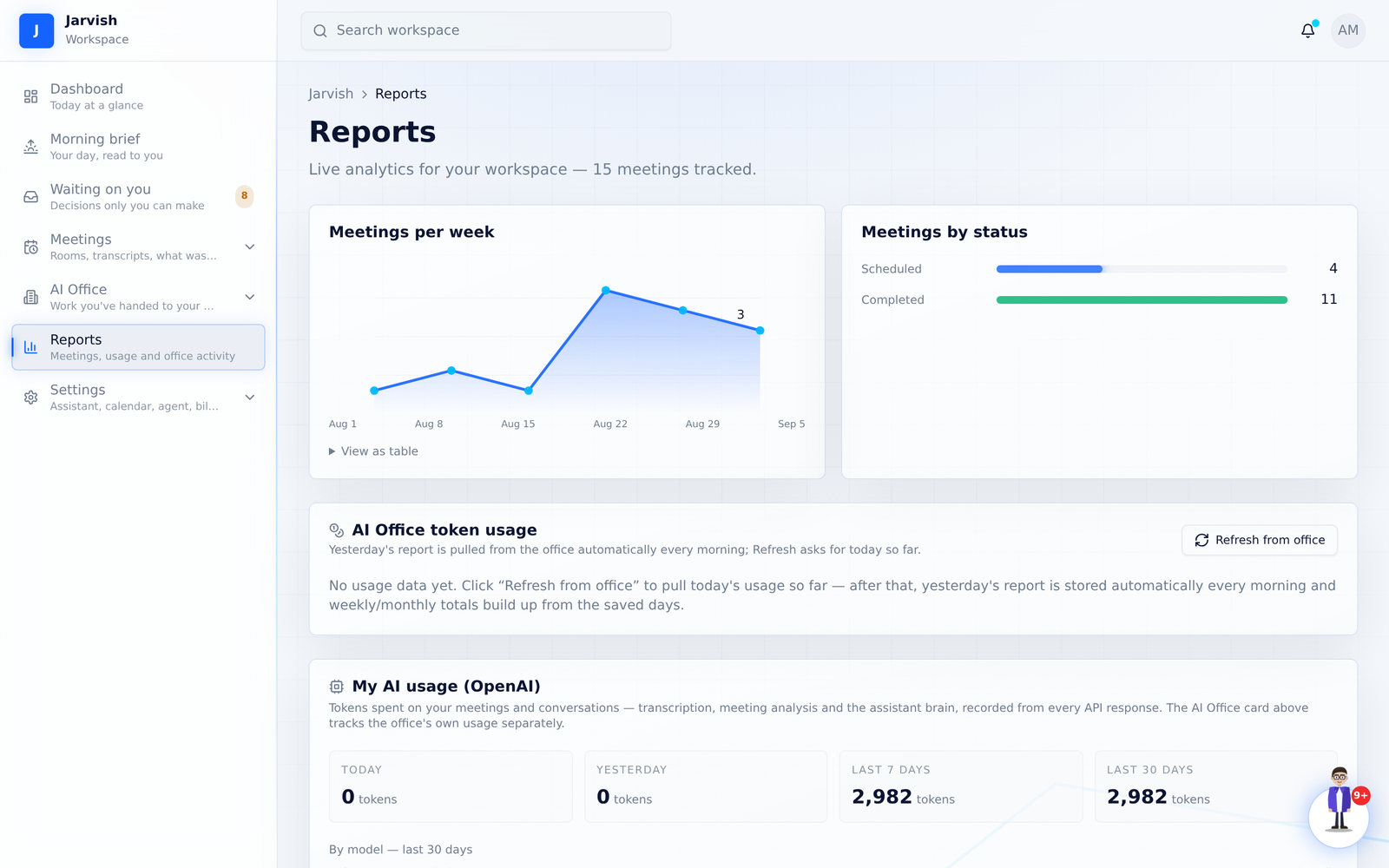
Meetings per week and by status, your AI usage (transcription, analysis, assistant), and your office’s token usage per agent — pulled from the office every morning, or on demand with Refresh from office.
Settings, profile and notifications
Everything you can change about your assistant, your calendar, your agent, your look and your account.
Your assistant
Name, preferred language, voice and speaking style — used for every spoken reply, every brief, and when it speaks in a meeting. Advanced lets you choose the voice engine.
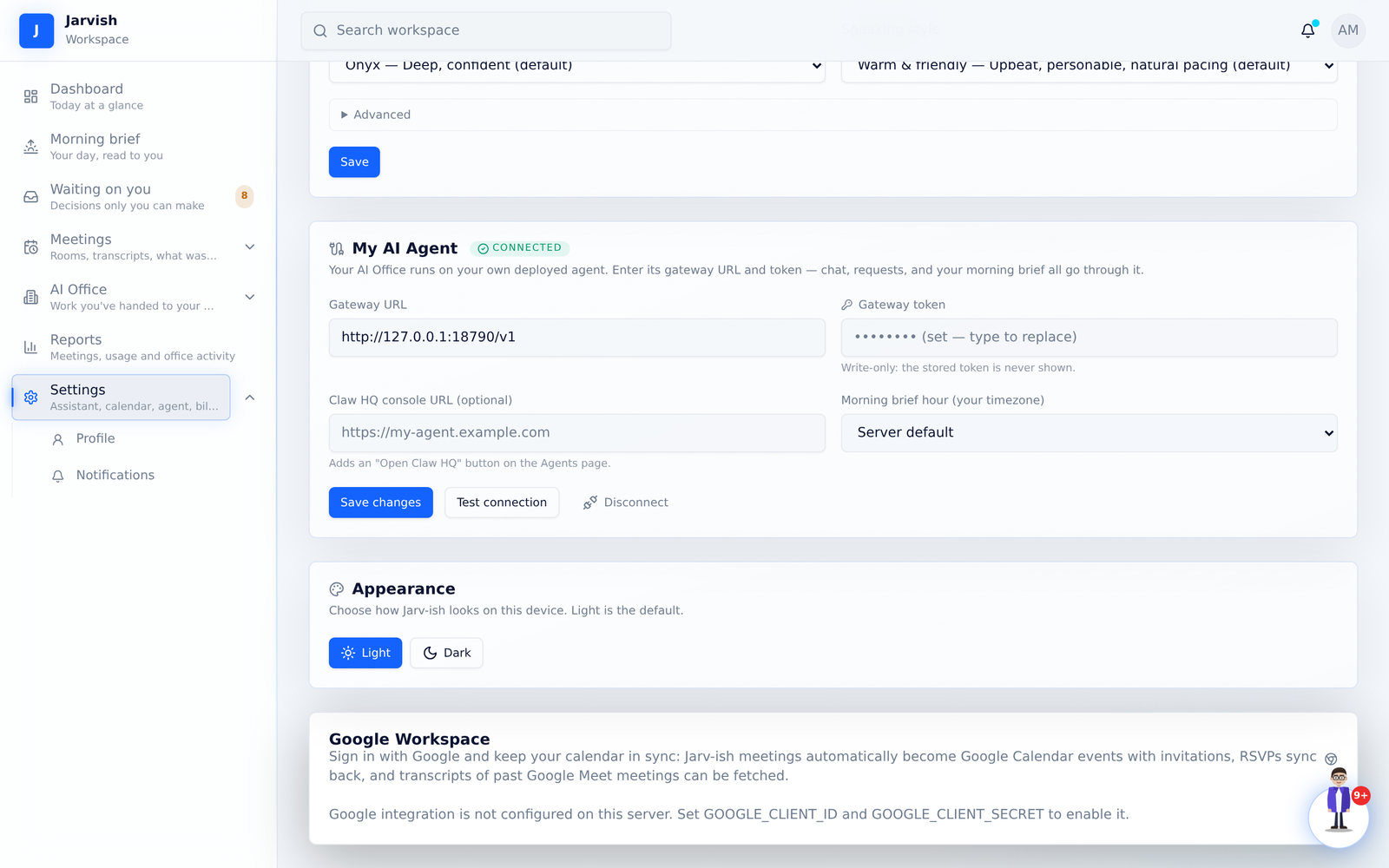
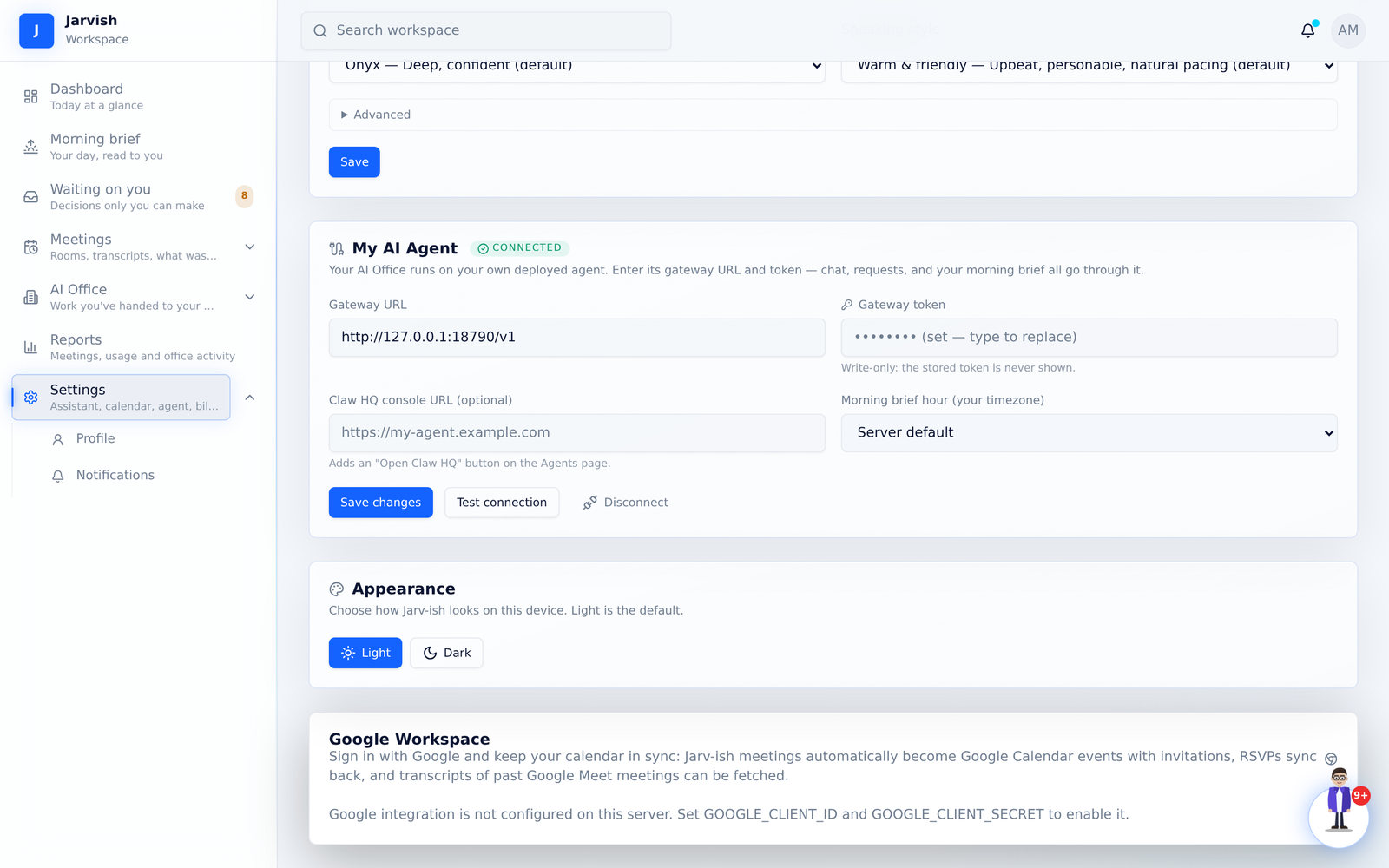
My AI Agent, Appearance, Google Workspace, Plans
My AI Agent is the office connection (chapter 6). Appearance switches light and dark. Google Workspace connects your calendar (invitations, RSVPs, transcripts of past Google Meet meetings). Plans shows your current plan and lets you switch; upgrades apply within a minute of checkout.
Profile and notifications
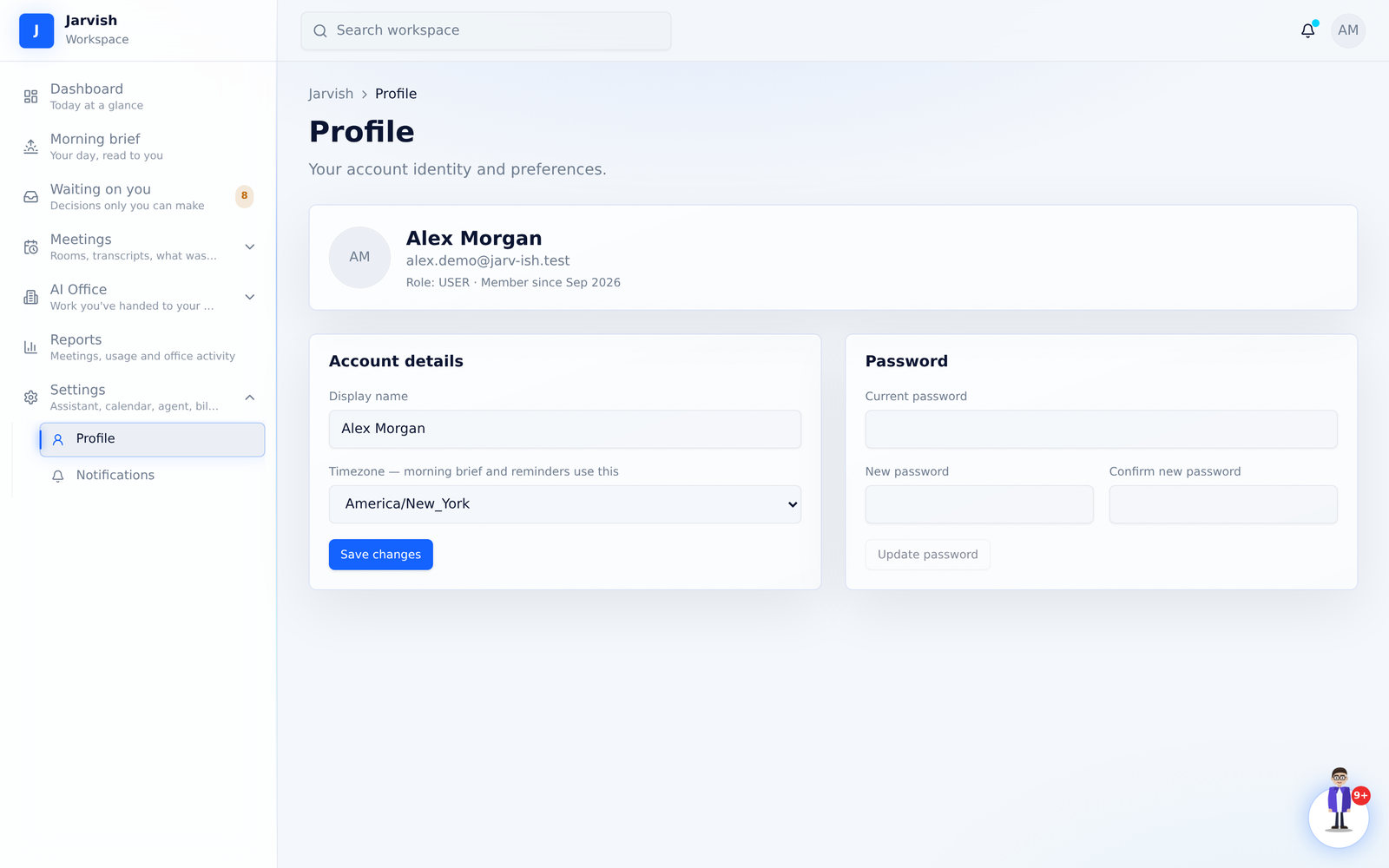
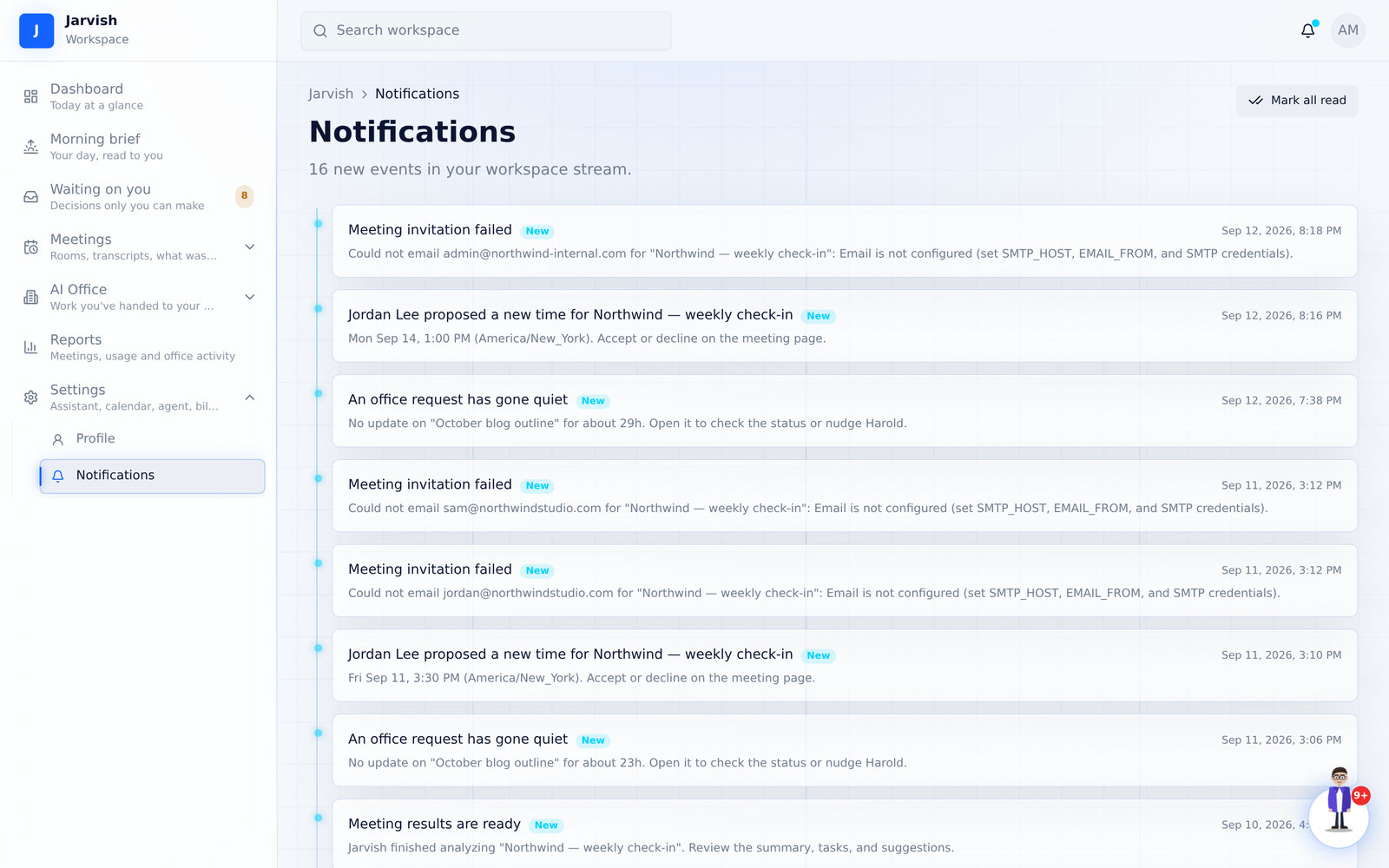
Profile holds your display name, timezone (used for the morning brief, meeting times and reminders) and password. Notifications lists every event in your workspace — meeting analysed, proposal received, office delivered or waiting, recap answered — with Mark all read. The bell at the top shows the unread count.
Plans
Three plans. Everything in the guide above works on all of them except where a feature is named as office-only.
| Connect — $49 / month | Meetings, transcripts & AI analysis · voice assistant · meeting agent · tasks, projects & goals · connect your own agent (the office runs on your gateway). No managed agent included. |
|---|---|
| Jarvish — $99 / month | Everything in Connect, plus one general skilled agent included, no setup — delegate work from chat or voice, and a morning brief every day. Single agent. |
| Jarvish + Office — $499 / month | Everything in Jarvish, plus the full AI Office — up to 20 agents or 7 swarms, specialist agents & roster, office token usage per agent, priority support. |
Checkout happens on the store; access unlocks automatically when the paid order arrives, matched by the checkout email — use the same email you sign in with. Switching plans keeps your data and settings.
Quick answers
The questions people actually ask in the first week.
| Why is a meeting time different on two pages? | Times are shown in the meeting’s own timezone (with the zone label), falling back to your profile timezone. Set your timezone in Profile. |
|---|---|
| Nothing happened when I clicked Approve | The row disappears immediately and a message confirms it. If the server refuses, the row comes back with the reason. Refresh if the badge count looks stale. |
| I only got one email before my meeting | That is by design: an hour before, you get the brief with the join link inside it — reminder and brief in one. Attendees still get their own reminder. |
| No day-before email arrived | Nothing was open for that meeting, so nothing was sent. When there is something, you get a one-line offer with a “Show me the agenda” button. |
| The pre-meeting brief mentions the wrong client | Only the other side of the table defines “this group”. A colleague of yours who joins nearly every call is treated as internal automatically. |
| Jarv-ish doesn’t answer in the call | Say the name you gave your assistant (or “Jarvis”). In Observer mode it never speaks; in Addressed only it needs its name once, then follow-ups work for 25 seconds. |
| A guest proposed a time in Google Calendar | Google keeps that inside Google. Ask them to use the “Propose another” link in the invitation, or change the time yourself with Edit meeting. |
| Background blur doesn’t apply | It runs on your own computer in Chrome or Edge; older machines can be slow. Pick None to turn it off. |
| I left the room by mistake | The host can Reopen room for 60 minutes; the same link works for everyone. |
| No office buttons on my tasks | Your AI Office isn’t connected yet — Settings → My AI Agent. Until then you get Approve, Edit & approve and Dismiss. |
| Agents is greyed out | It is part of the Jarvish + Office plan — click it for the upgrade link. Your single agent still works everywhere else. |
| Where do agent questions go? | Waiting on you → “The office is waiting on you”, plus a notification and the top of your next morning brief. Answer in Office → Requests, or by voice. |
 Ready
Ready
Everything above works on your first meeting.
Create a workspace, name your assistant, and get a brief before your next call.